
Contact Transfer
In sales, timing is everything. With MagicBlocks, you can make sure that every qualified contact captured by your AI Agent gets sent to the right place at the right time, automatically. Whether you're collecting emails, phone numbers, or custom data like budgets and preferences, the Contact Transfer feature ensures you never miss a hot contact.
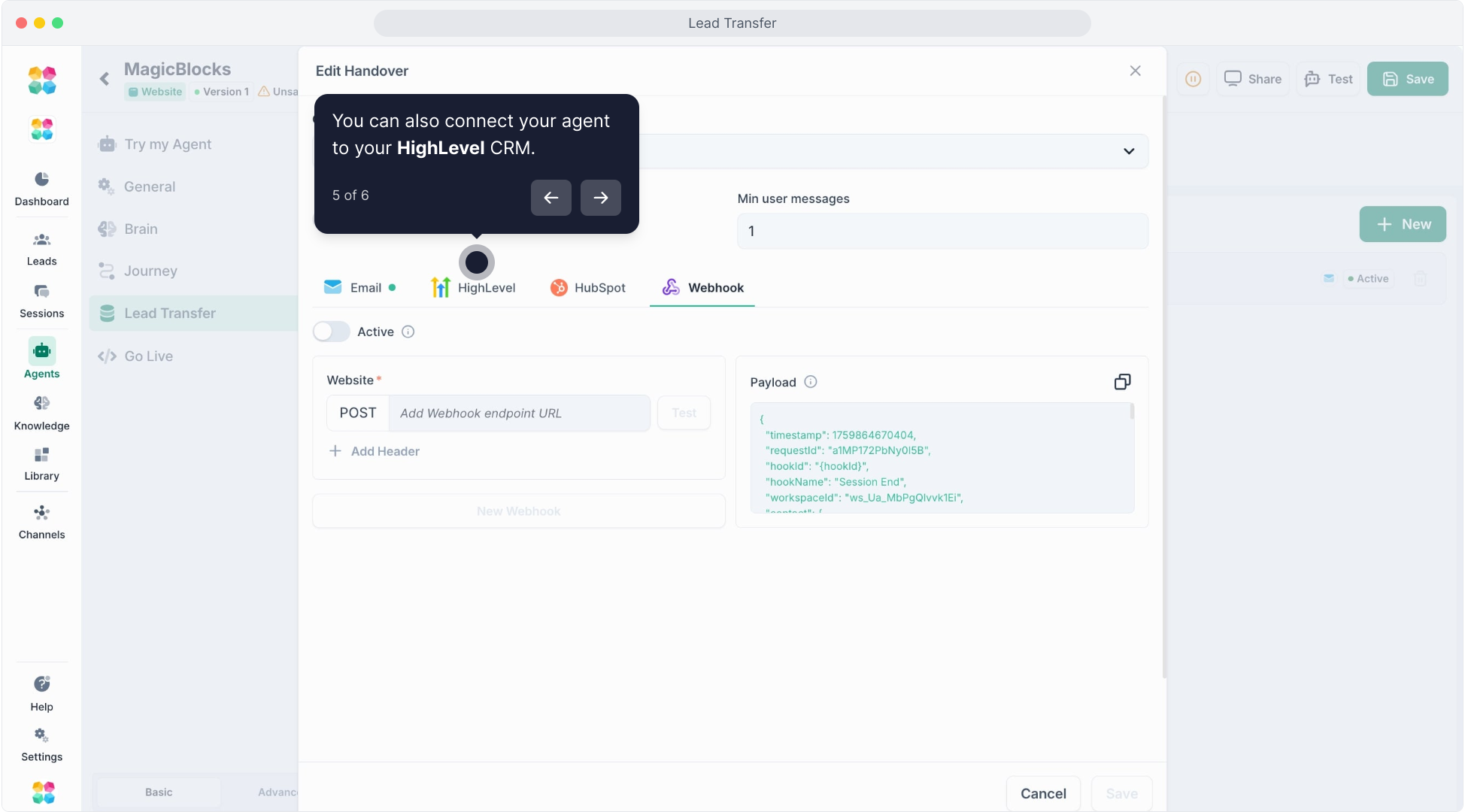
You can deliver this information via:
- Email – to your sales or marketing team
- Webhooks – for integrations with tools like Zapier or custom apps
- HighLevel CRM – to continue nurturing and automating follow-up
- HubSpot CRM – for deal creation, pipeline management, and automation
Let’s walk through how to configure it.
Step-by-Step Guide to Setting Up Contact Transfer:
Step 1: Open Contact Transfer Settings
Go to the Agents section in your MagicBlocks dashboard.
Select the Agent you want to configure.
In the Agent Settings panel on the left, click Contact Transfer.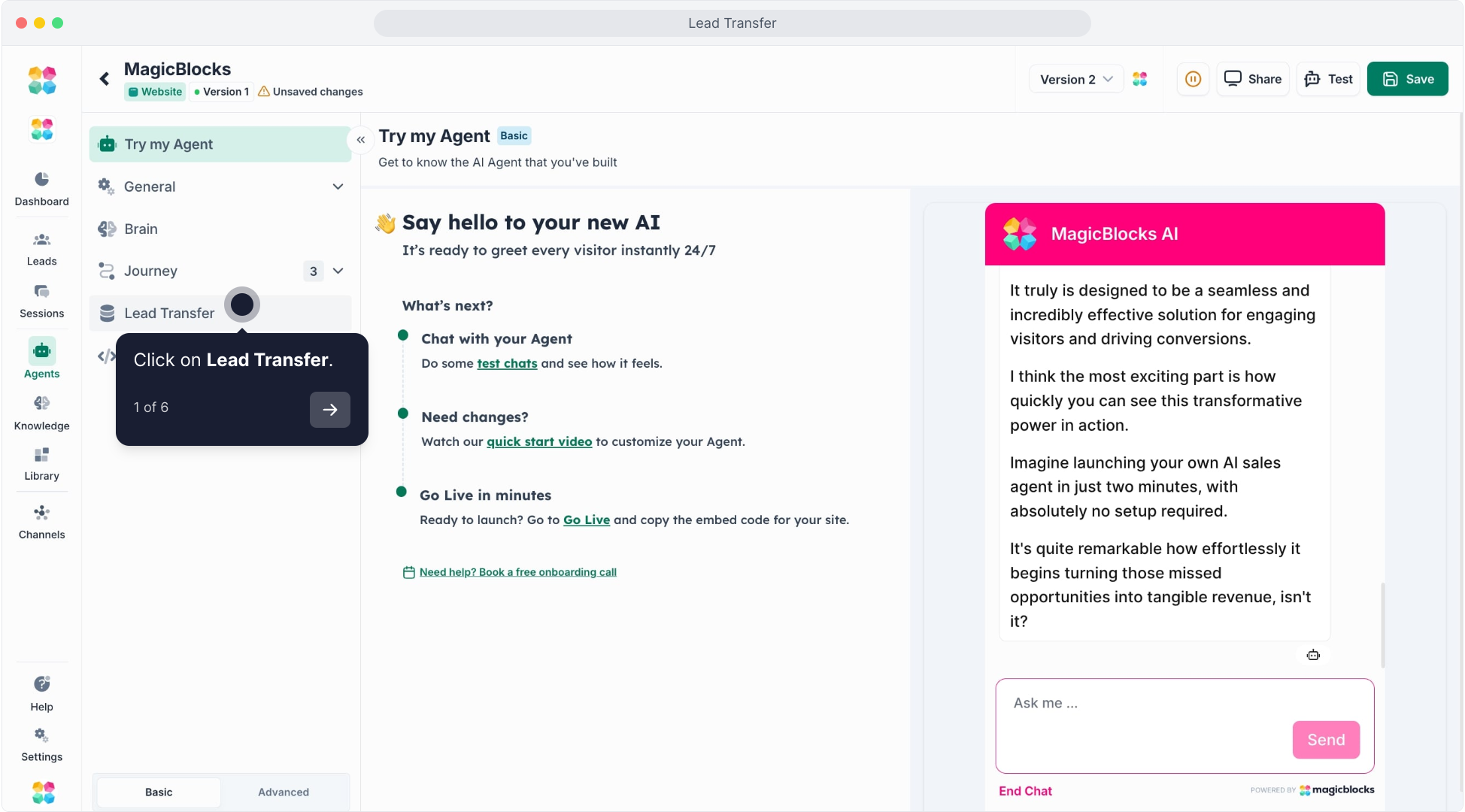
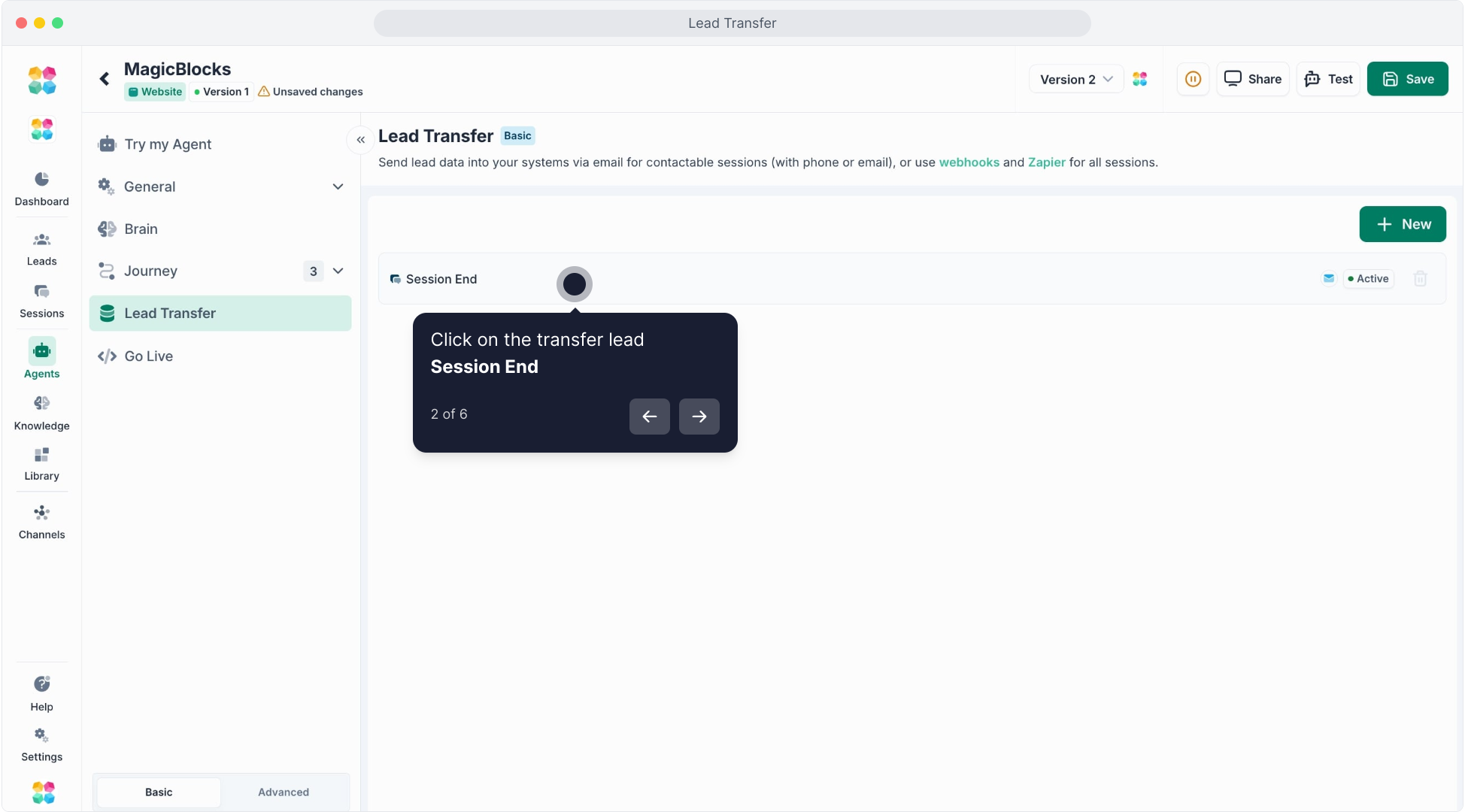
This will open up all available options for delivering contact data to your preferred systems.
Step 2: Choose When to Send the Contact
In the “Select event to send contact” dropdown, choose the moment when the Agent should pass on contact data. You have two options:
Session End – sends the contact at the end of every conversation.
Goal – only sends the contact when a specific condition is met (e.g., when a user books a call or submits their email).
Pro Tip: Use “Goal” if you only want to hand over qualified or contactable contacts.
Send Contacts via Email
Step 3: Enable Email Delivery
Click on Email Setting.
Toggle ON the option to Activate contact delivery.
This enables contact delivery to one or multiple email addresses.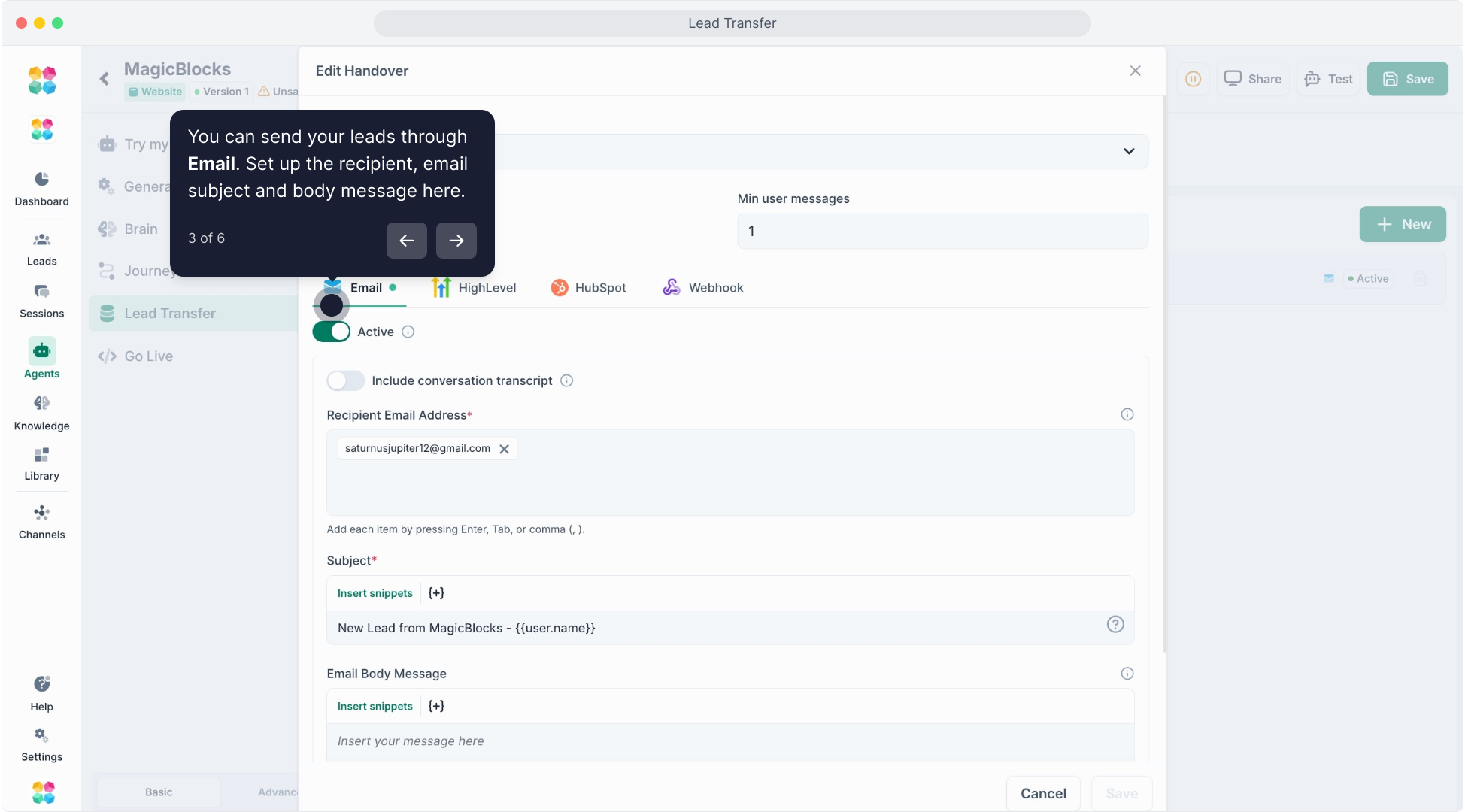
Step 4: Configure Your Email
Recipient Email Address: Add any address you want to notify, like your sales inbox ([email protected]).
Subject Line: Use a clear, specific subject like New Contact from MagicBlocks
Email Body Message: Craft a message that includes all key data using dynamic snippets, like: A new contact has arrived from your website, then mention their important details.
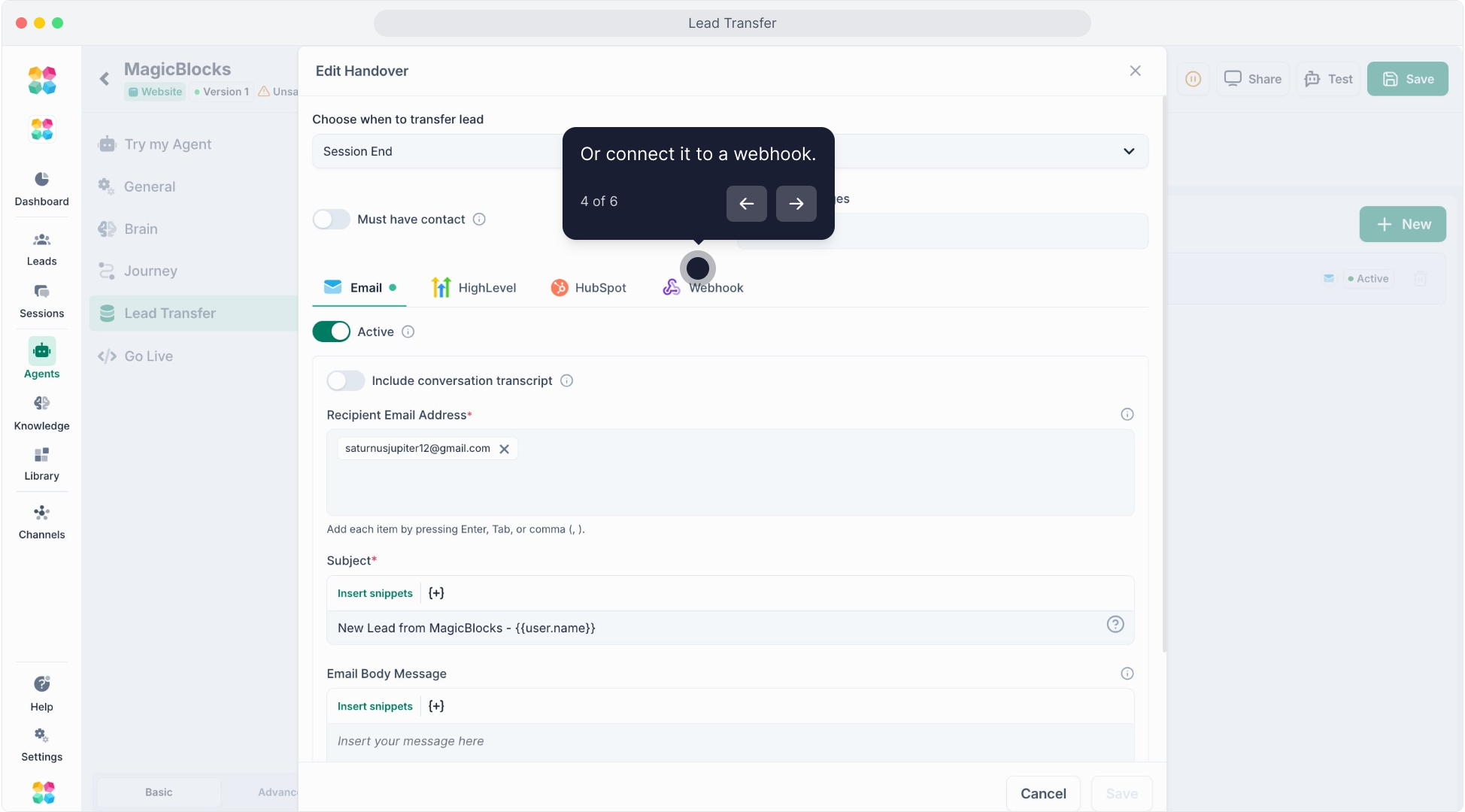
Send Contacts via Webhook
Step 5: Activate Webhook Delivery
Click on Webhook Setting
Toggle ON Activate contact delivery
Step 6: Enter Webhook Info
Webhook URL: Paste the endpoint where you want to send contact data (e.g., Zapier webhook, internal API).
Field Mapping: Map each key fact (e.g., user.name, key_fact.course) to your receiving system’s expected format.
Integrate with HighLevel CRM
Watch the video below for the step-by-step on how to transfer contacts from MagicBlocks to GoHighlevel:
Step 7: Connect to HighLevel
- Click HighLevel
- Select your HighLevel account or connect a new one
- Click 'Create Your First HighLevel Connection'
- Complete the OAuth authorization process in GoHighLevel
- When it's connected, go back to your Agents > Contact Transfer
- Select the new Highlevel account connected
- Click Test Connection button to check the connection
- Click the Active toggle on
Step 8: Map Data Fields
- Link MagicBlocks fields (name, phone, email, timeline, etc.) with HighLevel fields
- This ensures data lands in the right place inside your CRM flow
- Click Save
- And then click Save/Publish on your Agents workspace
Integrate with HubSpot CRM
Step 9: Connect to HubSpot
Click HubSpot
Select or connect your HubSpot account
Step 10: Customize Deal Creation
Define a deal name dynamically using data like:
MagicBlocks Contact – {{user.name}}
Choose the Pipeline and Deal Stage where the new contact should be placed
Step 11: Save and Test Your Setup
Once everything is configured:
- Click Save at the top right
- Run a test session using your AI Agent
- Check if the contact is delivered correctly (email, webhook, CRM)
- Make sure your fields and snippets are mapped cleanly
Multiple Contact Transfers
MagicBlocks lets you configure multiple active Contact Transfers within the same Agent.
Each Contact Transfer can:
- Use a different trigger event (e.g., “Contact Captured” vs “Session End”)
- Deliver data through different channels (e.g., one to email, one to HubSpot)
- Target specific pipelines, CRMs, or teams
Example:
- “Contact Captured” → Sends high-quality contacts directly to your Sales CRM (HubSpot)
- “Session End” → Sends chat summaries and cold contacts to your marketing inbox for follow-up
You can toggle each Contact Transfer ON/OFF without deleting it — perfect for seasonal campaigns or multi-team workflows.
Click here to watch the tutorial video:
That’s It! Your Contact Transfer is Set
With MagicBlocks' Contact Transfer setup, you now have an AI Agent that doesn't just engage visitors, it sends qualified contacts straight to your team, seamlessly.
You’ll never lose a potential customer due to delayed follow-up or missed notifications again.