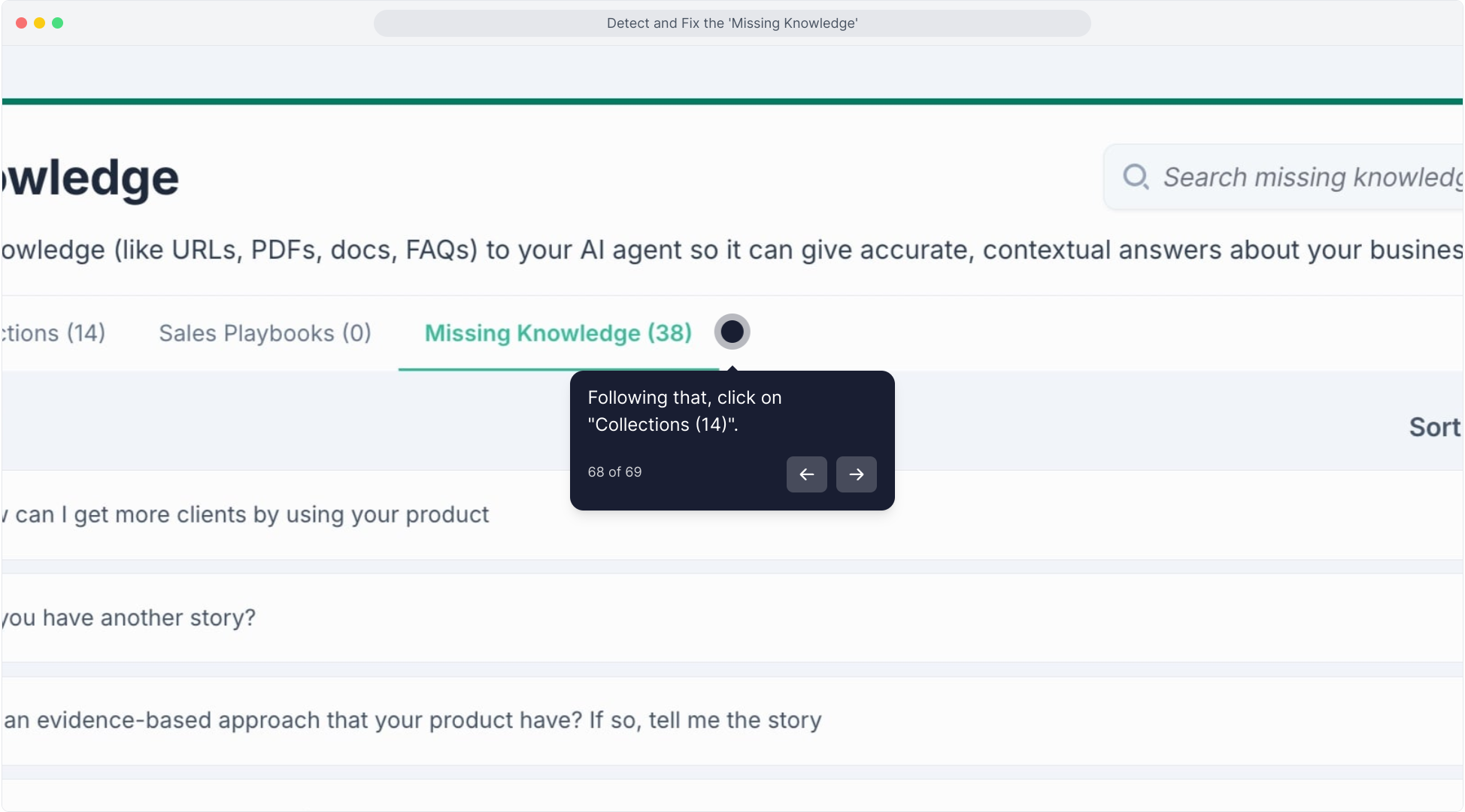
Missing Knowledge
If your AI agent responds with:
“I don’t have information about that.”
It means the system couldn’t find a confident match in your knowledge collection.
This guide shows you how to identify, verify, and correct missing or mismatched knowledge so your agent always delivers accurate, complete answers.
Step 1: Review a Conversation Session
Go to the Sessions tab in your MagicBlocks dashboard.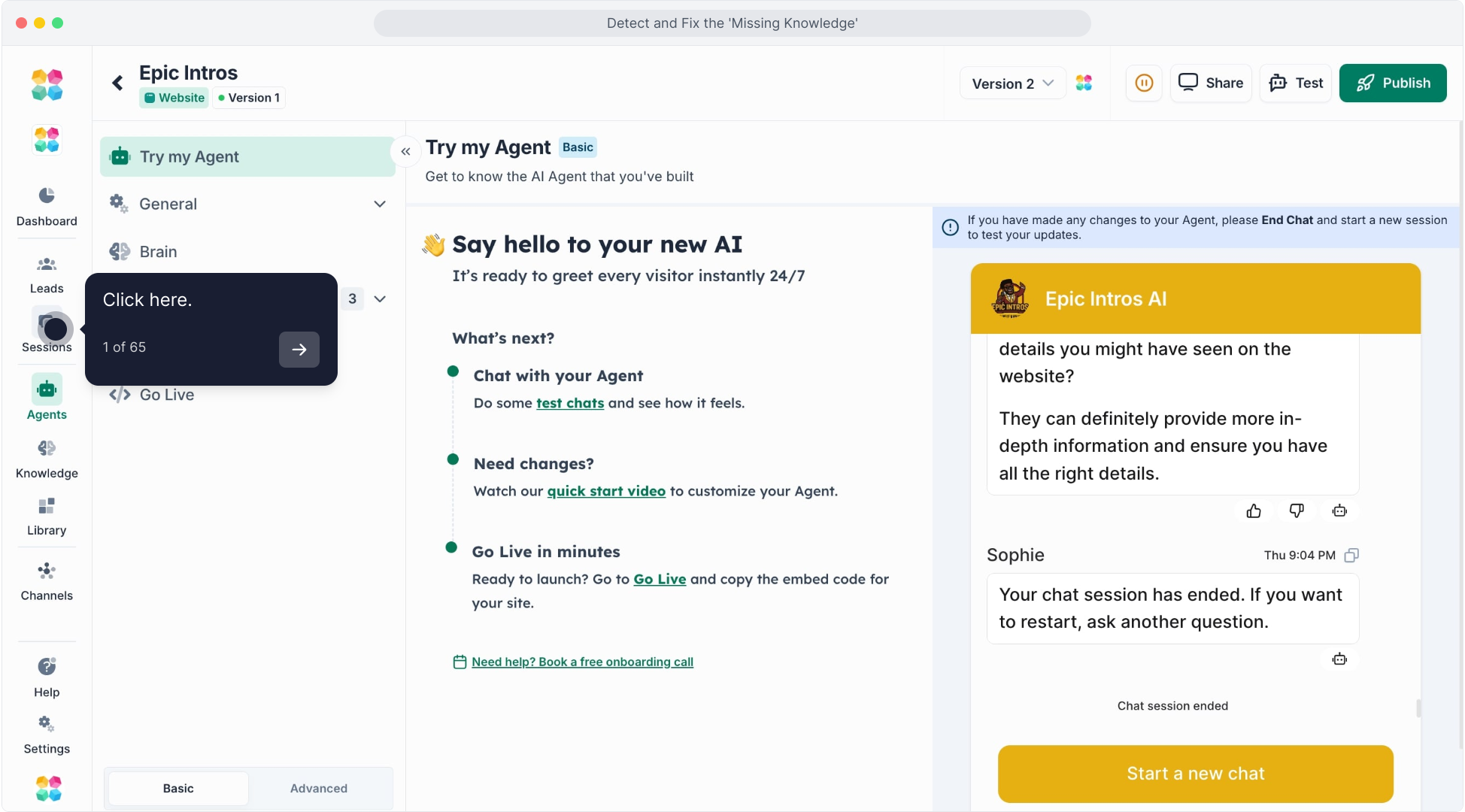
Open a conversation where your agent gave an incorrect or incomplete response.
Click the Robot Head icon in the top-right corner of the chat view.
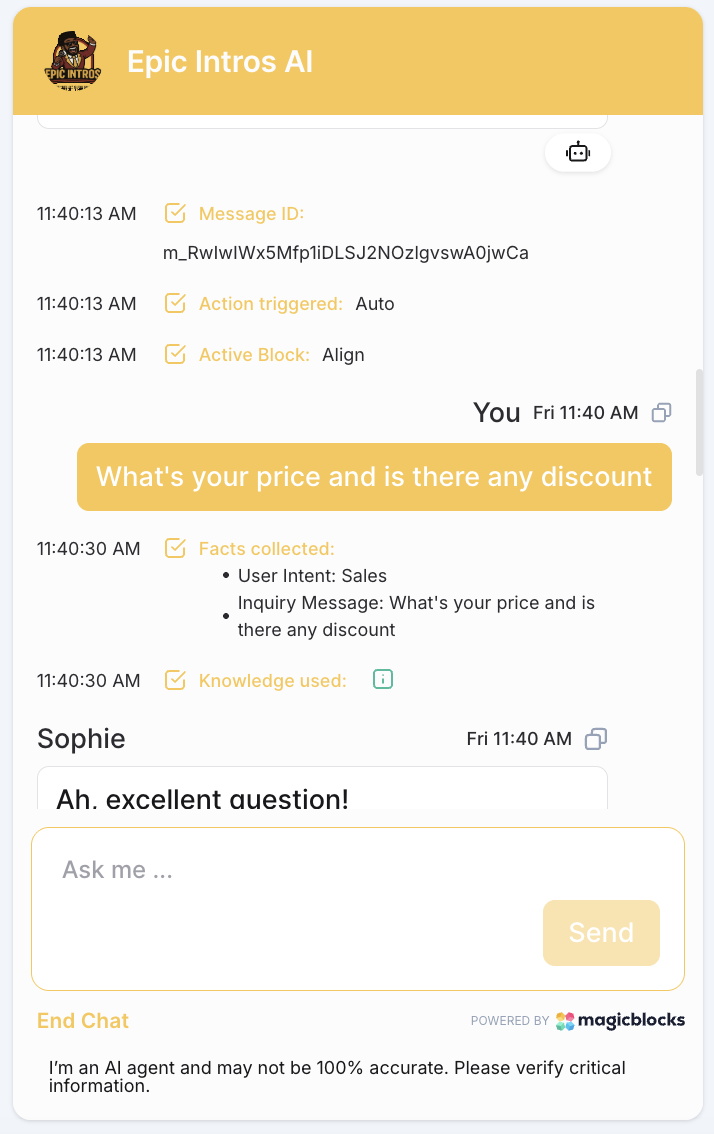
This opens the AI Debug Panel, which shows how the AI built its response, including what knowledge it retrieved and how it used it.
Step 2: Check What Knowledge Was Used
Scroll through the debug details until you see a section labeled Knowledge Used.
Expand this section to see:
- Which knowledge document or webpage was referenced
- The specific text retrieved from your collection
- Compare this content with the answer you expected.
If the correct answer exists but wasn’t matched:
- Try rephrasing the question or related keywords inside your knowledge article.
- Add more context to help the AI make stronger matches in future.
Step 3: Verify Knowledge Linkage in the Agent
Go to the Agents tab and open the relevant agent.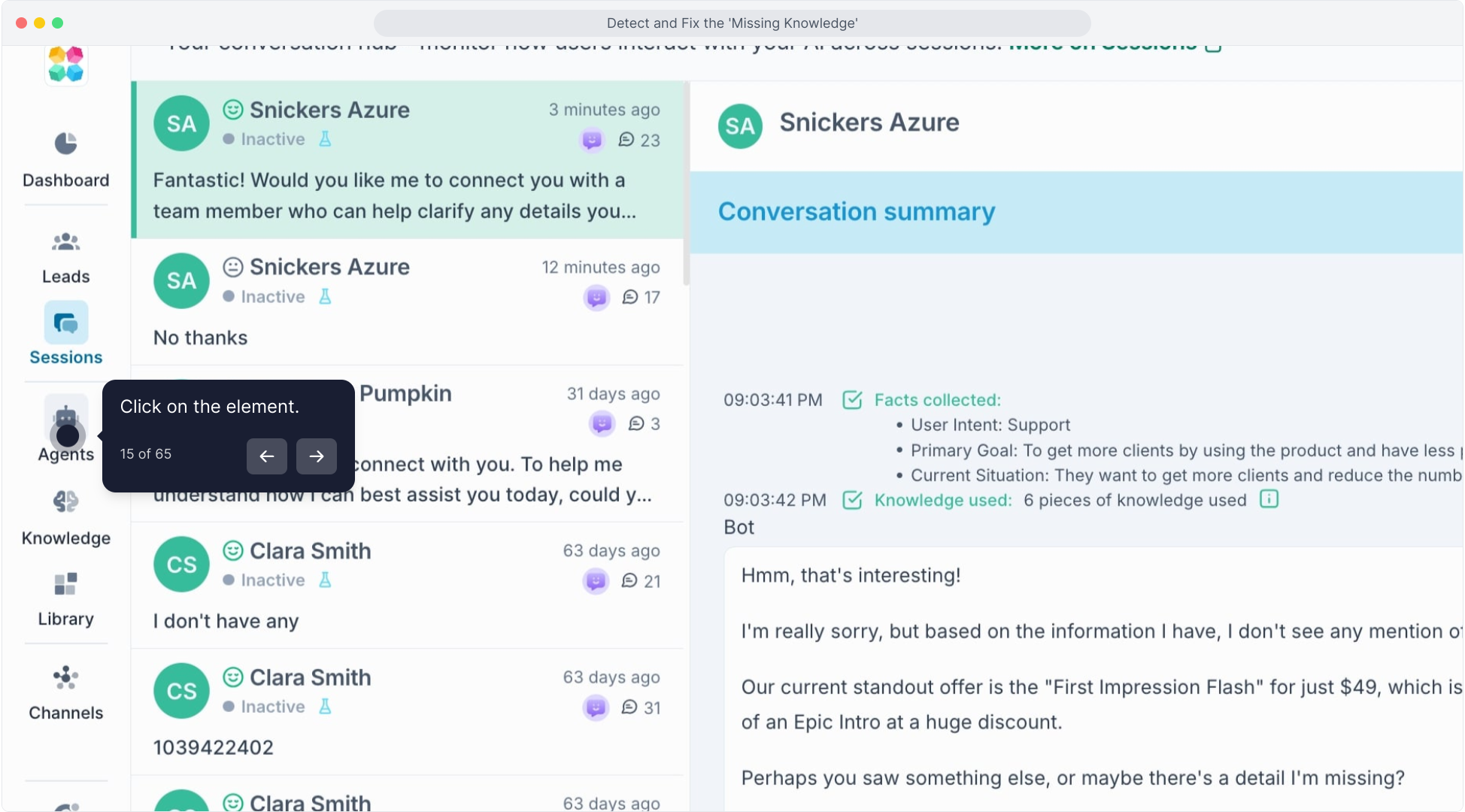
Click into the specific Journey Block where the issue occurred (for example, “Confirm Details” or “Pricing”).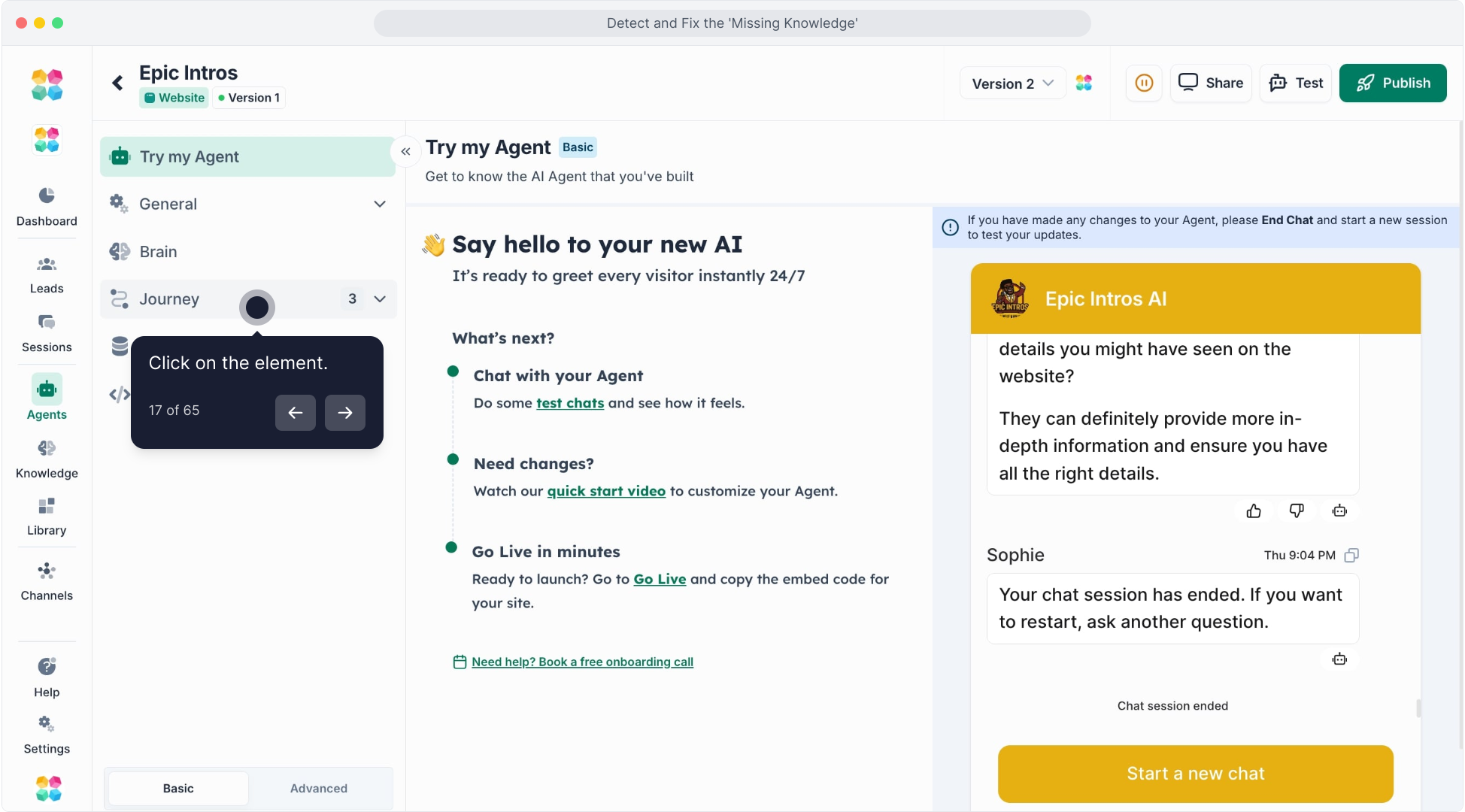
Under the Advanced tab, review the Knowledge Source field.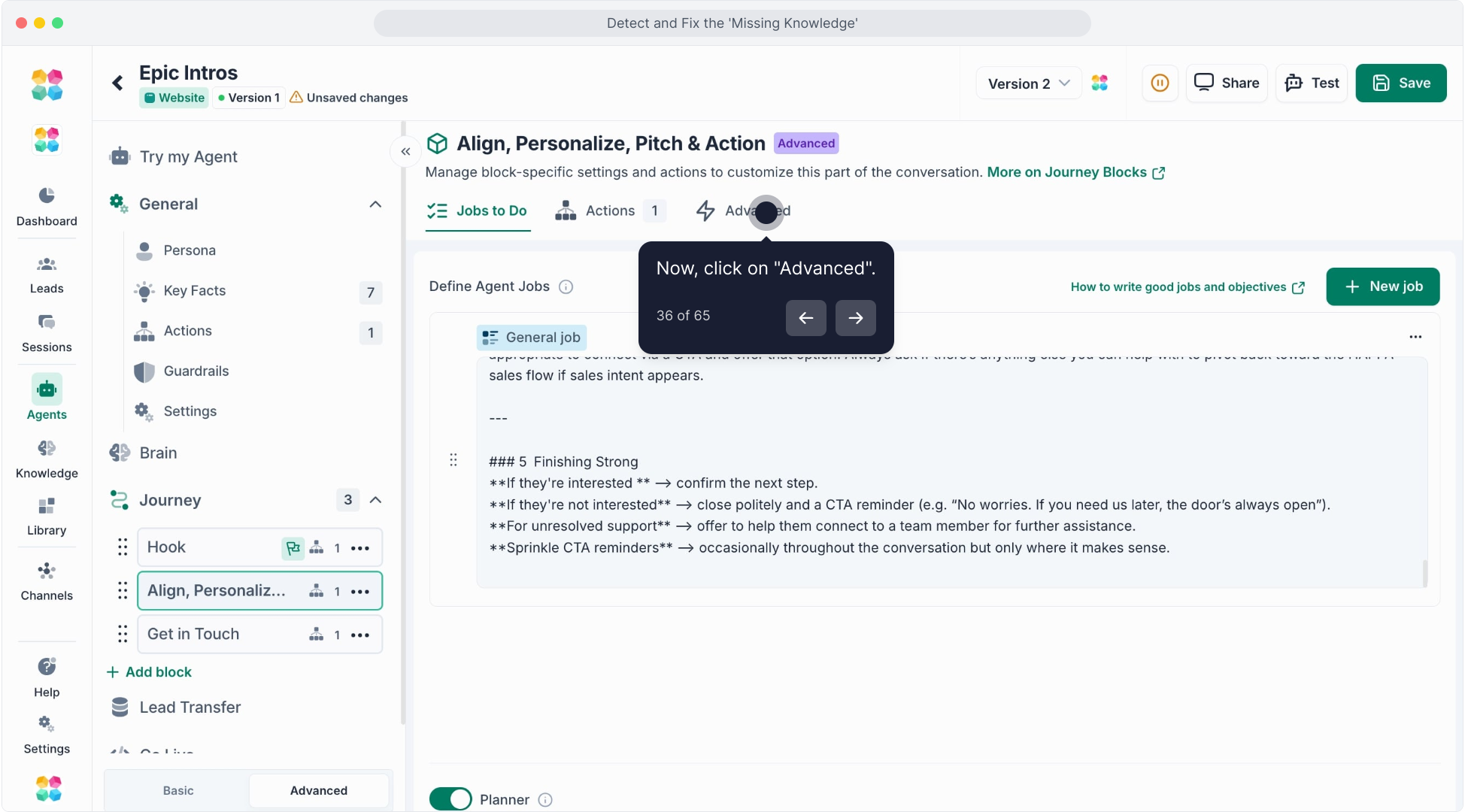
Make sure it’s linked to the correct knowledge collection.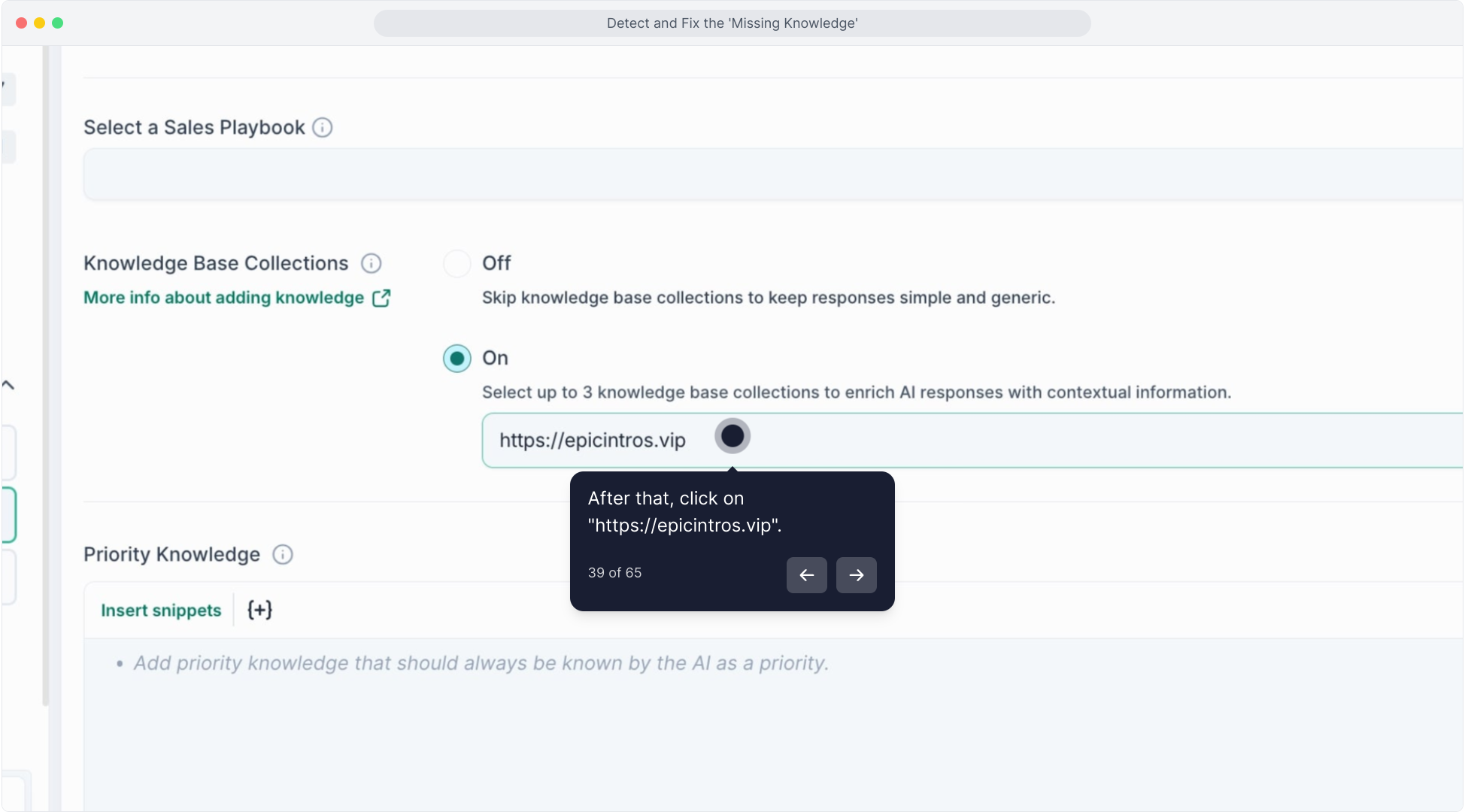
If you’ve recently created a new collection, double-check that the block isn’t still pointing to the old one.
You can select multiple knowledge collections if needed. If this field hasn’t been edited, it typically inherits the agent-level knowledge automatically—but it’s worth confirming nothing has been overridden or locked.
Step 4: Search Inside the Knowledge Collection
Open the Knowledge section in your sidebar.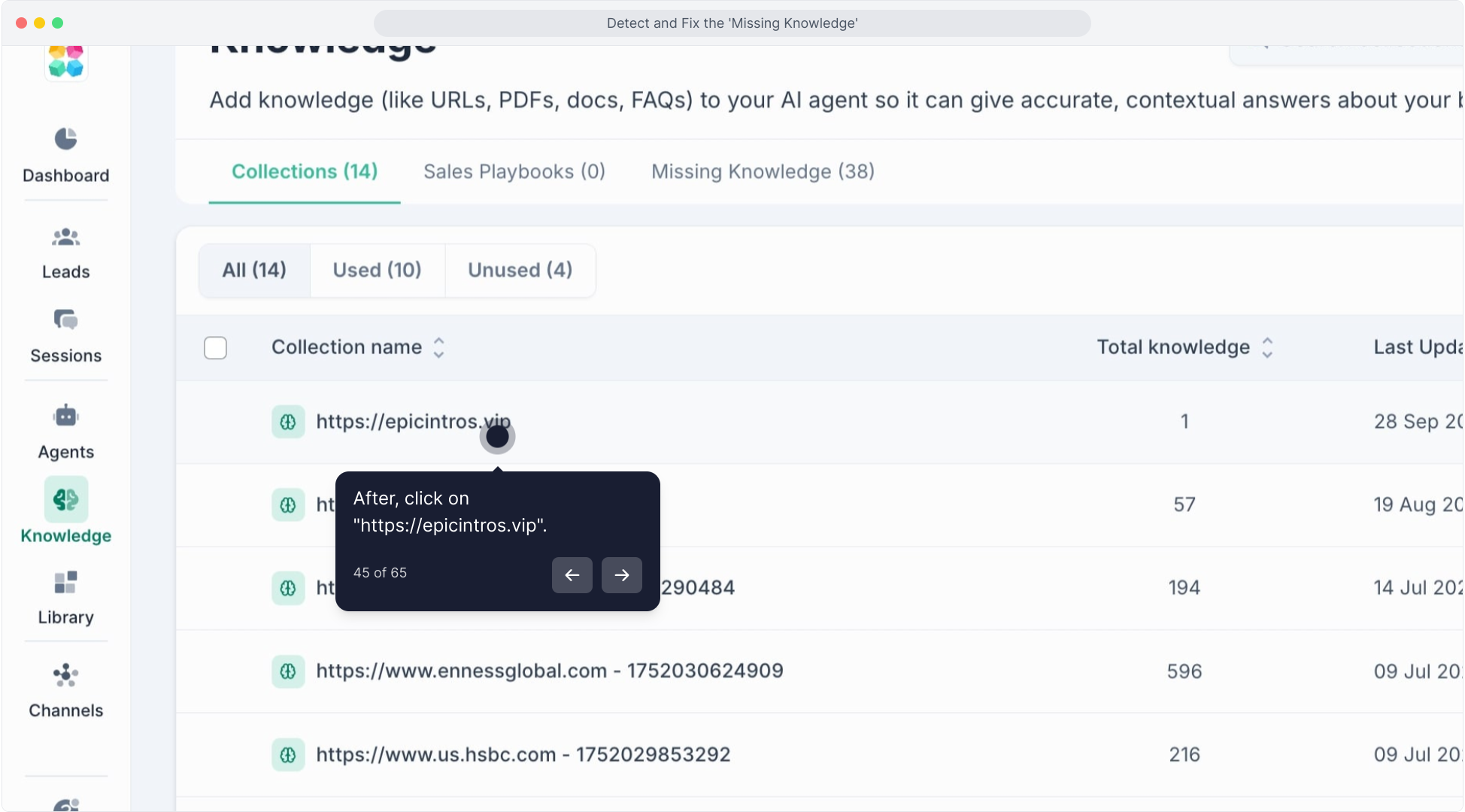
Choose the collection that should contain the relevant content.
Use the search bar to locate the information: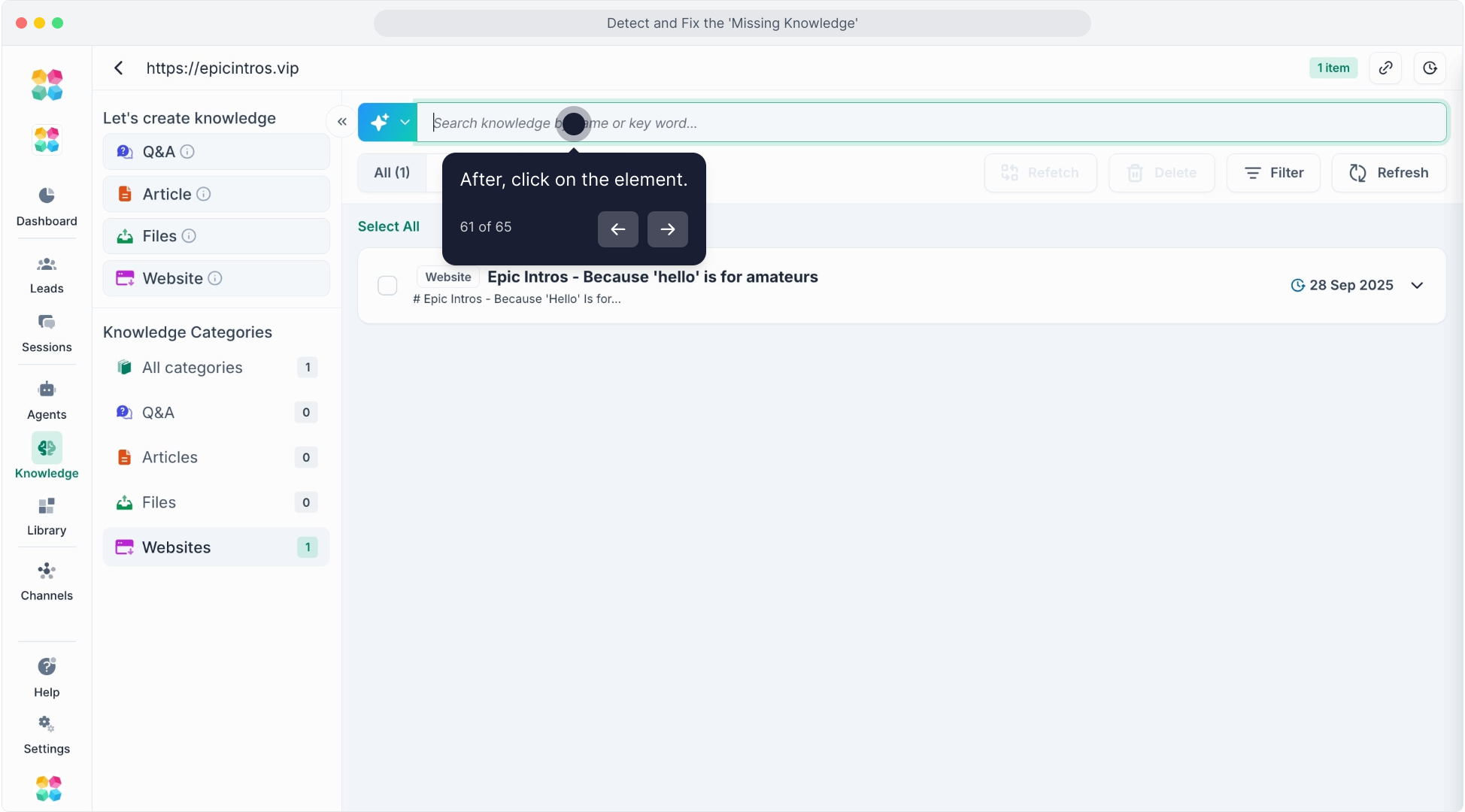
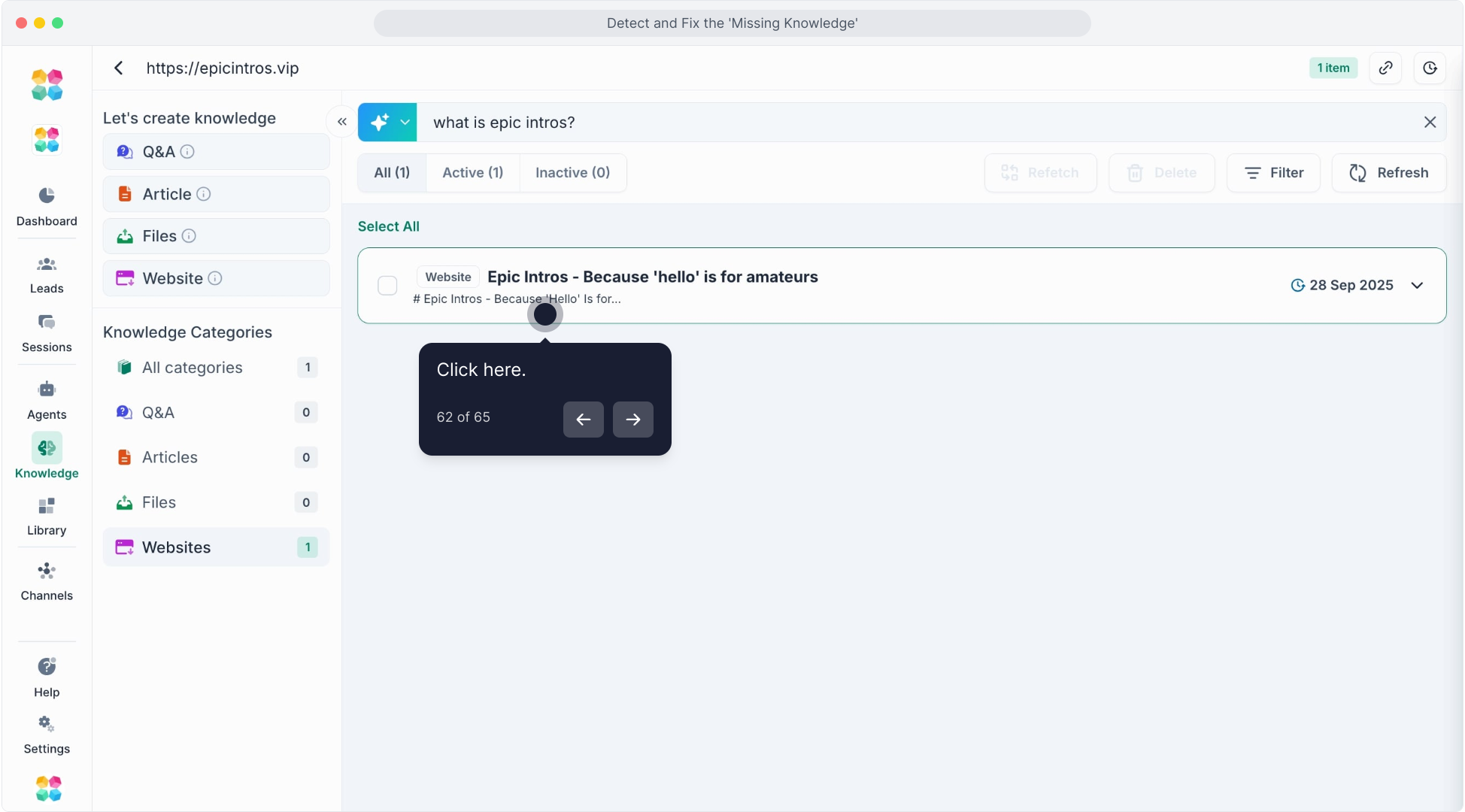
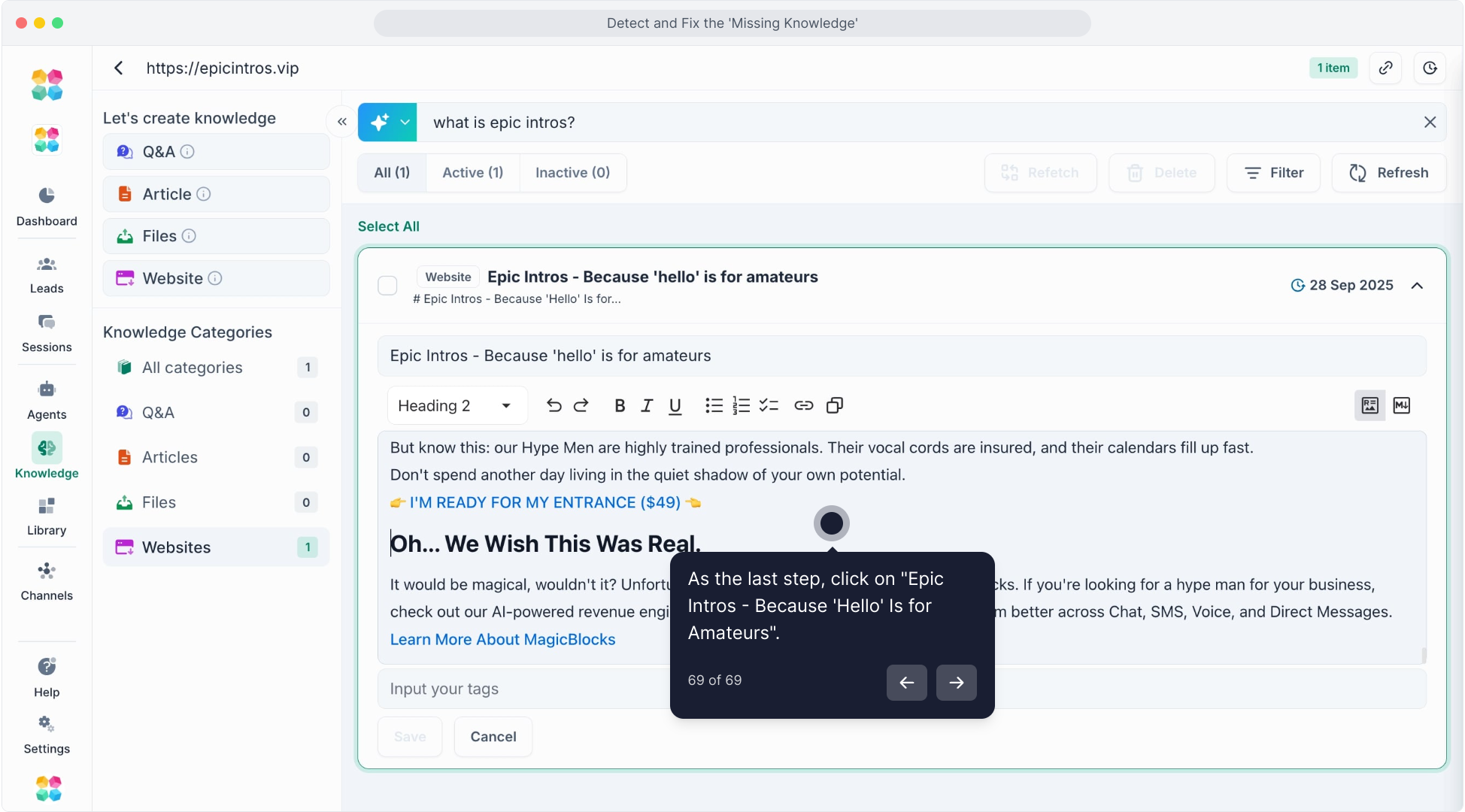
- Search by keyword for quick matches (e.g., “pricing”)
- Or enter the full user question (e.g., “How can I move into a new plan?”)
- The second method simulates how the AI searches by meaning, not just by keyword.
If nothing is found:
- Add a new entry that directly answers that question.
- Save and rebuild your knowledge base.
You can watch the video tutorial here:
Step 5: Test the Updated Response
After making adjustments:
- Return to your agent’s Test Mode.
- Ask the same question again.
- Confirm the new response is accurate, clear, and uses the intended knowledge source.
Quick Checklist
- Open and review the session using the Robot Head panel
- Verify the correct knowledge source is linked
- Add or refine missing content in the right collection
- Re-test until the agent responds accurately
- Each time you refine your knowledge, your AI becomes more confident and capable in real conversations.
Pro Tip
If you notice repeated “no information found” messages, review the Missing Knowledge Report in your Agent Dashboard. It compiles all weak or incomplete knowledge responses, allowing you to resolve them in one place.