
Overview
The Sessions section in MagicBlocks provides a detailed overview of all conversations and interactions between users and your AI agent. It helps you monitor conversations, review responses, and identify areas for improvement in your AI’s performance.
Accessing Sessions
Go to the Sessions panel on the left menu.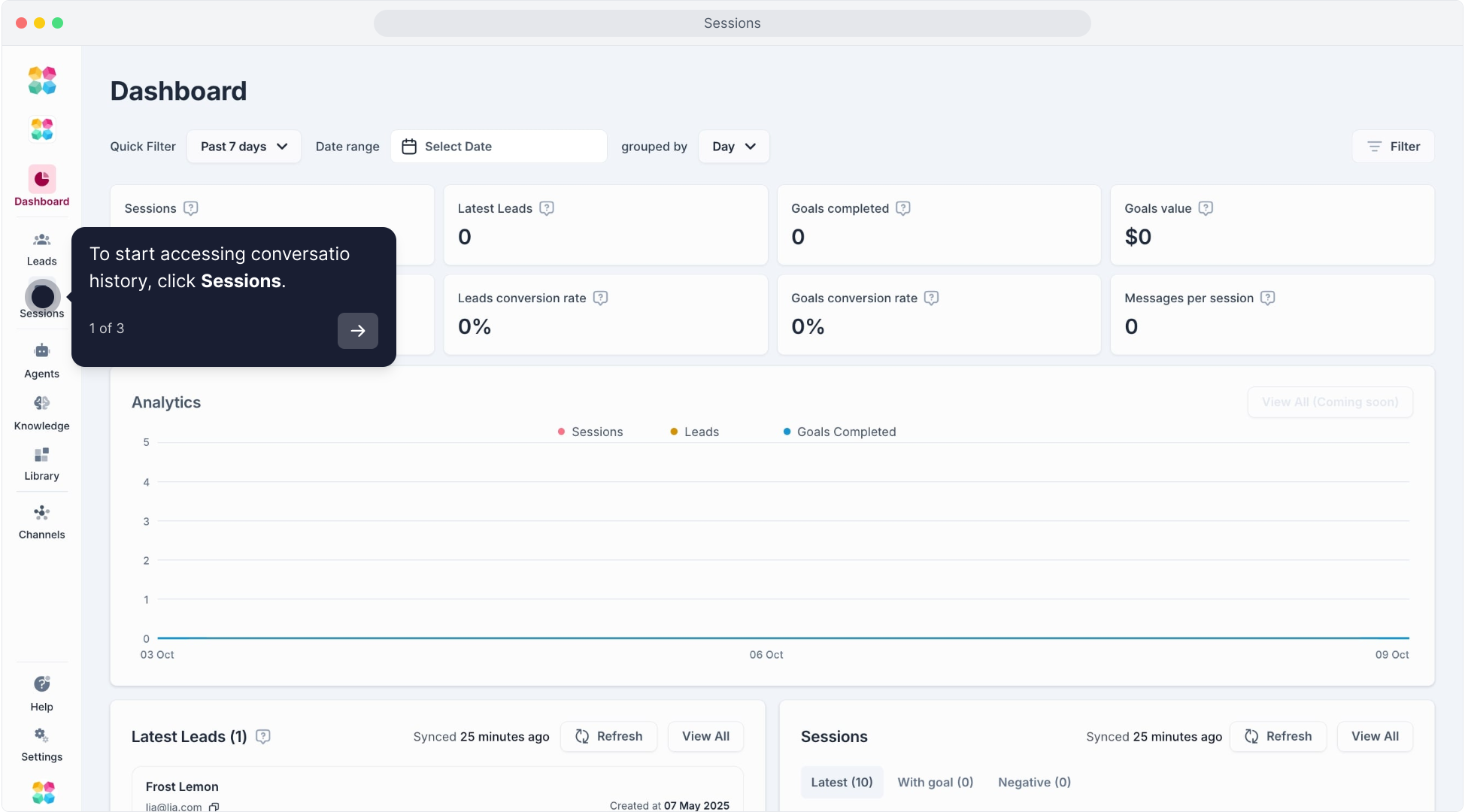
You will see a list of all conversations sorted by the most recent interactions.
Session Details
Each session card displays:
User’s Name and Status (Active or Inactive)
Session Duration and Message Count
Sentiment indicators and feedback icons
Click on any session to view a detailed conversation history.
This video will walk you through the MagicBlocks Sessions page:
Reviewing AI Responses with the Robot Icon
Within each conversation, you can click on the Robot Icon next to specific AI responses. This feature allows you to:
- See how the AI generated its response by providing insights into the action and Journey block it used.
- Identify gaps in knowledge or logic by examining the factors that influenced the AI's response.
This feature is especially useful for troubleshooting responses, as it provides a behind-the-scenes look at your AI’s decision-making process, helping you refine its accuracy and relevance.
Sessions Menu
On Sessions, you can choose several menus:
- Favorites: Favorite sessions that you want to keep in handy.
- Goal Conversions: Sessions where the user reached a defined goal.
- Principles Fixed: Sessions where AI responses were adjusted according to set principles.
- Missing Knowledge: Conversations where the AI was unable to provide an answer.
- Negative Sentiment: Sessions flagged for a poor user experience.
These filters help identify trends and improve the AI’s training based on user interactions.
Filtering Sessions Based on Goals, Journey, Forms, and More
In the All Conversations view, MagicBlocks offers various filtering options to help you quickly locate specific conversations based on criteria relevant to your needs. This feature is useful for monitoring user interactions, tracking goal completions, or identifying sessions where a specific Journey block or forms were used.
Steps to Filter Sessions
Navigate to the All Conversations Tab: Start by going to the All Conversations section in your MagicBlocks dashboard.
Select a Filter: At the top of the conversation list, you will see several filtering options:
- Goals: Click on this filter to see sessions where specific goals were completed. For example, you can filter for sessions where "Human Handover" was triggered, allowing you to focus on conversations escalated to a human agent.
- Journey: Use this filter to find sessions that ran in a specific Journey block, like "Hook" or "Align, Personalize, Pitch". This helps you track how users interact with different phases of the experience.
- Forms: Filter by completed forms if you want to see sessions where users submitted information via forms, such as feedback or registration.
- Sentiment: Track sessions based on user sentiment (e.g., positive, neutral, negative) to gain insights into how users are feeling during interactions.
- Message Count, Status, and Channels: Additional filters allow you to sort by specific message counts, session status (active or inactive), or communication channels.
- Apply the Filter: Once you’ve selected your desired filters, click Apply to view the filtered sessions. The list will update to show only the conversations that match your selected criteria.
- Clear Filters: To remove filters and return to the full conversation list, simply click Clear.
Example: Filtering by Goals
If you want to view sessions where a specific goal, like "Human Handover," was triggered:
- Click on the Goals filter.
- Check the box next to "Human Handover."
- Click Apply to see all conversations where this goal was achieved, which helps you monitor instances where users required assistance from a human agent.
Benefits of Filtering
- Efficient Monitoring: Filtering allows you to quickly access relevant sessions without needing to sift through each interaction individually.
- Goal Tracking: By focusing on sessions that achieved specific goals, you can evaluate the effectiveness of your AI in helping users complete objectives.
- User Insights: Sentiment filters let you understand user emotions during interactions, which is valuable for improving the AI experience.
- Mode-Specific Analysis: Reviewing sessions by Journey provides insights into how users interact with different stages, allowing you to optimize the flow.
Best Practices
- Regularly review Missing Knowledge sessions to update the AI’s knowledge base.
- Monitor Goal Conversions to ensure your AI is meeting user expectations.
- Address Negative Sentiment sessions to identify areas for improvement and refine responses.
- Use the Robot Icon insights to understand and enhance your AI’s decision-making and knowledge sources, ensuring responses align with your goals.
Using the Sessions feature, you can continually enhance your AI's performance, ensuring it provides a valuable and satisfying user experience.
Key Elements
Element | Description |
|---|---|
User Name / Contact ID | Identifies the person interacting with your AI. |
Session Time | When the conversation started and ended. |
Goal | The main outcome achieved (e.g. “Book Demo”). |
Duration | Total time of engagement. |
Channel | Where the chat happened (Website, SMS, Social DM, etc.). |
Agent Version | Which version of your AI handled the session. |
Why It Matters
Your sessions show how your AI is performing in the real world.
By reviewing sessions regularly, you can:
- Identify user pain points
- Improve conversational tone and flow
- Detect and fix broken logic in journeys
- Track conversions and engagement rate
Related Articles
FAQs
Q: What is the difference between a Session and a Contact?
A: A Session is a single conversation instance; a Contact is the user profile generated from that session. One user can have multiple sessions, but all will be linked to the same Contact record.
Q: How can I view what happened during a Session?
A: Click on any Session in your dashboard to open the full chat log. You can replay the conversation and view details about messages, goals, and triggered Actions.
Q: Can I filter Sessions by Agent or time?
A: Yes. Use the filter bar to sort Sessions by Agent, date range, or status (e.g., active, completed, transferred).
Q: How long are Sessions stored?
A: Sessions are stored indefinitely based on your plan limits. You can archive or delete them manually if needed.
Q: Can I export Session data?
A: Yes. You can export Session data as a CSV file — including user messages, timestamps, and Key Facts — for analysis or reporting.
Q: What are Session metrics used for?
A: Session metrics help you evaluate Agent performance. You can track engagement rates, completion rates, response times, and conversion outcomes.
Q: Can I identify repeat visitors or users?
A: Yes. Each session links to a Contact Profile. If the same visitor interacts multiple times, MagicBlocks merges their sessions under one Contact record.
Q: How do I know if a Goal was reached in a Session?
A: Inside the Session view, you’ll see a Goals Achieved section listing every goal your Agent completed during that conversation.
Q: Can I add notes or tags to Sessions?
A: Yes. Use the Notes section to leave comments or assign tags like “Qualified Contact” or “Support Request” for better tracking.
Q: Can I delete unwanted Sessions?
A: Yes. Click the trash icon next to the session you want to remove. Deleted Sessions are permanently erased from your workspace.
Q: Do Sessions update in real time?
A: Yes. Sessions appear instantly as users interact with your Agent, allowing you to monitor live conversations in progress.
Q: Can I monitor multiple Agents’ Sessions at once?
A: Yes. From the main Sessions dashboard, you can view activity from all your Agents or filter by specific ones.
Q: How can I tell which Agent handled a Session?
A: The Agent name appears at the top of each Session log, along with the associated Journey and timestamp.
Q: What are negative sessions or negative messages?
A: Negative Sessions indicate when users express dissatisfaction or confusion. This metric helps you identify where your Agent may need tuning or better knowledge.
Q: How do I use Sessions to improve my Agent?
A: Review recent Sessions to see how your Agent responds, what questions users ask, and where drop-offs happen. Use this insight to refine your Knowledge, Journey, or Actions.
Q: Can I replay a conversation?
A: Yes. Click on the Session to view a scrollable chat history of every message exchange between the user and your AI Agent.
Q: Can I share a Session with my team?
A: Yes. Copy the Session link and share it with teammates who have workspace access. They can view the full conversation for training or review.
Q: What does “active” vs. “completed” Session mean?
A: Active Sessions are ongoing conversations. Completed Sessions are ones where the user has left or the Agent has finished responding.
Q: Why don’t I see new Sessions appearing?
A: Check if your Agent is live and embedded correctly. If the Agent is unpublished or the embed script is missing from your site, new Sessions won’t be recorded.
Q: My Session shows no messages. What should I do?
A: This usually means the chat was opened but no messages were exchanged. If it persists, clear cache and verify that your chat embed loads properly.
Q: The Session log doesn’t show triggered Actions. Why?
A: Ensure the Action conditions were met during the conversation. If the trigger (like Key Facts or Goals) didn’t activate, the Action won’t appear in the Session log.
Q: My AI responses look incomplete or cut off.
A: This can happen if your Agent’s context limit was reached or if there’s missing Knowledge. Try refreshing Knowledge and retesting the block in Try My Agent.
Q: My Session timestamps are off.
A: Check your workspace timezone settings under Settings → General to make sure timestamps match your region.
Q: I can’t see the latest user messages.
A: Refresh your Sessions dashboard — messages update live, but slow connections may delay sync for a few seconds.
Q: How can I use Sessions to train my team?
A: Share successful Session examples during sales or support training to show how your AI handles real conversations effectively.
Q: Can I recover deleted Sessions?
A: No. Once deleted, Sessions are permanently removed from your workspace. Export data first if you need to keep a record.