
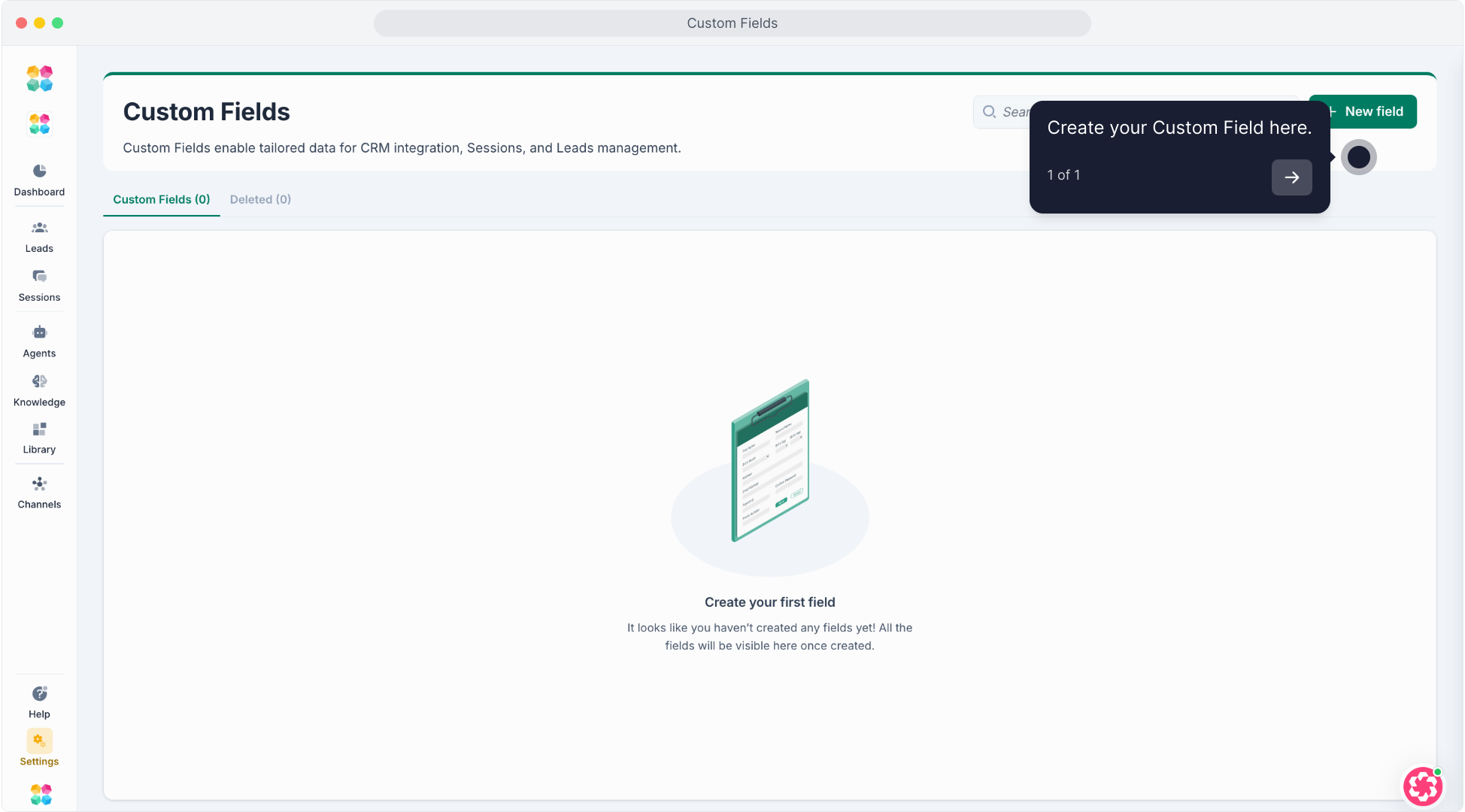
Custom Fields
Custom Fields let you create additional data fields for Contacts, Sessions, or Agents inside your workspace.
They act as flexible data containers — perfect for capturing information like budget, company size, product interest, or contact source — and make your automations, CRM sync, and reporting much more powerful.
💡 Use Custom Fields to personalize data collection and improve how your AI Agents and integrations understand your business.
Step-by-Step: Creating a Custom Field
1. Open the Custom Fields Page
- Go to Settings → Custom Fields.
- Click + Create Field at the top right.
- A new form will appear titled “Create your custom field.”
Understanding Each Section
Each part of this form defines how your custom field behaves, where it’s stored, and how your AI can use it.
Description Section
This section defines the type of data you’re creating and where it will be applied.
| Field Name | Explanation |
|---|---|
Field type | Defines the type of data that this field stores. The available types are: |
Page assigned | Choose where the field applies: |
Status | Defines the field’s current state: |
Field name | The visible name of your field in the workspace, e.g. “Company Name” or “Budget.” |
Placeholder text | Optional guiding text shown inside the input box (e.g., “Enter company name…”). |
Field Description & Behavior
This section defines how the field is described, controlled, and accessed by the AI.
| Field Name | Explanation |
|---|---|
Field description | Add a short description (up to 150 characters) to explain what this field is used for. Example: “Used to track source of the contact.” |
AI access toggle | Enable this if you want your AI Agent to read or write to this field during conversations. Example: The AI can save a “Budget” value after asking the user. |
Required field toggle | Make this field mandatory — it must be filled before a record can be saved. |
Unique key | A unique ID used for backend mapping, automations, or CRM integrations. Example:
or
(no spaces, lowercase only). |
Tags Section
Tags help you organize and search your custom fields efficiently.
- Enter one or more tags in the “Input tags here” field.
- Example tags:
CRM,Marketing,ContactData. - Tags make it easier to filter and manage large sets of custom fields.
Form Actions
At the bottom of the form:
- Click Cancel to discard and close the form.
- Click Create to save your new custom field.
Once created, the field becomes active immediately and is available in your workspace.
How to Use Custom Fields
You can use custom fields across multiple areas of MagicBlocks:
- In Contacts
Capture and store contact-specific data such as “Industry,” “Budget,” or “Campaign Source.” - In Conversations
Add questions in your Journey that automatically fill custom fields.
Example: “What’s your company size?” → saves to fieldCompany Size. - In Automations
Use custom fields as conditions or data variables in Actions and Tasks to send or update information in other tools. - In Integrations
Map your MagicBlocks custom fields to matching CRM fields (e.g., HubSpot, GoHighLevel, or Zapier). - In Reports (coming soon)
Filter analytics or performance data using your custom field values.
Managing Custom Fields
- Click a field name to edit details, toggle AI Access, or update its status.
- Change Status → Inactive to hide a field without deleting it.
- Use the Search Bar to find fields quickly by name or tag.
- Click the Delete icon to permanently remove a field.
⚠️ Deleting a field also deletes all data linked to it — export your data first if you need to keep it.
Best Practices
- Use short, descriptive names (e.g., “Region,” “Contact Source”).
- Keep unique keys lowercase and consistent across workspaces.
- Turn on AI Access only for fields that your AI needs to reference.
- Use Tags to group fields by function (e.g., CRM, Marketing, Sales).
- Review and clean up unused fields regularly to maintain performance.
FAQs
1. What’s the difference between Field Name and Unique Key?
Field Name is the display label in MagicBlocks; Unique Key is the technical identifier used by automations and CRMs.
2. Can my AI Agent update custom fields?
Yes — if AI Access is toggled on, the AI can read or write to those fields automatically.
3. What happens if I deactivate a field?
It becomes hidden but stays stored. You can reactivate it anytime.
4. Can I make a field required?
Yes — toggle Required field when creating or editing your field.
5. Are custom fields shared across workspaces?
No. Each workspace has its own set of fields to keep data isolated and secure.