
How to Add a New User to Your Workspace
Before You Start
You'll need Admin or Owner access to invite new members. If you're on the Editor or Viewer role, reach out to your workspace Admin.
Video Tutorial
Check the video below on how to add, change role and remove Members from your MagicBlocks Workspace:
How to Invite a New Member
- Click your workspace name or profile icon in the top-left of the Dashboard.
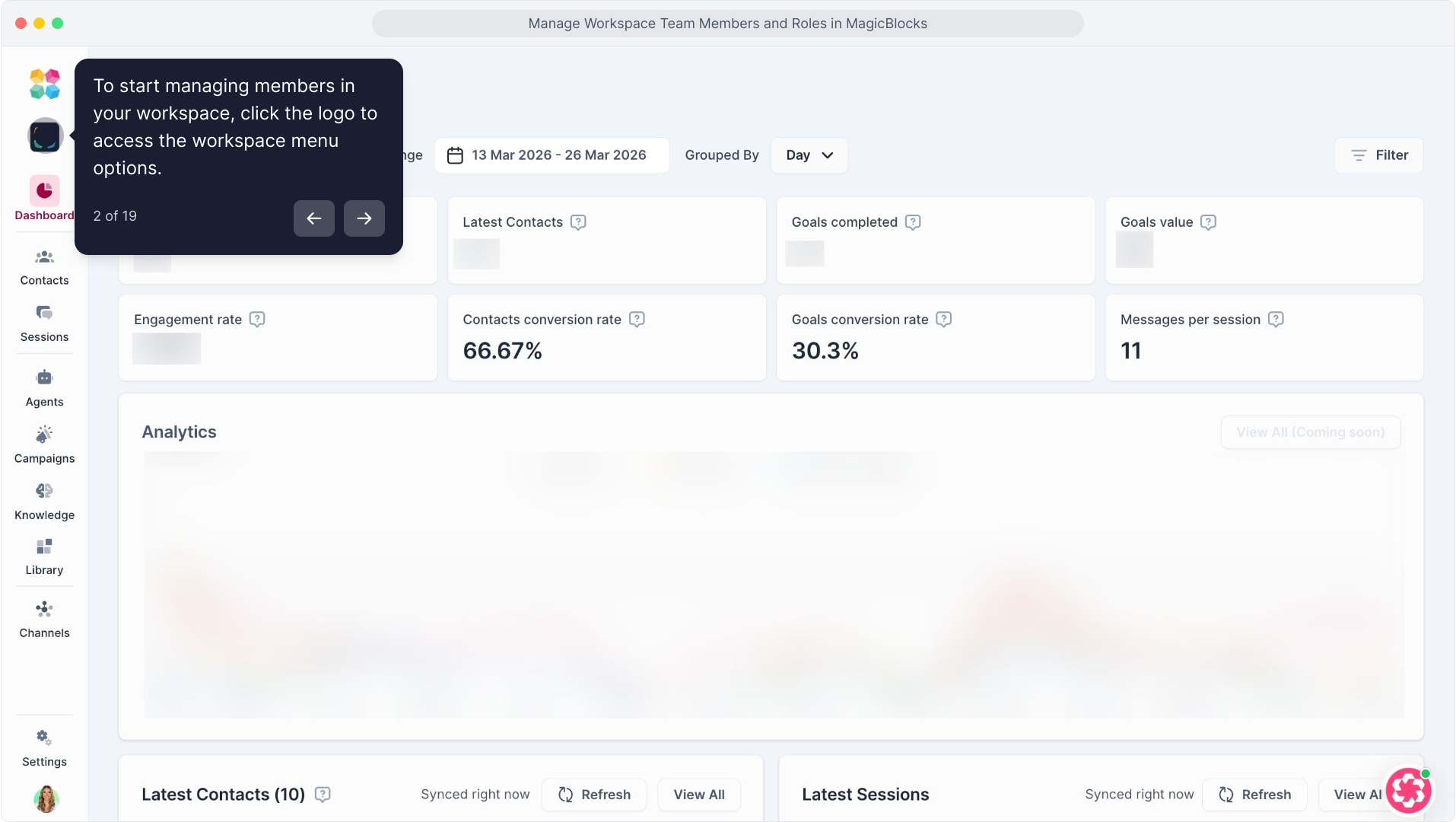
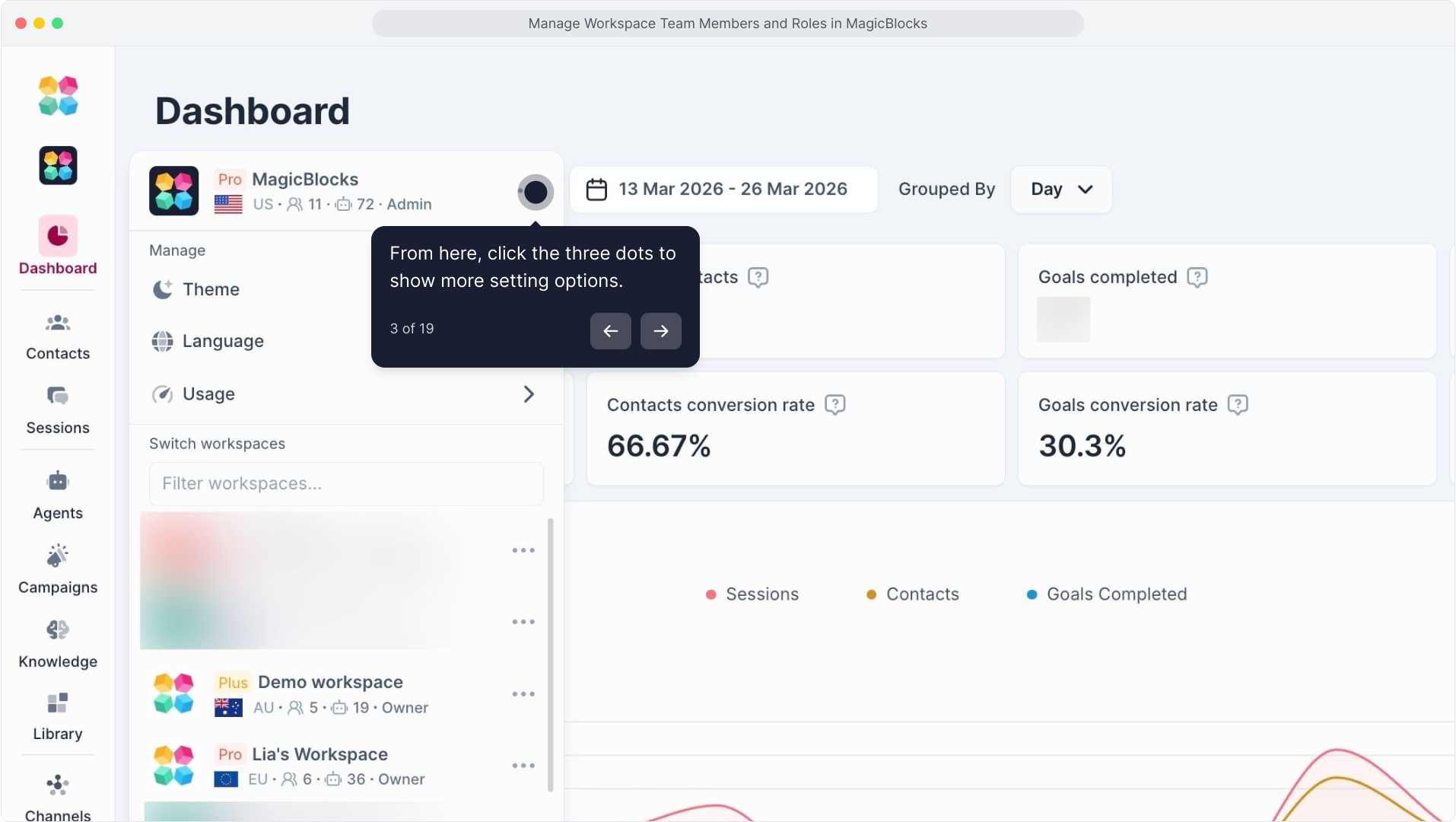
- Click the three dots to show more options
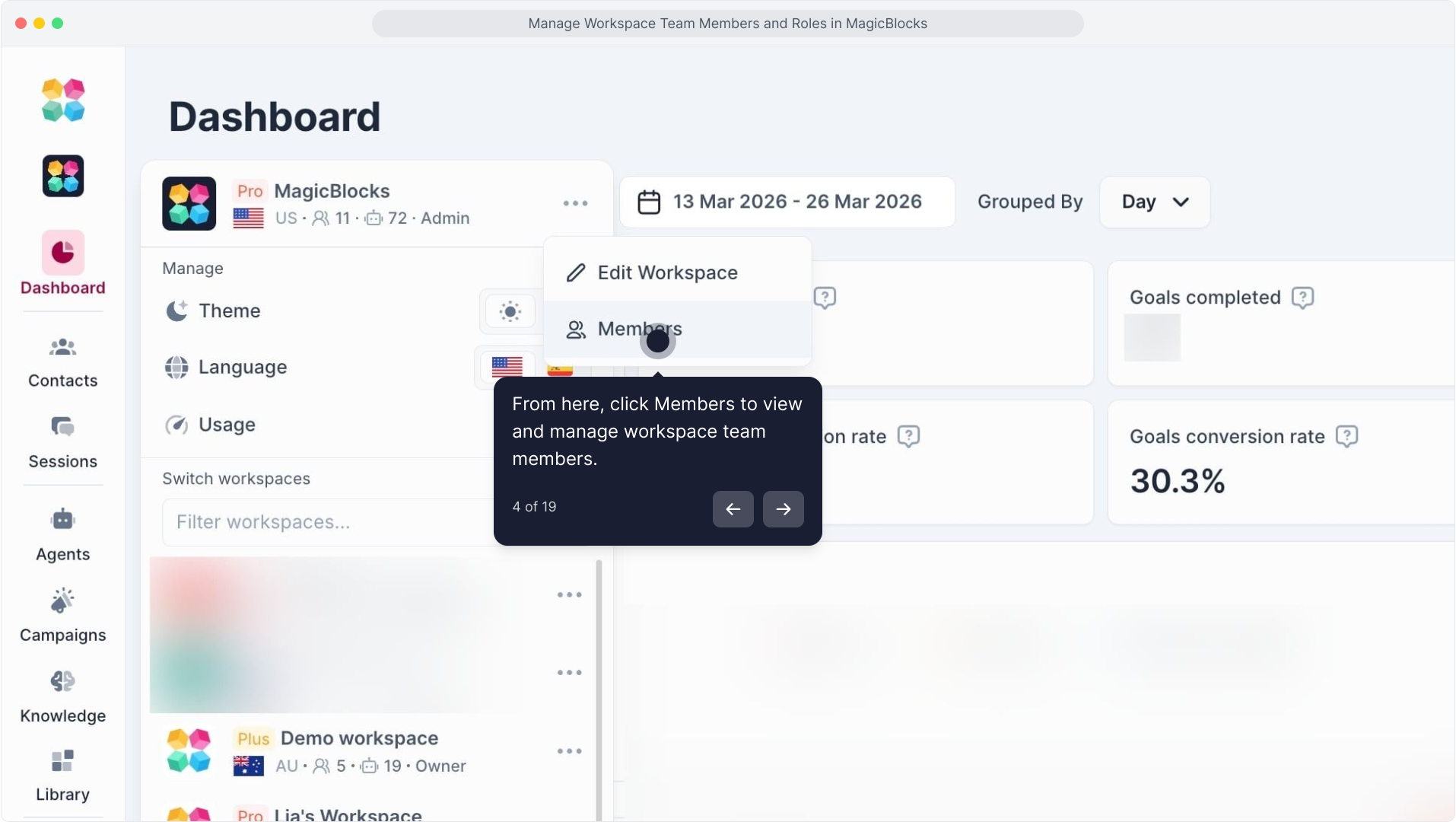
- Click Members in the dropdown.
Sending the Invite
Once you're on the Edit Members screen:
- Enter the new member's email address in the Invite new members field.
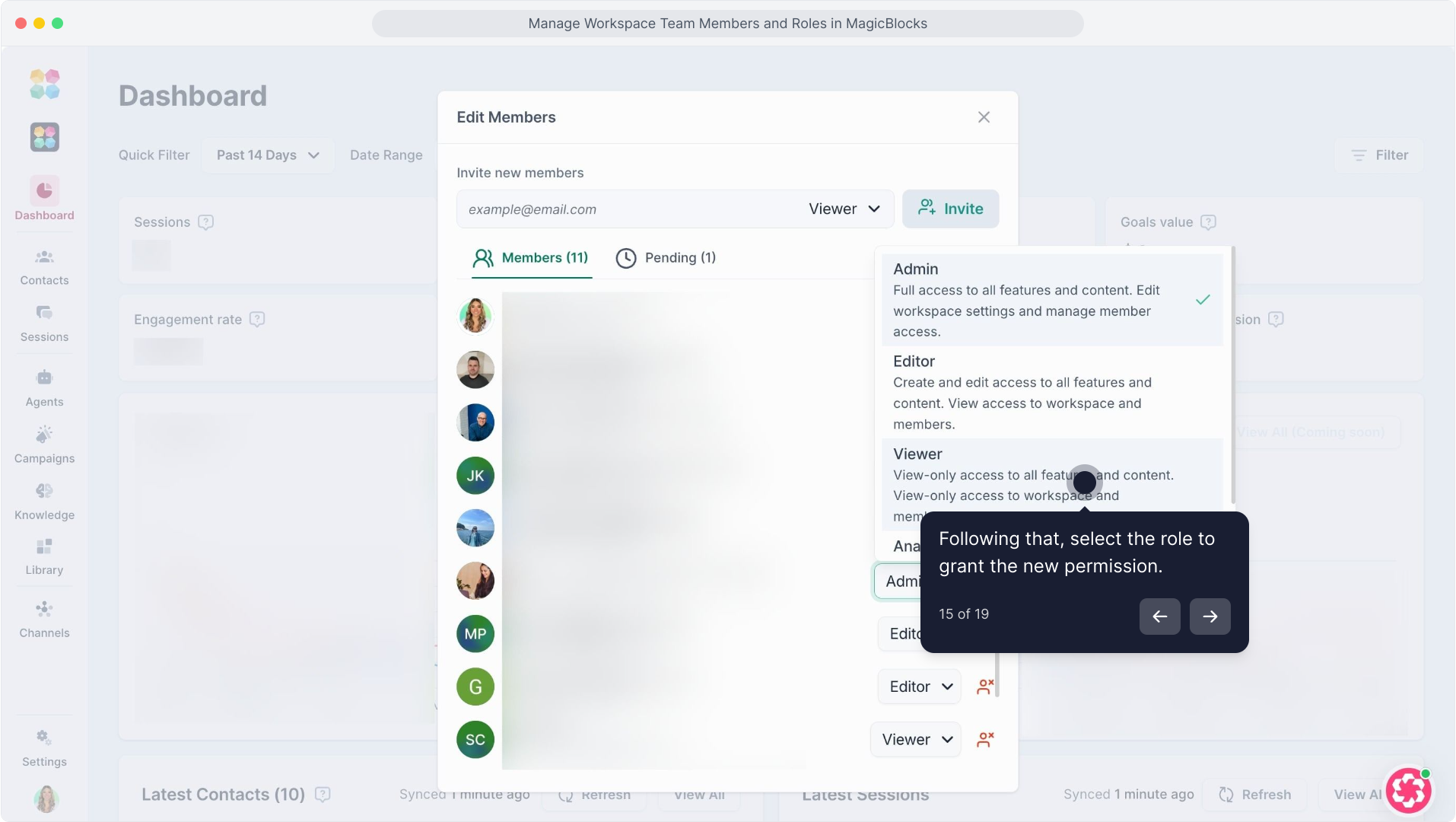
- Select a role from the dropdown (Viewer is selected by default).
- Click Invite.
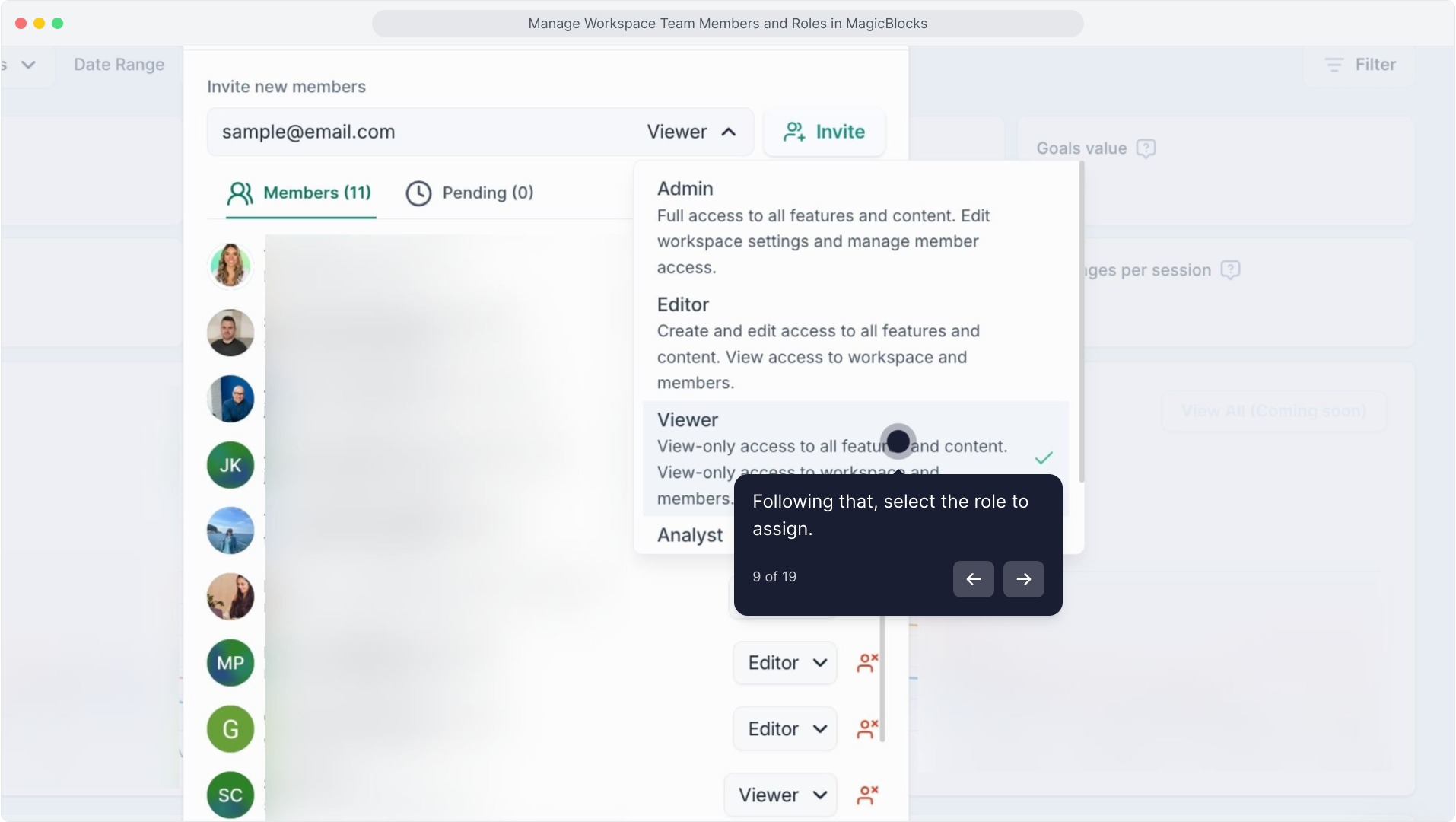
The new member will receive an email invitation. They'll need to accept it before they can access the workspace. You'll see them listed under Pending until they confirm.
Understanding Workspace Roles
MagicBlocks has five roles. Assigning the right one keeps your workspace secure — and makes sure the right people are acting on the right data.
Role | Access Level | Best Used For |
Owner | Full access to all features, content, workspace settings, and member management. | For account founders or primary account holders only. |
Admin | Full access to features and content. Can edit workspace settings and manage member access. | Team leads and operations managers running the AI Sales Agent. |
Editor | Create and edit access to all features and content. View-only access to workspace and member list. | Sales team members building or adjusting agent flows. |
Viewer | View-only access to all features, content, workspace, and members. | External clients, stakeholders, or executives reviewing performance. |
Analyst | View-only access to Dashboard, Session, and Lead pages only. | Reporting-focused team members who only need conversion data. |
Changing a Member's Role
You can update someone's role at any time from the Members list.
- Edit Members Open
- Find the member in the list.
- Use the role dropdown next to their name to select a new role.
- Changes take effect immediately
Removing a Member
To remove someone's access to a workspace:
- Open Edit Members.
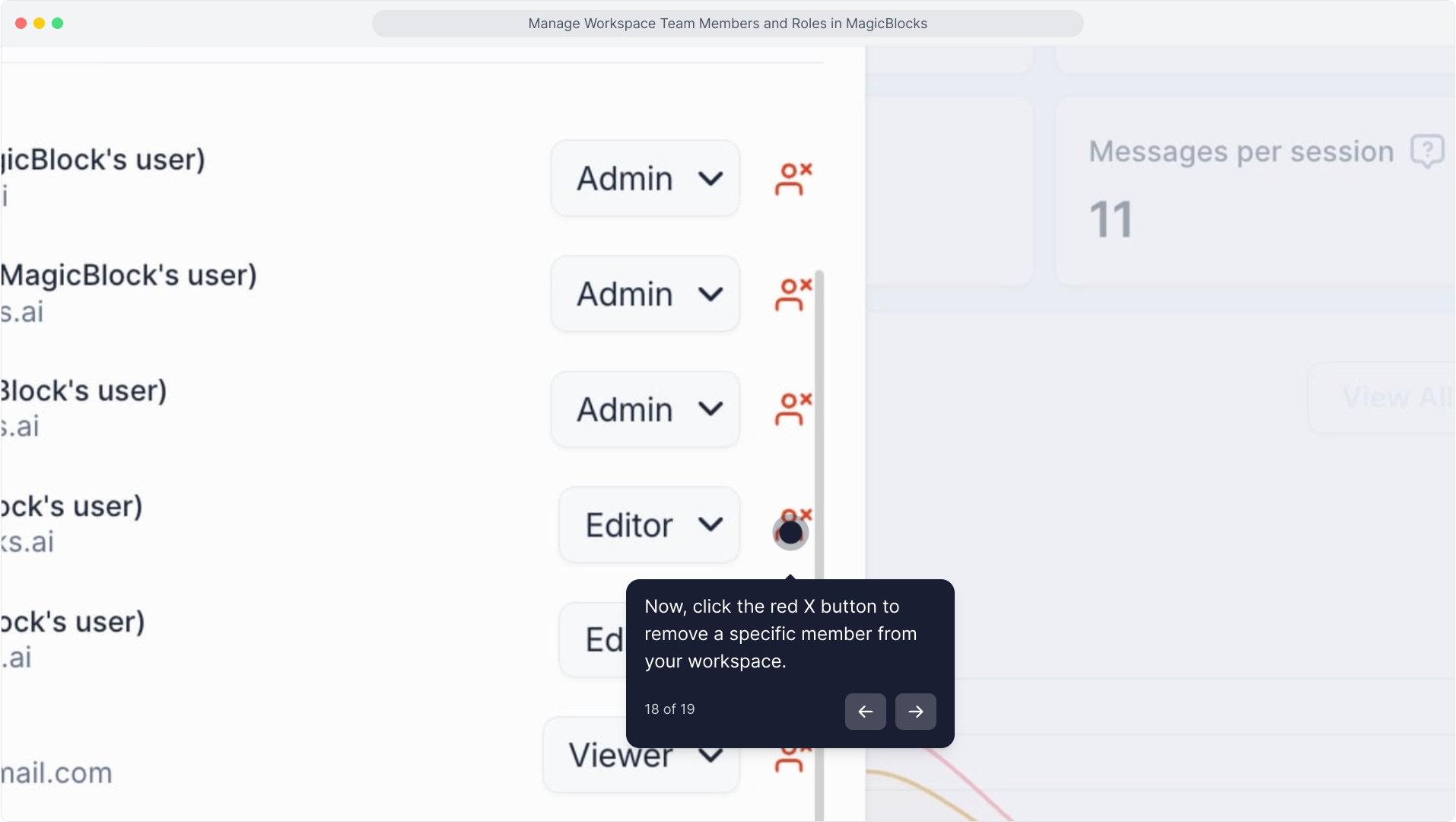
- Click the remove icon (person with an X) next to the member's name.
- Confirm the removal. They'll lose access instantly.
Working Across Multiple Workspaces
If your organization runs multiple workspaces — say, one per product line, regional team, or client account — each workspace has its own independent member list and role assignments.
A team member added as an Editor in one workspace won't automatically have access to another. You'll need to invite them separately per workspace.
For enterprise deployments managing many workspaces, this structure gives you granular control over who can access and modify each AI Sales Agent environment.
Related Articles