
Actions
Actions Inside a Journey Block
Actions let you control what your AI Agent does when users reach a certain point in your conversation flow.
They turn your AI from just talking into acting — sending messages, switching paths, collecting contacts, or triggering tasks automatically.
In MagicBlocks, every Journey Block (like Hook, Align, or Get in Touch) can have its own set of Actions, Conditions, and Goals.
Before You Start: Global vs. Journey-Level Actions
MagicBlocks offers two types of Actions, depending on the scope you want to control.
Type | Where It Applies | When to Use |
|---|---|---|
Global Actions | Apply across your entire Agent. They are always active regardless of which Journey Block the user is in. | For universal triggers like “talk to a human,” sentiment detection, or restarts. |
Journey-Level Actions | Exist inside a specific Journey Block. They trigger only when the user is in that block. | For stage-specific logic, such as switching from Hook to Pitch or showing a form mid-flow. |
This article focuses on Journey-Level Actions. You can view your Global Actions anytime by selecting Actions from the main sidebar of your Agent.
What You’ll Find Inside
Inside every Journey Block, the Actions tab includes three key sections:
Tab | Purpose |
|---|---|
Actions | Define what your AI should do next, such as sending a message or switching to another block. |
Conditions | Set the rules that determine when the Action should occur. |
Goals | Track what success looks like for this part of the flow, such as form completion or contact qualification. |
Understanding Actions
An Action is an instruction your Agent follows after a user says or does something.
You can add multiple Actions inside one Journey Block, each with its own Conditions and Goals.
Common Action Types
Action | What It Does | Example Use |
|---|---|---|
Auto | Automatically responds or performs a default behavior. | “Got it, let me help you with that.” |
Switch Journey | Moves the user to another Journey Block. | From Hook to Align or Get in Touch. |
End Chat | Closes the conversation gracefully. | “Thanks for chatting, you can reach us anytime at [email protected].” |
Send Message | Sends a follow-up or custom reply. | “Would you like to see our pricing?” |
Run Task | Executes an integrated action such as a webhook or CRM update. | Send contact info to HubSpot. |
Add Buttons | Adds quick reply buttons for structured user responses. | “Book a Call” or “Learn More.” |
Add Forms | Displays a form to collect structured data. | Name, Email, and Company fields. |
Add Calendar | Opens a booking calendar, such as Calendly. | “Choose a time that works best for you.” |
Add Link | Shares an external link with the user. | “View our product catalog.” |
Embed | Embeds third-party content like videos, maps, or forms. | Add an explainer video mid-conversation. |
Don’t Respond | The Agent stays silent and waits for the user to continue. | Useful for passive or conditional logic. |
Pro Tip: Use Switch Journey to connect multiple blocks logically. It is how you create dynamic, multi-step conversations.
How to Add or Edit an Action
- Open your Agent and go to Journey.
- Select a Block, for example Hook.
- Click the Actions tab at the top.
- Click + New Action.
- Choose what your Agent should do: Select an Action Type such as Send Message, Switch Journey, or End Chat.
- Add Conditions (optional) to control when it triggers.
- Set a Goal to measure the outcome.
- Click Save.

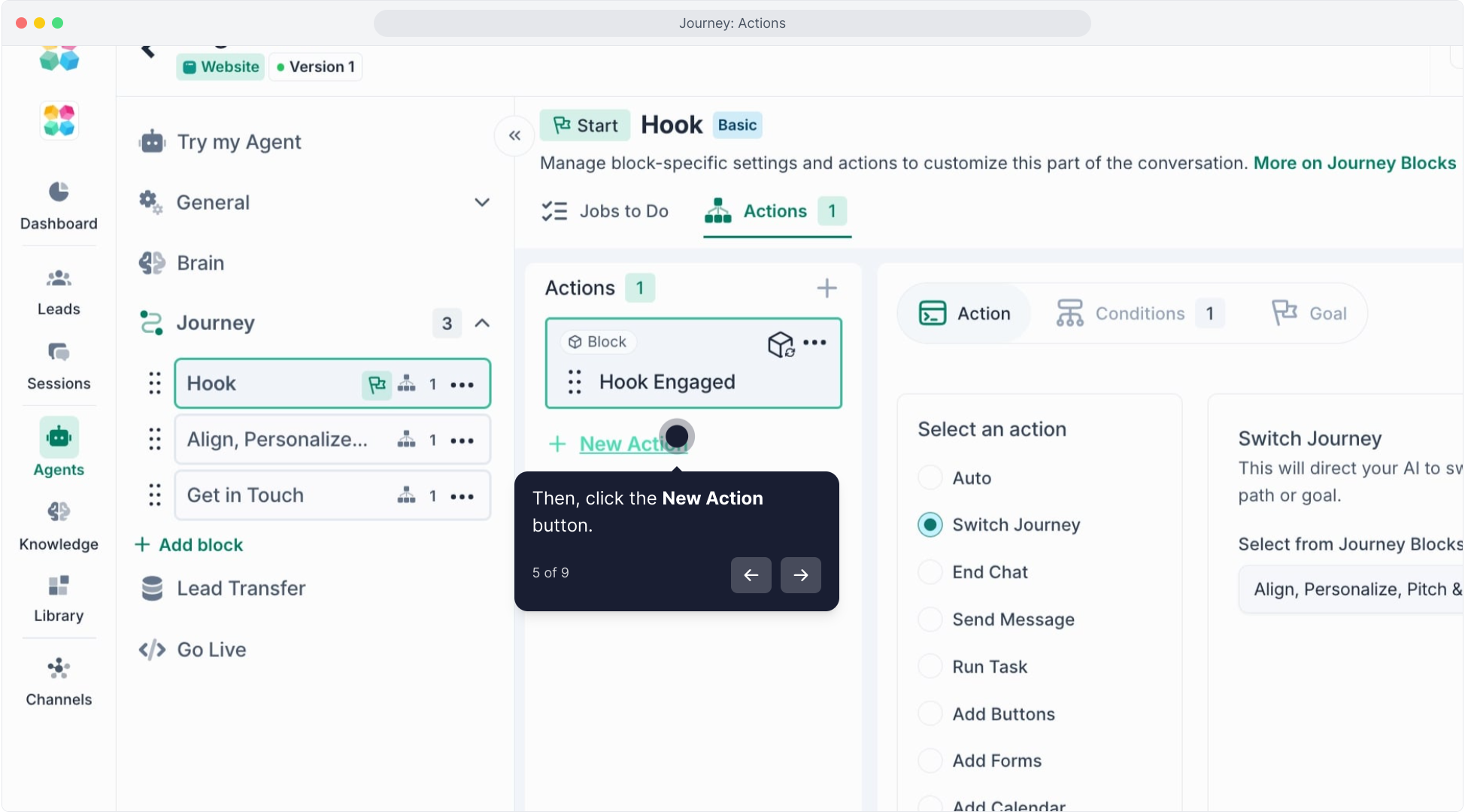
You can create multiple Actions per block, each with its own logic, triggers, and outcomes.
Click here to watch the tutorial video:
The Actions Tab
Inside the Actions tab, you can configure several fields:
Field | Description | Example |
|---|---|---|
Action Name | A label for easy reference. | “Send follow-up message.” |
Action Type | Choose the specific behavior your Agent will perform. | Send Message. |
Message Content | The message your AI should send (if applicable). | “Would you like to book a free consultation?” |
Form Fields (for Add Form) | Select which fields to display and store as Key Facts. | Name, Email, Service Interest. |
Destination Block (for Switch Journey) | Choose the Journey Block to move the user to. | “Pitch & Action.” |
Link or Embed URL | Add a URL for external content or embedded media. | “https://calendly.com/demo” |
Run Task or Webhook URL | Add the endpoint for backend actions. | CRM webhook URL. |
The Conditions Tab
Conditions control when each Action will trigger.
You can layer multiple conditions using AND/OR logic to fine-tune when and how Actions activate.
Common condition types include:
Condition | What It Checks | Example |
|---|---|---|
User Message Contains | Detects specific keywords or phrases in the user’s message. | “price,” “demo,” or “book a call.” |
User Asked Question | Triggers when the user sends a question. | “What is your refund policy?” |
Key Fact Collected | Fires when a specific data point is captured. | Email collected. |
All Key Facts Found (Active Block) | Triggers when all required Key Facts for the block are filled. | Name, Email, and Interest collected. |
Sentiment | Detects tone, such as positive, neutral, or negative. | “I’m not happy” triggers escalation. |
Page URL | Customizes behavior based on the page where the chat widget is embedded. | “/pricing” triggers pricing message. |
Slash Command | Responds to typed commands like /help or /restart. | “/restart” resets the flow. |
Custom Condition | Allows you to build classifiers for intent, such as Support, Sales, or General. | Intent = Sales. |
Tips:
- Enable Only Match Once if you don’t want the Action to trigger more than once during a chat session.
- Combine AND and OR logic for precise control.
The Goals Tab
A Goal defines what counts as success inside a Journey Block.
Use Goals to track outcomes and measure performance in the Measuring section later.
Common Goals include:
- Contact form submitted
- Contact information captured
- Consultation booked
- Pricing request made
- User reached the end of the block
When a Goal is achieved, it can trigger CRM handovers, mark conversions, or log performance data.
Example Use Cases
Contact Qualification
- Condition: User Message Contains “pricing” or “demo.”
- Action: Switch Journey to the Pitch Block.
- Goal: Mark as Sales-Engaged Contact.
Support Escalation
- Condition: Sentiment = Negative.
- Action: Switch Journey to Human Handover.
- Goal: Mark as Escalation.
Appointment Booking
Condition: Key Fact “Email” collected.
Action: Add Calendar → “Book Consultation.”
Goal: Meeting Booked.
Why It Matters
Actions are the engine of your AI’s logic.
They make conversations dynamic, purposeful, and capable of driving real results—from data collection to CRM workflows.
With Actions, your AI can:
- Automate next steps
- Connect conversations across Journey Blocks
- Capture contacts and trigger backend systems
- Personalize responses based on user input
Best Practices
- Use Switch Journey for branching logic to keep flows modular and organized.
- Add End Chat messages that include gratitude or calls-to-action, such as “Want to continue later?”
- Test every Action in Try My Agent to confirm it triggers correctly.
- Combine Actions with Conditions for precision (for example, trigger only on specific keywords).
- Regularly review your Goals to monitor performance and identify optimization opportunities.