
Google Drive Knowledge
You can now connect your Google Drive to MagicBlocks to easily import documents, PDFs, and files directly into your AI Agent’s Knowledge.
This makes it faster to build and update your Agent’s brain using existing company documents — no manual uploads needed.
What You’ll Learn
- How to connect Google Drive to MagicBlocks
- How to upload files directly from Google Drive into a Knowledge Collection
- How to manage and refresh Drive-based content
Step 1: Connect Google Drive in Library
Go to the Library menu in your MagicBlocks workspace.
Open the Connections tab.
Find Google Drive under Third-party integrations.
Click Connect.

Sign in with your Google account and grant MagicBlocks permission to access your Drive.
Once connected, your Drive will appear as an import source anywhere file uploads are supported.
You can disconnect anytime by returning to Library → Connections → Google Drive → Disconnect.
Step 2: Add Files from Google Drive to Knowledge
Go to Knowledge → Collections.
Click + Create New or open an existing collection.
Select Add Knowledge → Files.
In the upload window, click Choose Files ▾ → From Google Drive.
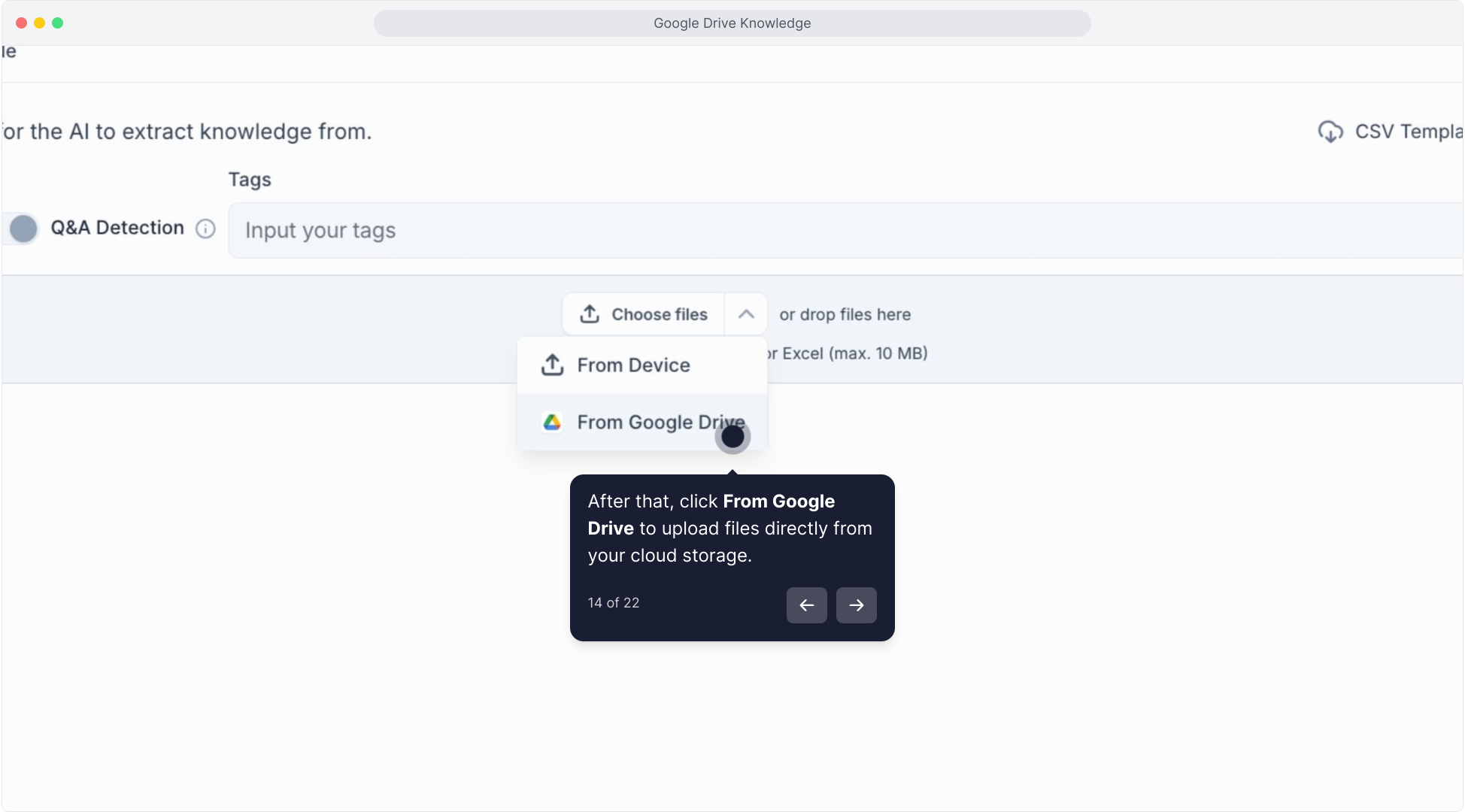
Browse and select the document(s) you want to import.
Supported formats:
- PDF (.pdf)
- Word (.doc, .docx)
- Text (.txt)
- CSV (.csv)
- Excel (.xls, .xlsx)
(Max size: 10 MB per file)
Toggle Q&A Detection ON to let MagicBlocks automatically extract structured Q&A pairs from your file.
Click Upload.
Your Drive files will now appear in the Knowledge collection and can be activated for any AI Agent.
Step 3: Manage and Refresh Knowledge
Refresh Files:
When you update a linked Google Drive document, simply re-upload or refresh the file in MagicBlocks to update the content.
Tag and Organize:
Use tags to label your files (e.g., Pricing, Product Info, Legal Docs) for easier search and management.
Deactivate or Delete:
Set the file status to Inactive to temporarily remove it from AI reference, or delete it to remove it permanently.
Manual Google Knowledge Refetching:
Update your data on demand. You can now manually trigger a Refetch of your Google Knowledge sources to ensure your AI Agent always operates with the most current information.
Click here to watch the video tutorial:
Why It Matters
Connecting Google Drive streamlines your workflow — no downloads, no copy-paste.
It ensures your AI Agent always has access to the most current, approved company documents directly from your shared drive.
With one connection, you can:
- Import multiple files instantly
- Keep knowledge synced with your live docs
- Maintain accuracy across teams and Agents