
Overview
The Contacts section provides an overview of all users who have interacted with your AI Agent. This comprehensive list allows you to view essential information about each user, track their engagement, and understand how effectively your AI Agent meets their needs.
Accessing Contacts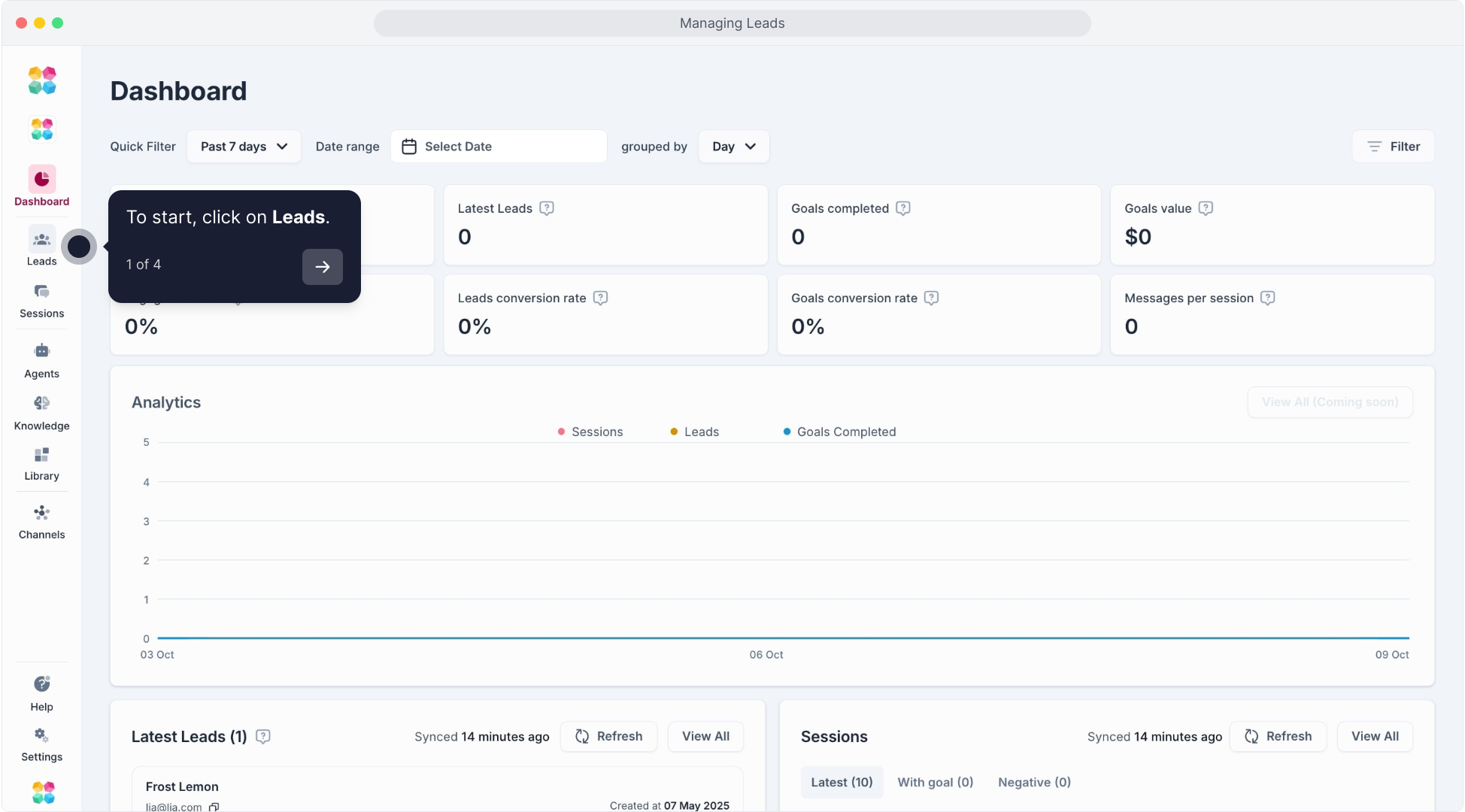
To view the Contacts section, navigate to the Contacts tab in your dashboard.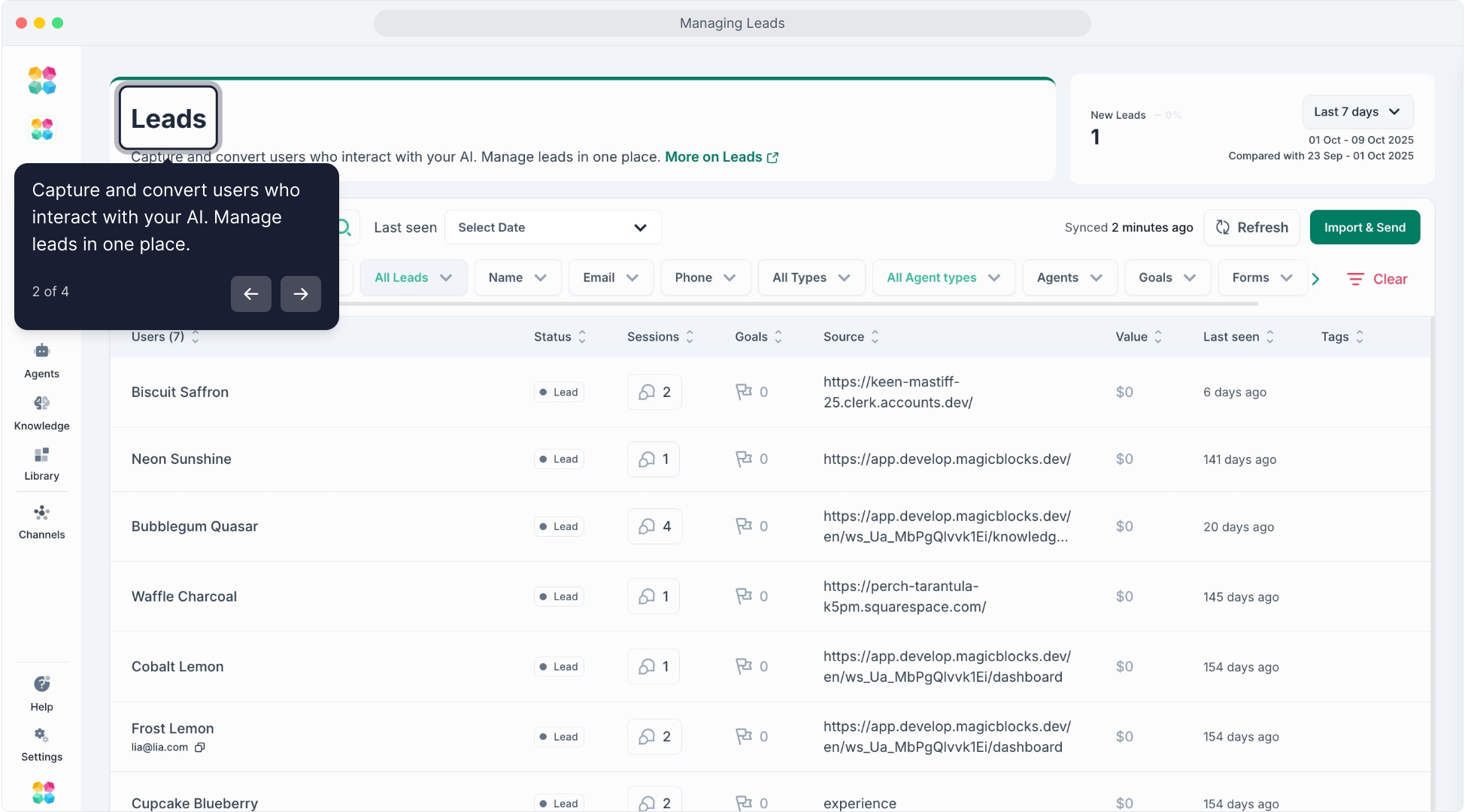 Here, you’ll find a contact list that includes the following details for each user:
- Name: The display name of the user interacting with the AI.
- Sessions: The total number of interactions this user has had with the AI.
- Goals: The goals completed during these interactions.
- Forms: Any forms completed by the user.
- Created At: The date when the user was first seen by the AI.
- Last Seen: The most recent time the user interacted with the AI.
Using Filters to Sort Contacts
To streamline your contact management, you can use filters to narrow down specific types of users. Available filters include:
- Contactable: See users you can reach out to.
- Name: Filter by user name.
- Email: Filter users based on their email address.
- Phone: View users by their phone number.
- All Types: Filter by interaction type.
- Experiences: View users based on the experiences they’ve had.
- Goals: Filter based on specific goals achieved.
- Forms: View users who have filled out particular forms.
After selecting your desired filters, the list updates automatically, allowing you to focus on relevant users.
Viewing Detailed User Information
The User Overview provides a snapshot of a user's interaction history and profile details. It helps you understand their engagement with your AI agent and allows you to tailor responses based on user behavior and needs.
To start, click one of the names in your Contacts list.
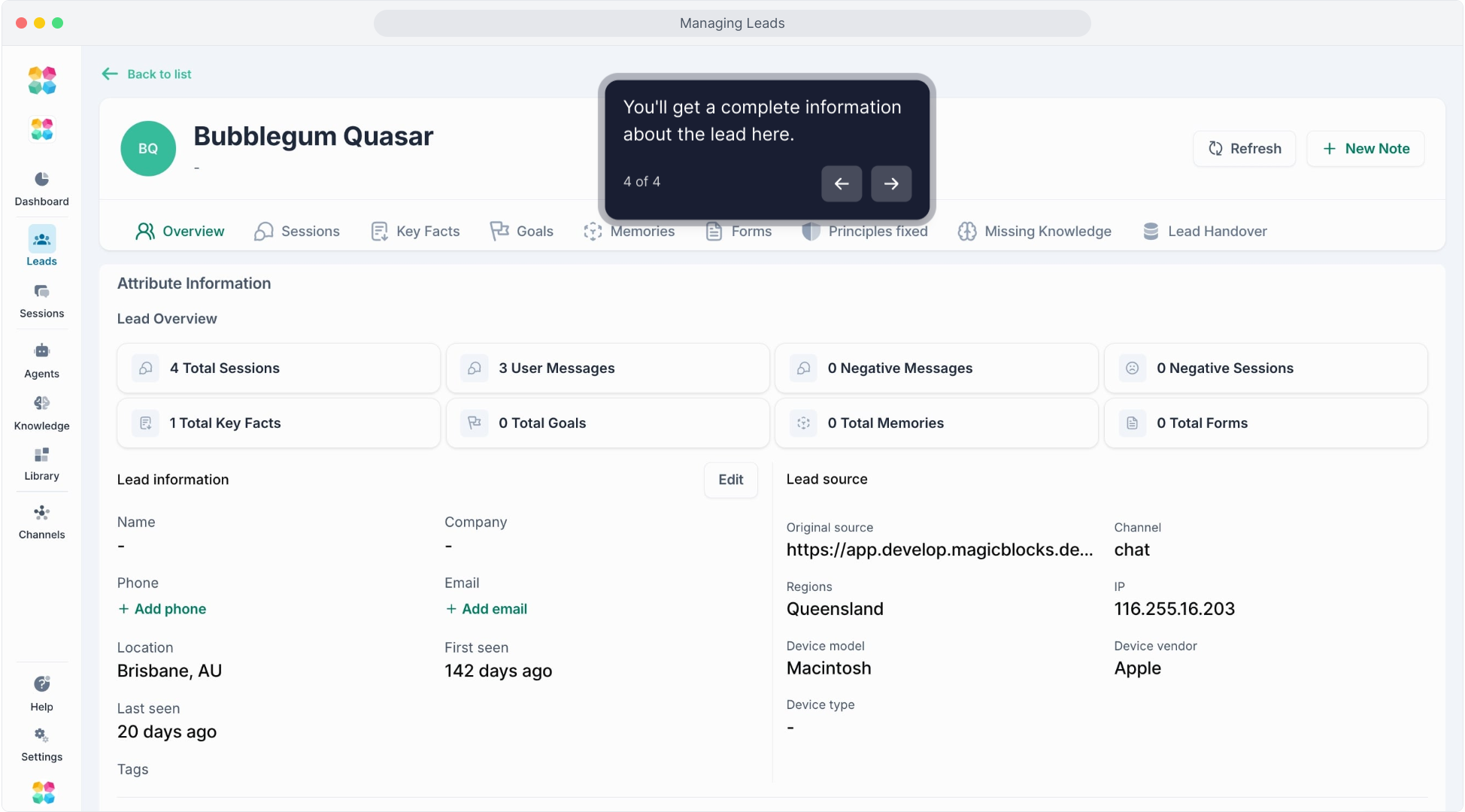
At the top of the User Overview, you’ll find important engagement metrics, such as:
- Total Sessions: The number of conversations the user has had with your AI agent.
- User Message Count: The total number of messages sent by the user across all sessions.
- Total Key Facts: Information your AI has gathered about the user during interactions. Key facts can include preferences, frequently asked questions, or specific needs.
- Total Goals: The number of goals the user has achieved, such as completing a form or reaching a specific objective set for the AI agent.
- Total Memories: The number of instances where your AI agent stored context or important information about the user, which can enhance future interactions.
- Total Forms: The number of forms the user has completed. This may include surveys, feedback forms, or registration details collected through the AI experience.
Below the metrics, the Personal Information section includes:
- Name: The user’s name as recognized by the AI agent.
- Location: The user’s location, which could be based on profile settings or inferred from interactions.
- Last Seen: The last time the user interacted with the AI, which helps track engagement frequency.
- Contact Details: Includes the user’s email and phone number if available, enabling follow-ups or personalized responses.
- Unique ID: A unique identifier for the user, which helps in tracking and managing their interactions across multiple sessions.
- First Seen: The date of the user’s initial interaction with the AI, giving insight into how long they have been engaging with the platform.
Benefits of the User Overview
The User Overview allows you to:
- Track Engagement Patterns: Understanding how often a user engages with the AI can help identify active and inactive users.
- Personalize Responses: Key facts and memories allow the AI to respond more personally and contextually, improving the user experience.
- Monitor Goal Completion: By tracking completed goals, you can assess if the AI is effectively helping users achieve their objectives.
- Manage Follow-Ups: Contact details and engagement history enable you to reach out to users for feedback, support, or additional services.
Managing Contacts gives you a clear picture of who is engaging with your AI Agent, what they care about, and how effectively your experience is driving actions. By reviewing sessions, goals, key facts, and forms, you can understand your audience and optimize the conversation journey to convert more users into qualified opportunities.
As your Agent learns and interacts, this dashboard becomes your intelligence engine. Use it to refine your flows, spot engaged contacts early, and guide high-intent users toward the right next step.
If you’re ready to go deeper, explore how to enrich contact profiles and automate hand-off processes below.
How It Works
Capture — When users engage with your Agent and meet a goal (like sharing contact info), MagicBlocks automatically stores the data.
Qualify — Based on your Agent’s setup, contacts can be tagged with goals (e.g. “Book Demo” or “Download Guide”).
Manage — Contacts appear in the dashboard under the Contacts section, sortable by time, source, or tag.
Act — You can export contacts, send follow-ups, or push them to your CRM via Contact Transfer or Webhooks.
Example Use Case
A coaching business sets up an AI sales agent on their website.
In one week, it captures 48 contacts, 17 of which booked discovery calls.The team reviews all 48 conversations in Contacts → Contacts Details, then exports the top 10 qualified contacts to their CRM.
Best Practices
- Use consistent goals (e.g., “Book Demo” vs “Request Demo”) for accurate filtering.
- Regularly tag and segment contacts by qualification score.
- Automate exports via Contact Transfer or Webhooks for faster handoff.
- Review chat transcripts to refine your Journey blocks.
- Use Import & Send to re-engage old contacts with new offers.
Related Articles
Contact overview
Contact details