---
title: "Key Facts"
url: "https://help.magicblocks.ai/en/article/key-facts-information-to-gather"
language: "en"
last_updated: "2026-03-18T08:05:51.164Z"
---
# Key Facts
## **What Are Key Facts?**
Key Facts are pieces of information collected during a conversation that are stored in session data. They allow the AI to:
- **Learn More About Users**: The collected data is stored in session history or contact profiles.
- **Personalize the Chat Experience**: The AI can use Key Facts to perform tasks, switch conversation blocks, or display tailored messages
## **Pro Tip: Start With Your Forms**
The fastest way to identify the Key Facts you need? **Look at your website forms.**
Whether it's a:
- Contact form
- Event booking form
- Demo request form
… every input field can become **a Key Fact**!
## **Examples of Key Facts to Collect**
Here are some practical examples of Key Facts you might want to gather during AI interactions in [MagicBlocks](https://magicblocks.ai/hc). These examples cover various scenarios to help you customize the AI's behavior for different purposes:
> **Personal Information**:
>
> Name
>
> Email address
>
> Phone number
>
> Location (city, state, country)
>
> **Preferences**:
>
> Communication preferences (e.g., email, SMS, phone)
>
> Interests and hobbies (e.g., favorite activities or pastimes)
>
> Favorite food or drinks
>
> **Relevant Dates or Times**:
>
> Important dates (e.g., birthdays, anniversaries)
>
> Preferred meeting or delivery times
>
> **Order and Purchase Details**:
>
> Order number or reference
>
> Purchase history (e.g., past orders, products bought)
>
> **Product or Service Information**:
>
> Desired product features or specifications
>
> Type of service needed (e.g., support, consultation)
>
> **Budget Information**:
>
> Estimated budget for a product or service
>
> Willingness to spend on premium options
## **Setting Up Key Facts in MagicBlocks**
There are two levels of Key Facts in [MagicBlocks](https://magicblocks.ai/hc): **Global** and **Journey** **Blocks-Level**. Each serves a different purpose, enabling the AI to collect information either universally or within specific conversation stages.
### **Global Key Facts**
**Global Key Facts** apply across all conversation blocks. They are used to gather universally relevant information, such as names or email addresses, regardless of the conversation's current stage.
How to Set Up Global Key Facts:
**1\. Go to “Agents”**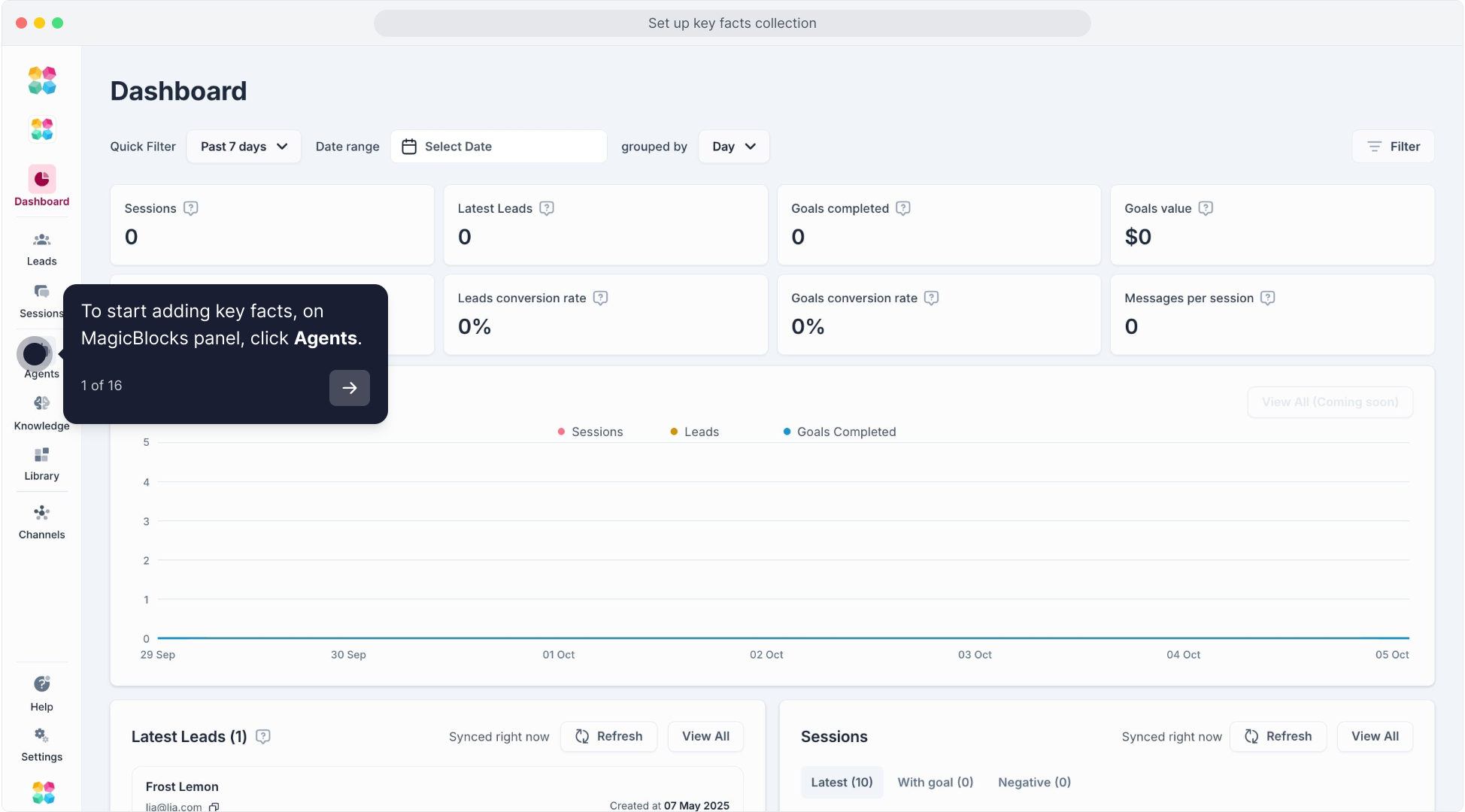
On your [MagicBlocks](https://magicblocks.ai/hc) dashboard, click the **“Agents”** tab from the left-hand menu. This opens your library of AI Agents.
**2\. Select Your Agent**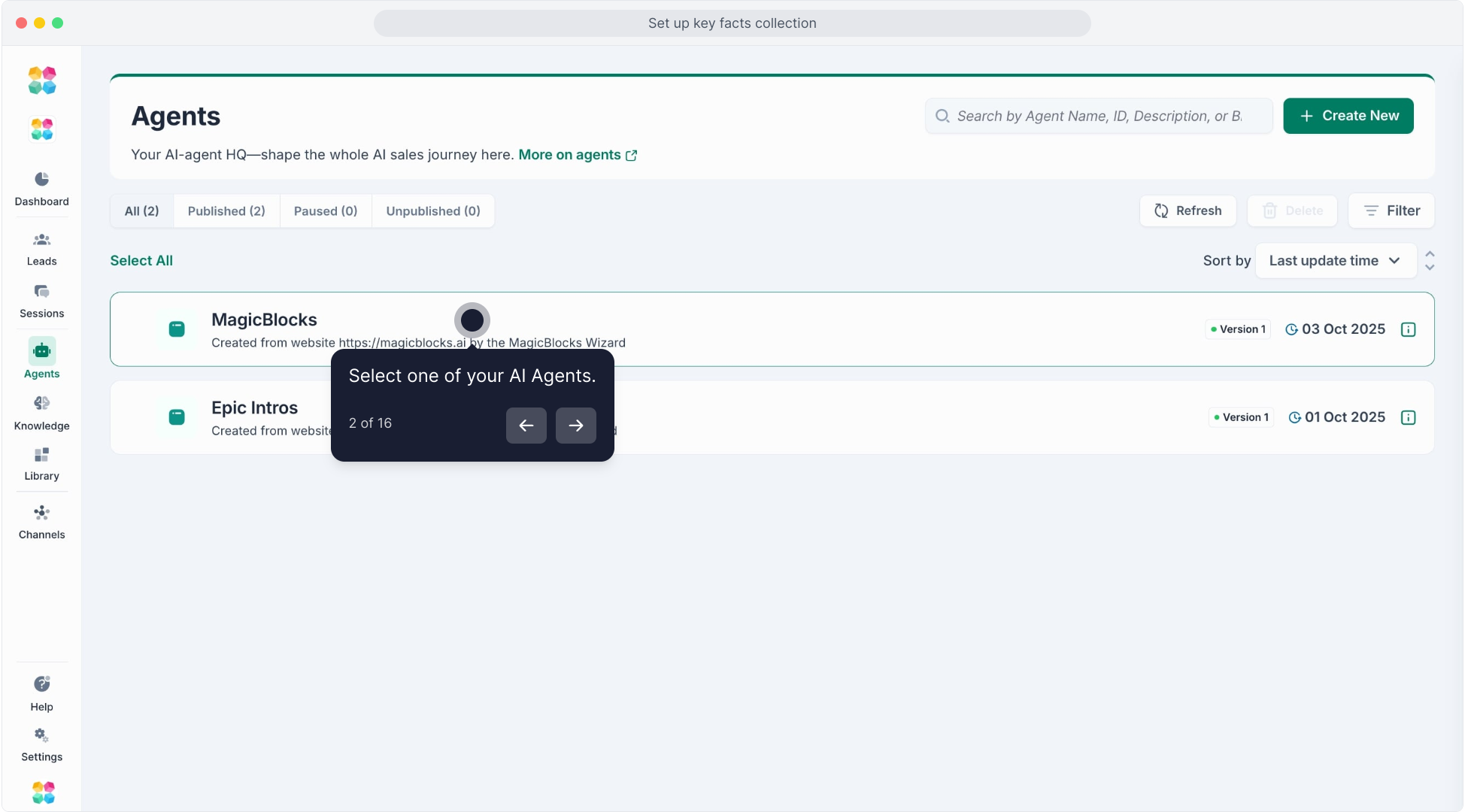
Click on the name of the AI Agent you want to enrich with Key Facts.
**3\. Open “Key Facts” Under General**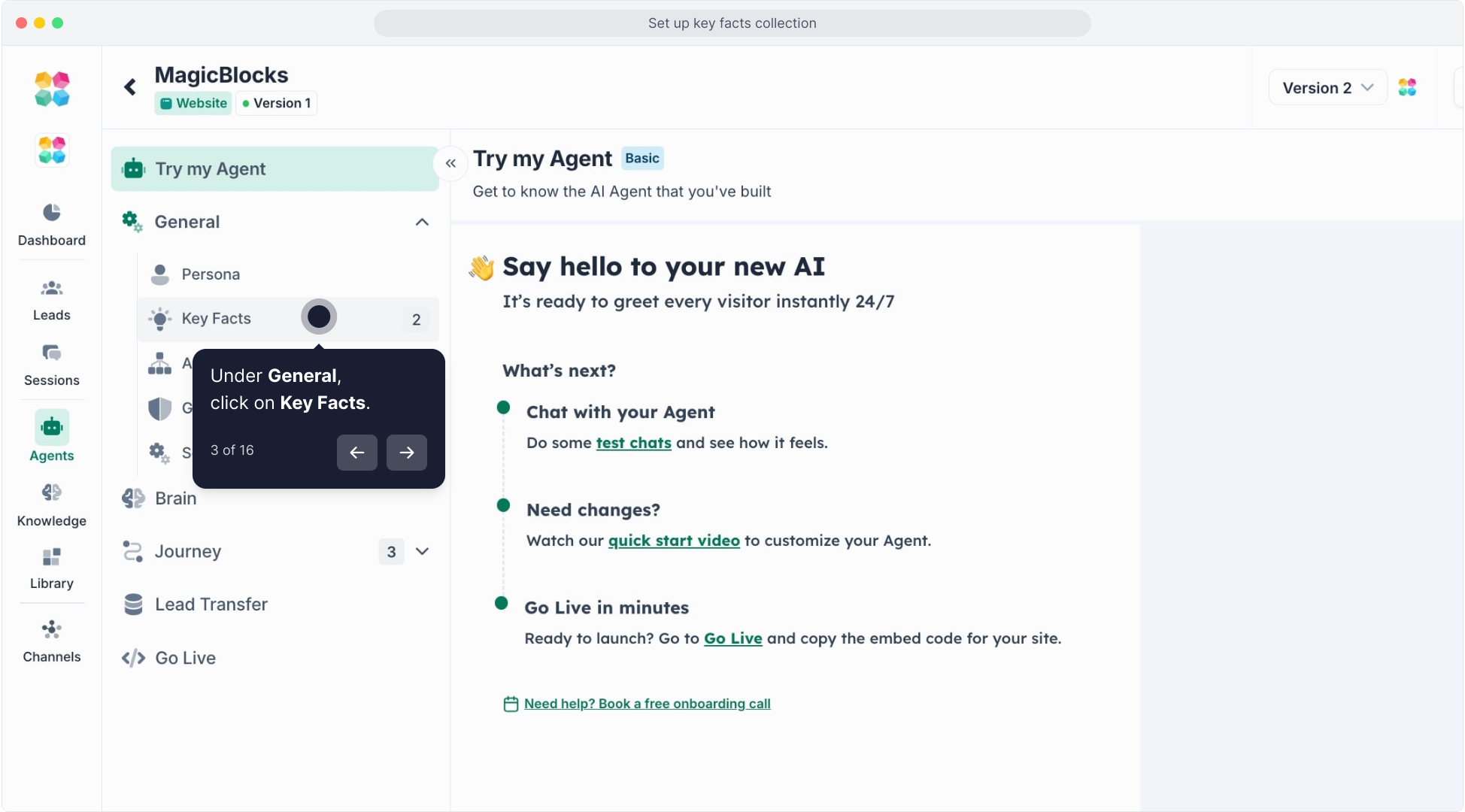
Inside the General menu, click on **“Key Facts.”** This is where you’ll manage all key data points the agent can collect during a conversation.
**4\. Click “New Key Fact”**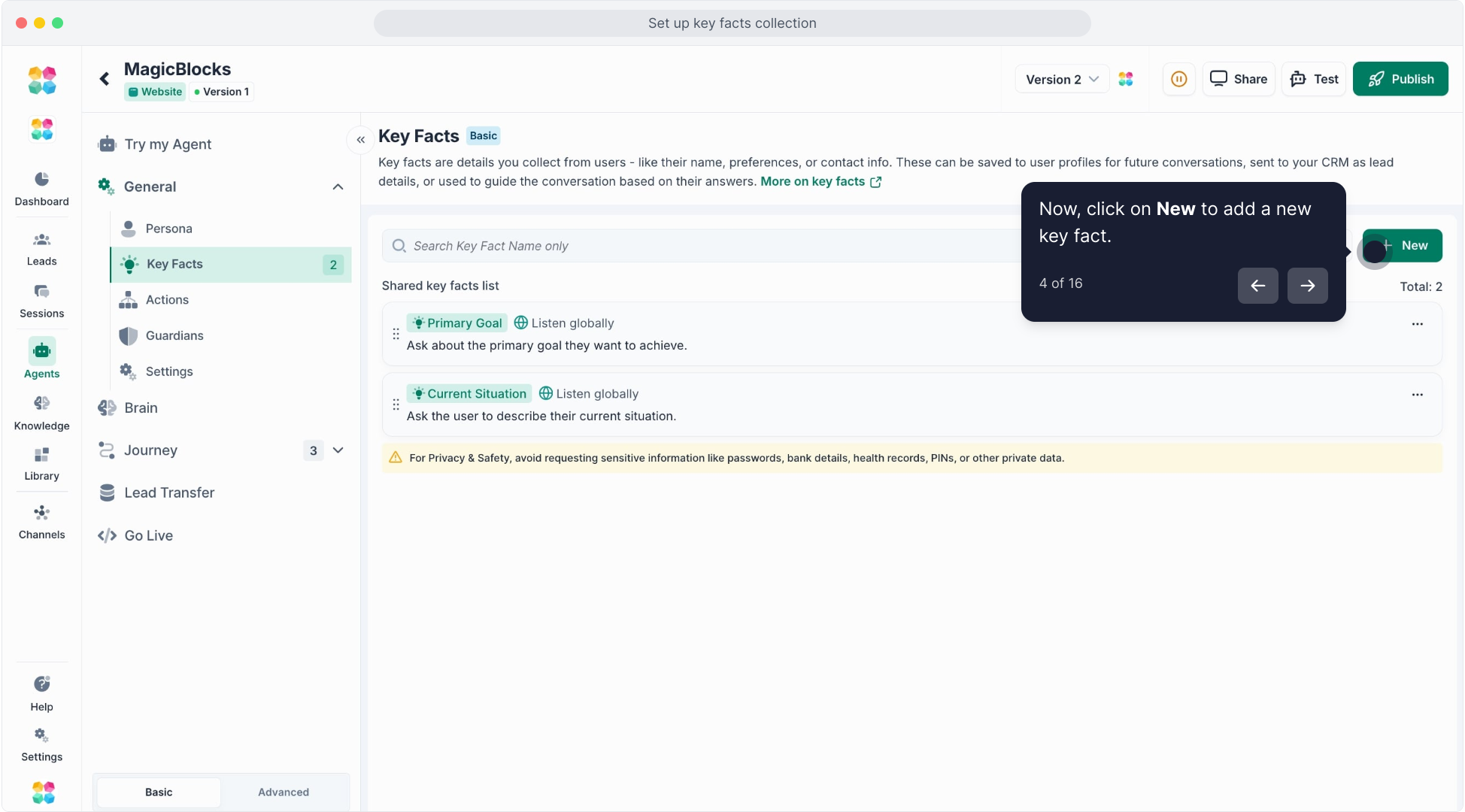
Tap the button to start creating a new Key Fact.
You’ll now be given two options:
- Choose from template
- Create custom key fact
**5\. Choose Your Method**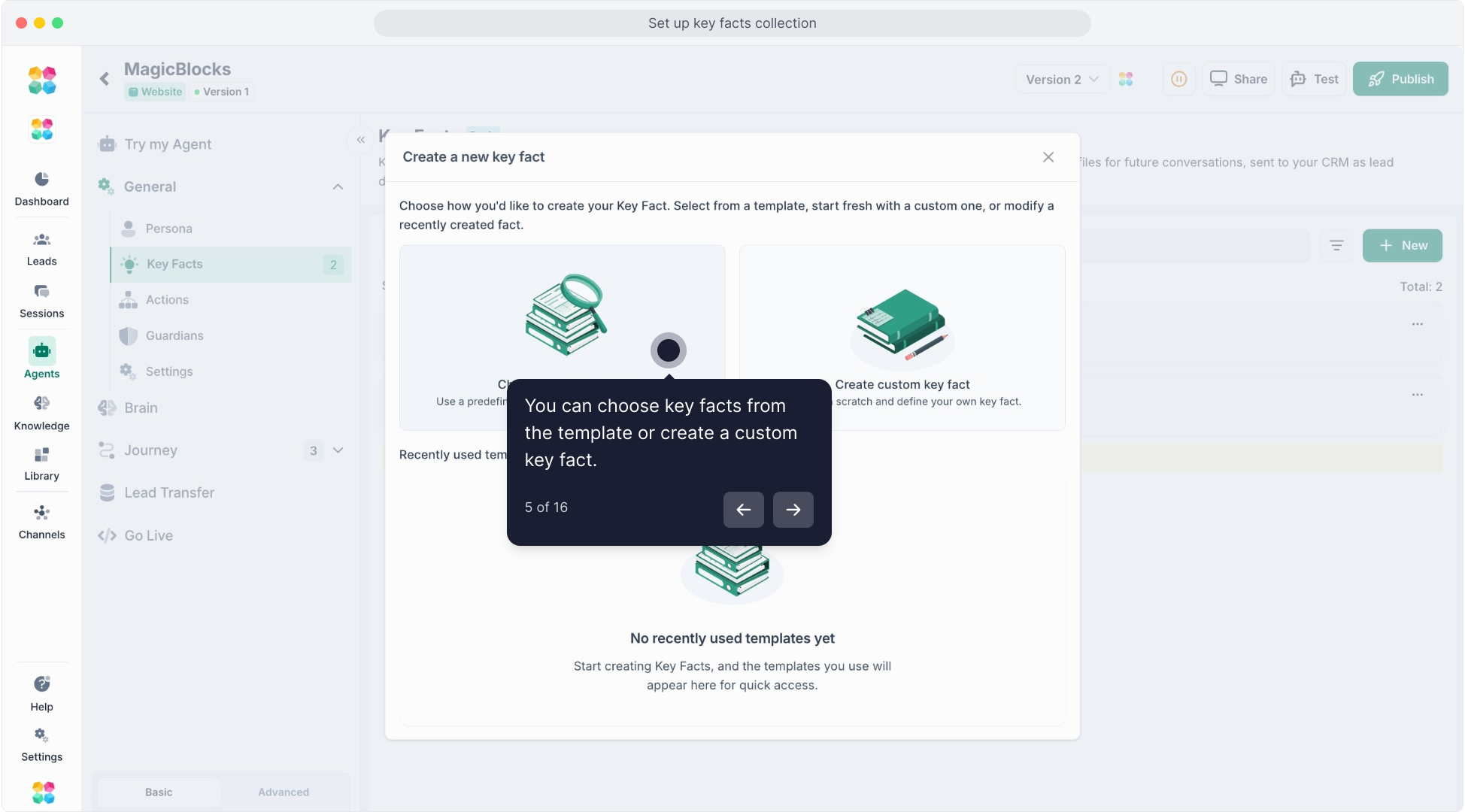
You can **use a pre-built template** (recommended for speed) or **create your own custom Key Fact** if you have a unique data point to capture.
**6\. Start with a Template**
Let’s use a template first. Click **“Continue.”**
**7\. Select a Category**
You’ll now see categories like:
- Contact Qualification
- Education
- Health, and other industries
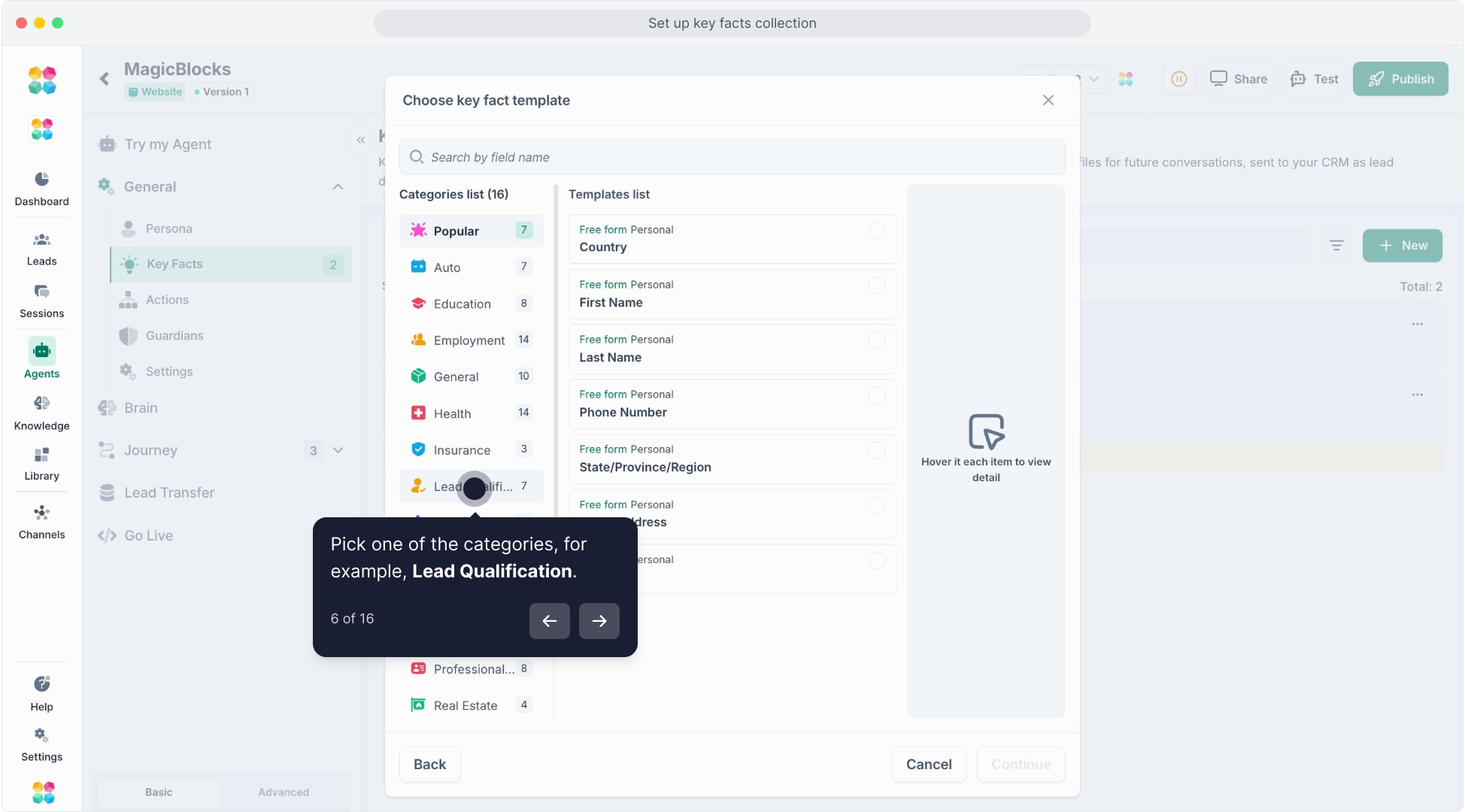For example, choose **“Contact Qualification”** to access high-impact templates for sales.
**8\. Choose a Key Fact from the category**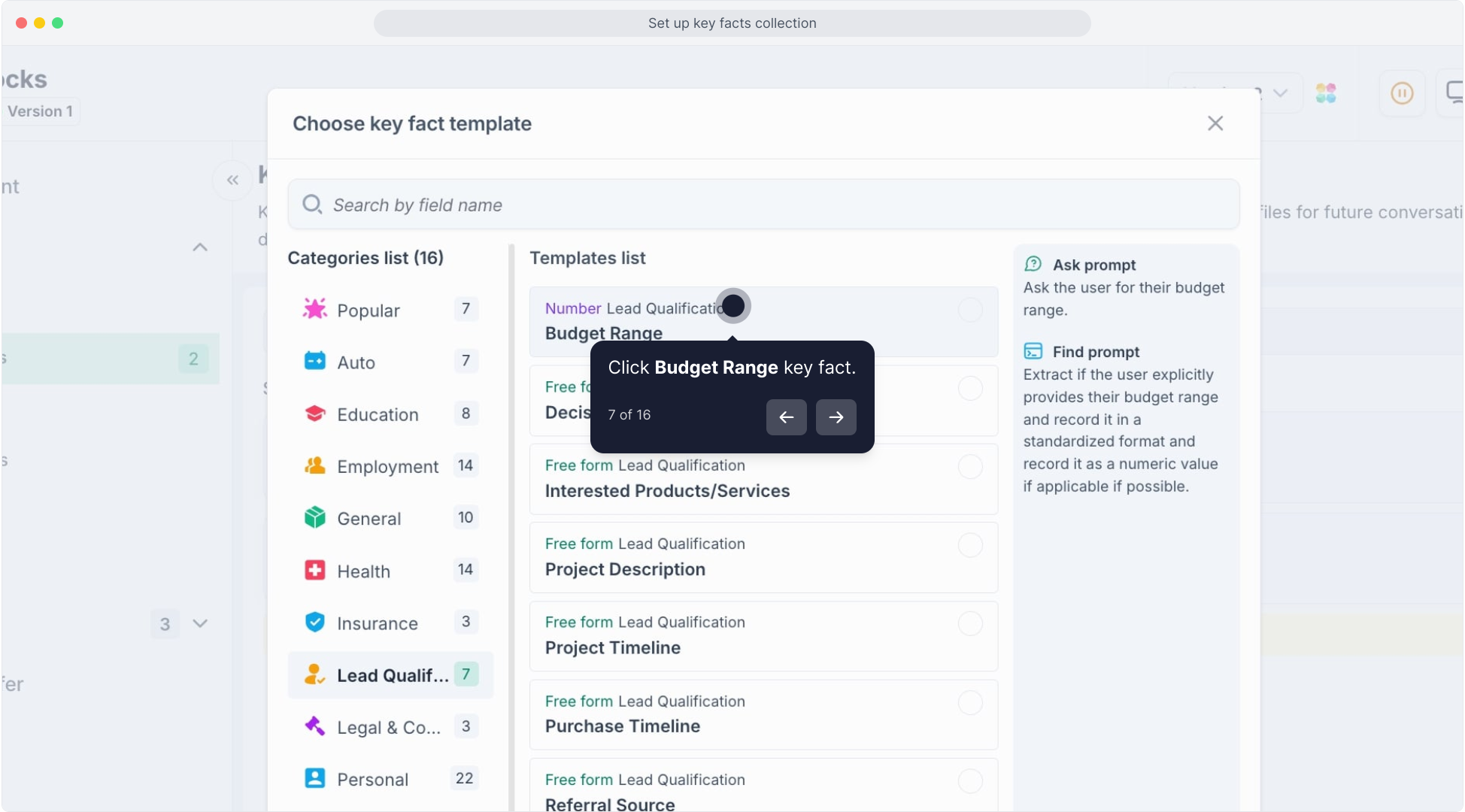
For example, click **“Budget Range.”**
This Key Fact lets the agent detect and store a user’s budget during conversations.
**9\. Click “Continue”**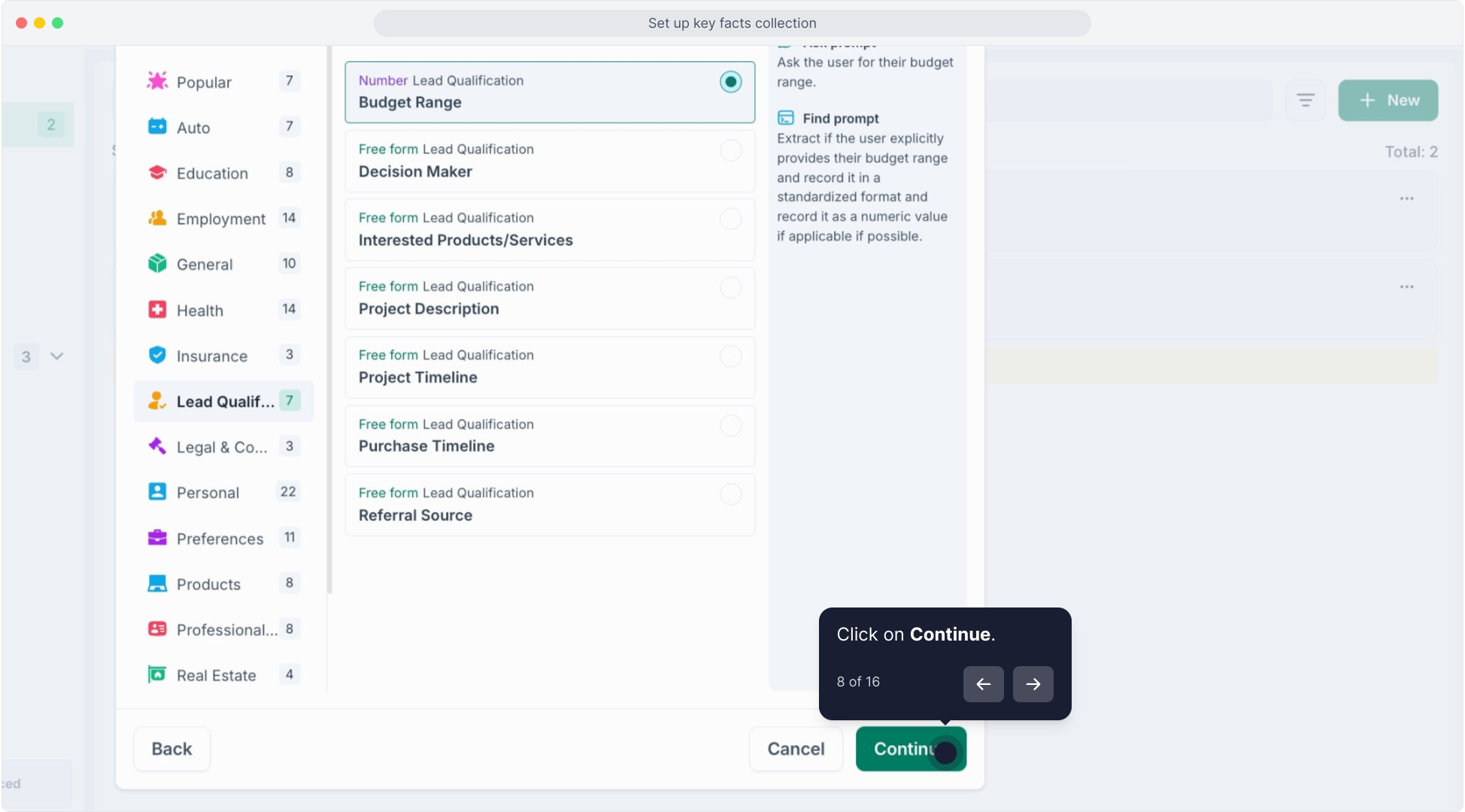
Review the default config for this Key Fact. No need to change anything unless you want to customize the detection rules.
**10\. Click “Add Fact”**
Boom! Your first Key Fact is live and ready to capture data in conversations.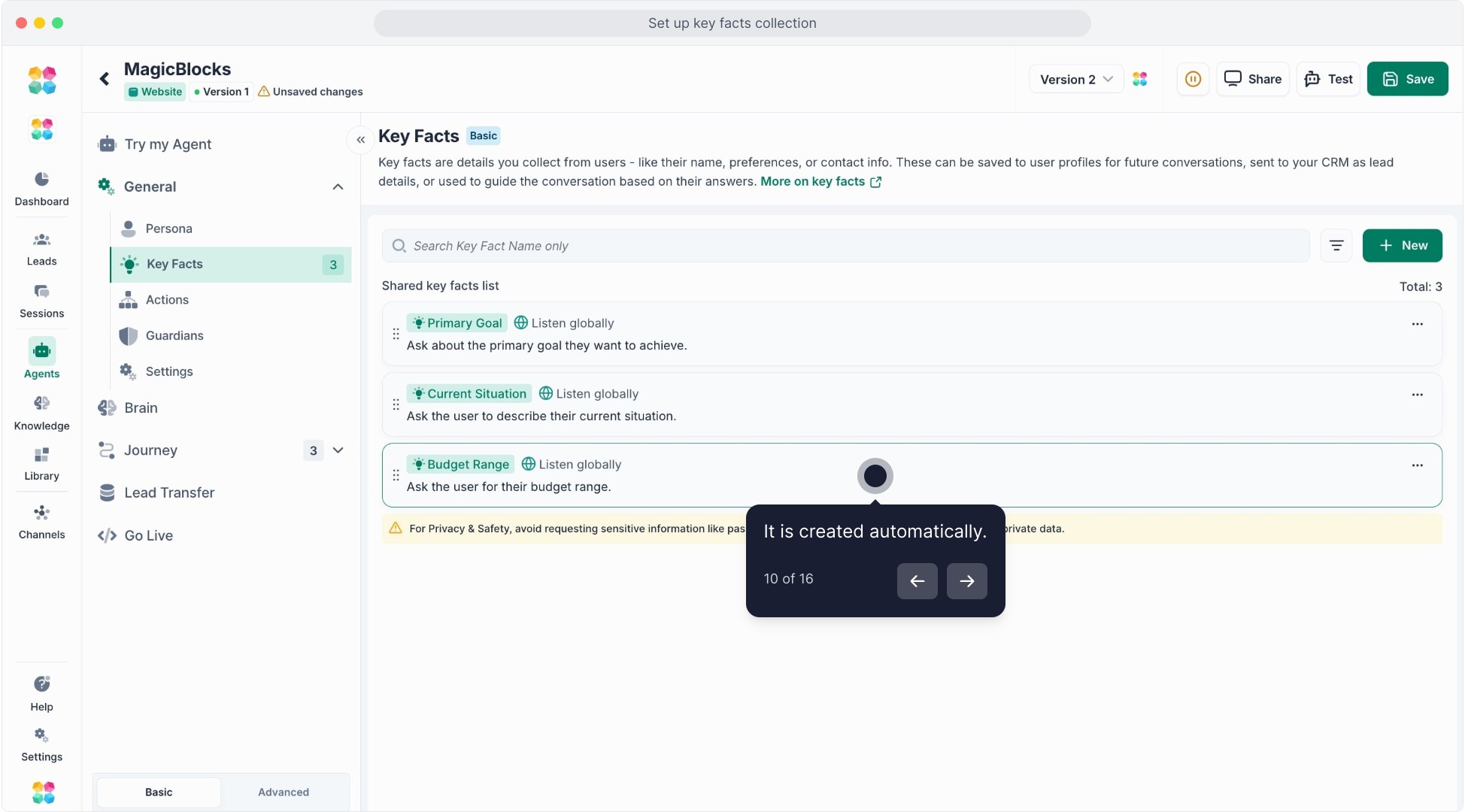
**11\. Add Another: Click “New” Again**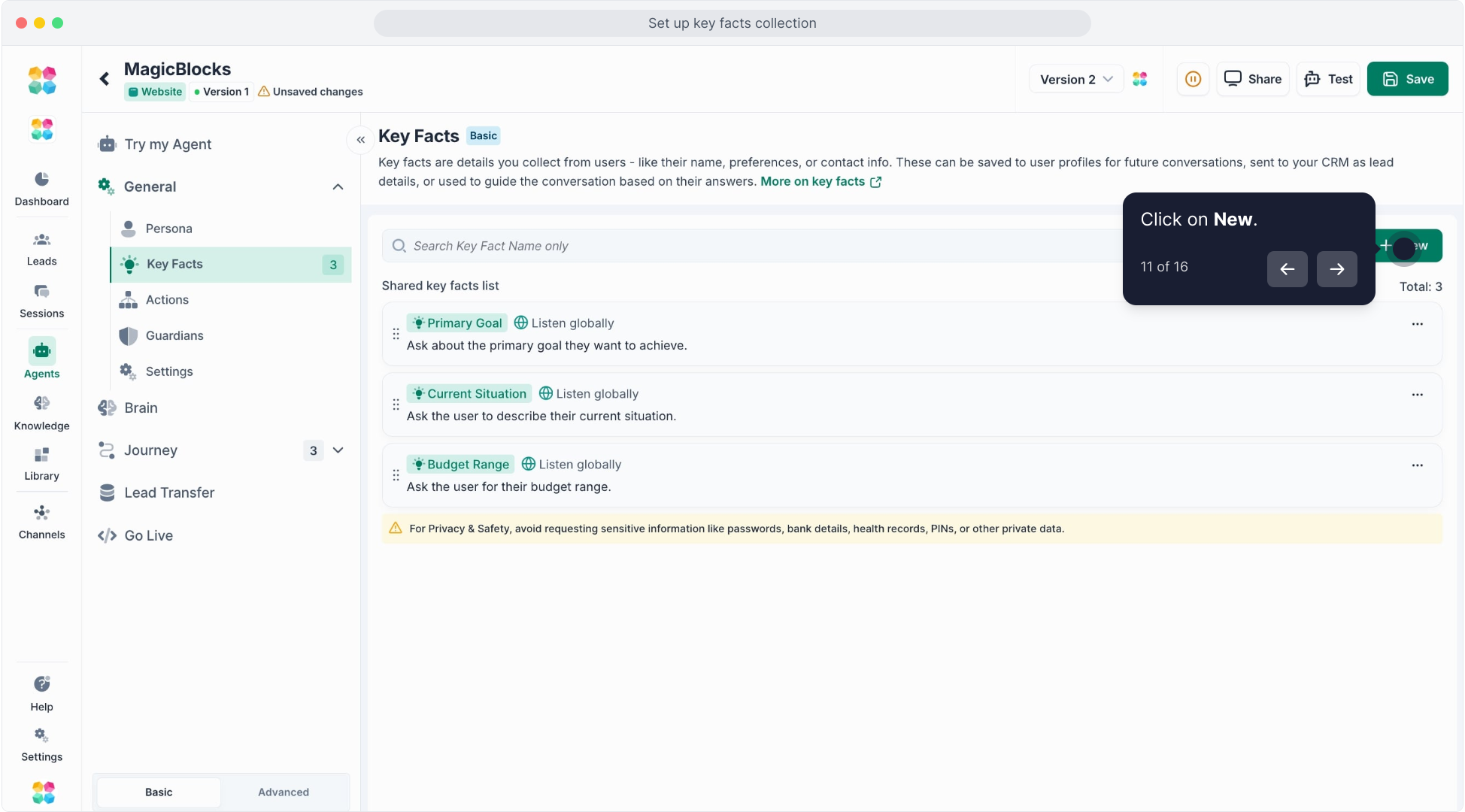
Let’s now create a **custom** Key Fact to capture something specific to your business.
**12\. Choose “Create Custom Key Fact”**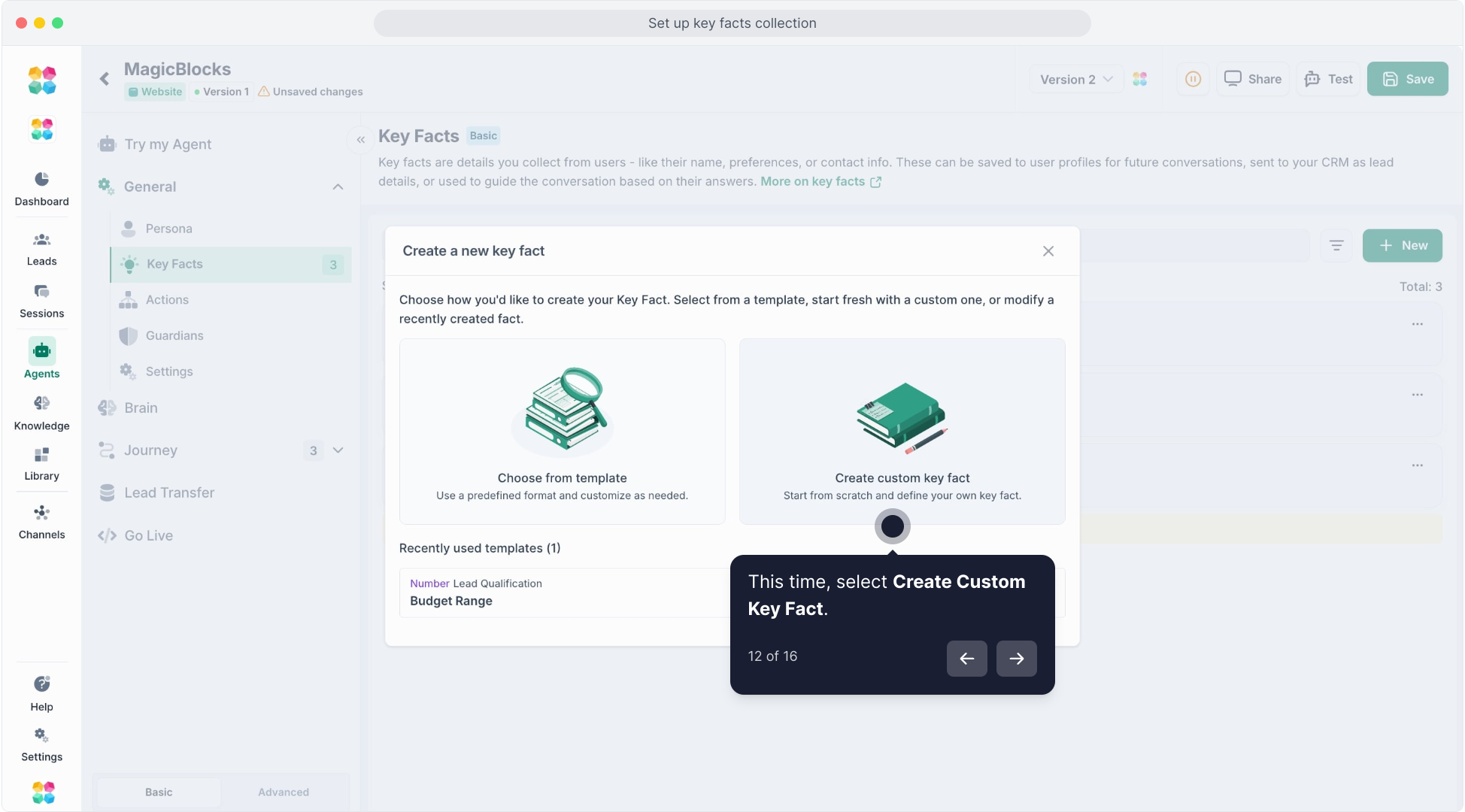
Instead of using a template, click **“Create Custom Key Fact.”**
**13\. Name Your Key Fact** ([Play Now](https://media.supademo.com/cm19x0p5f02uu28fi5k0t2b3e/videos/U_Gu3IsSMuRwD7JQdlUFr.mp4))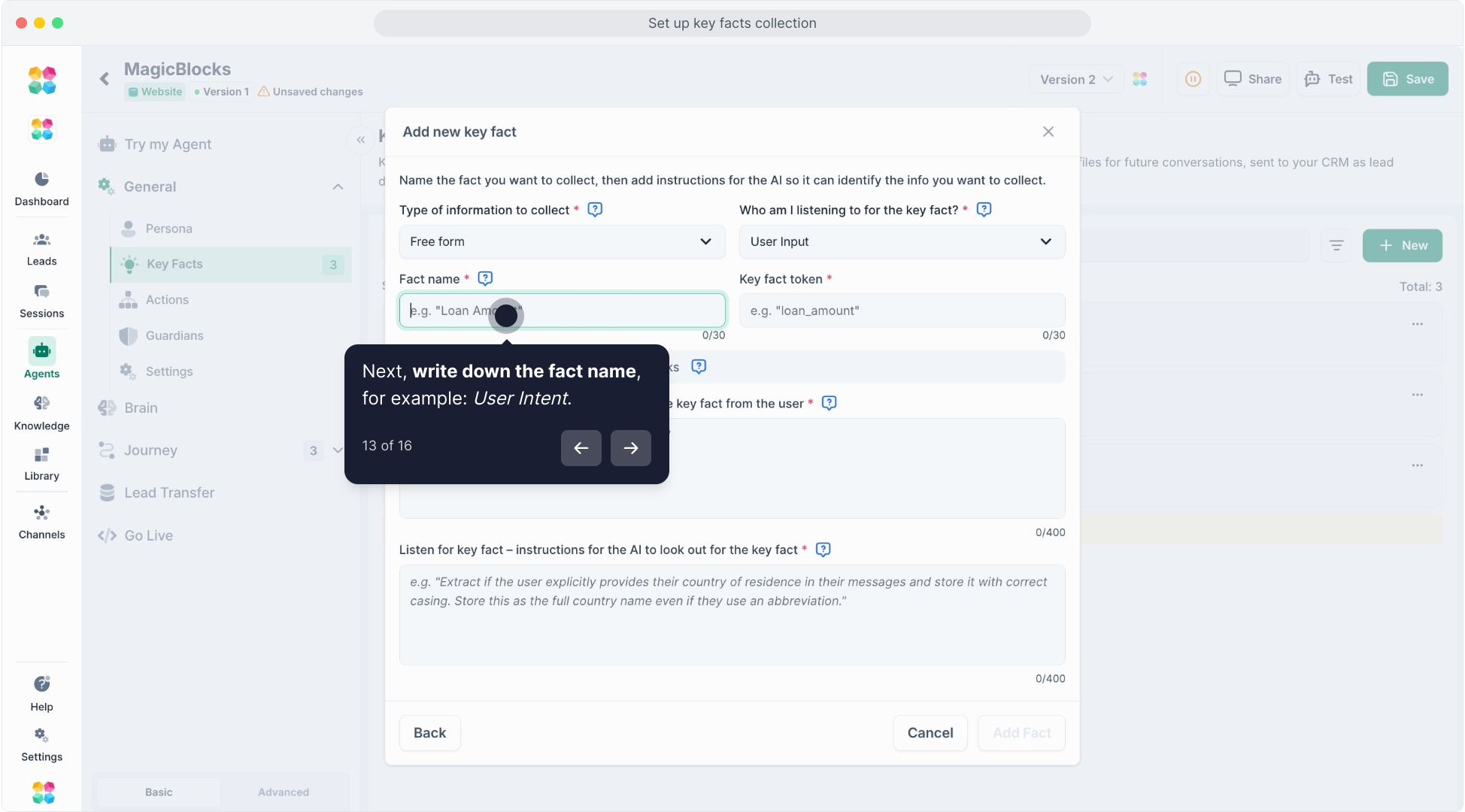
For example, call it **“User Intent.”** You can choose the type of information to collect: Free form, Number, Options or True or False. The most common is free form.
If you want the type to be Options, click **Options** in the selection.
Then add the option values of the key fact. Add each item either by pressing enter, tab or comma.
**15\. Click “Add Fact”**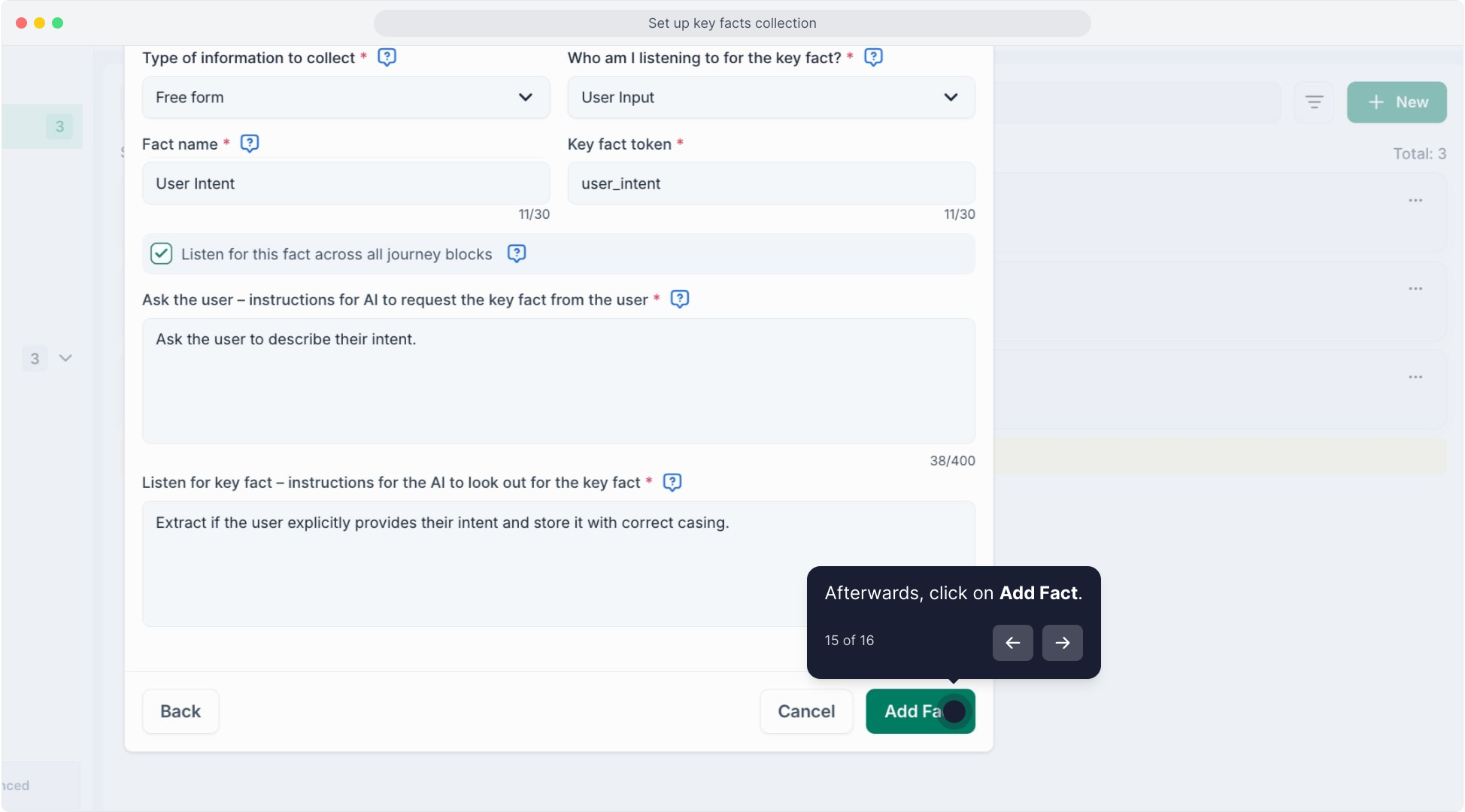
Your custom Key Fact is now active and ready to power your logic.
**16\. Click “Save”**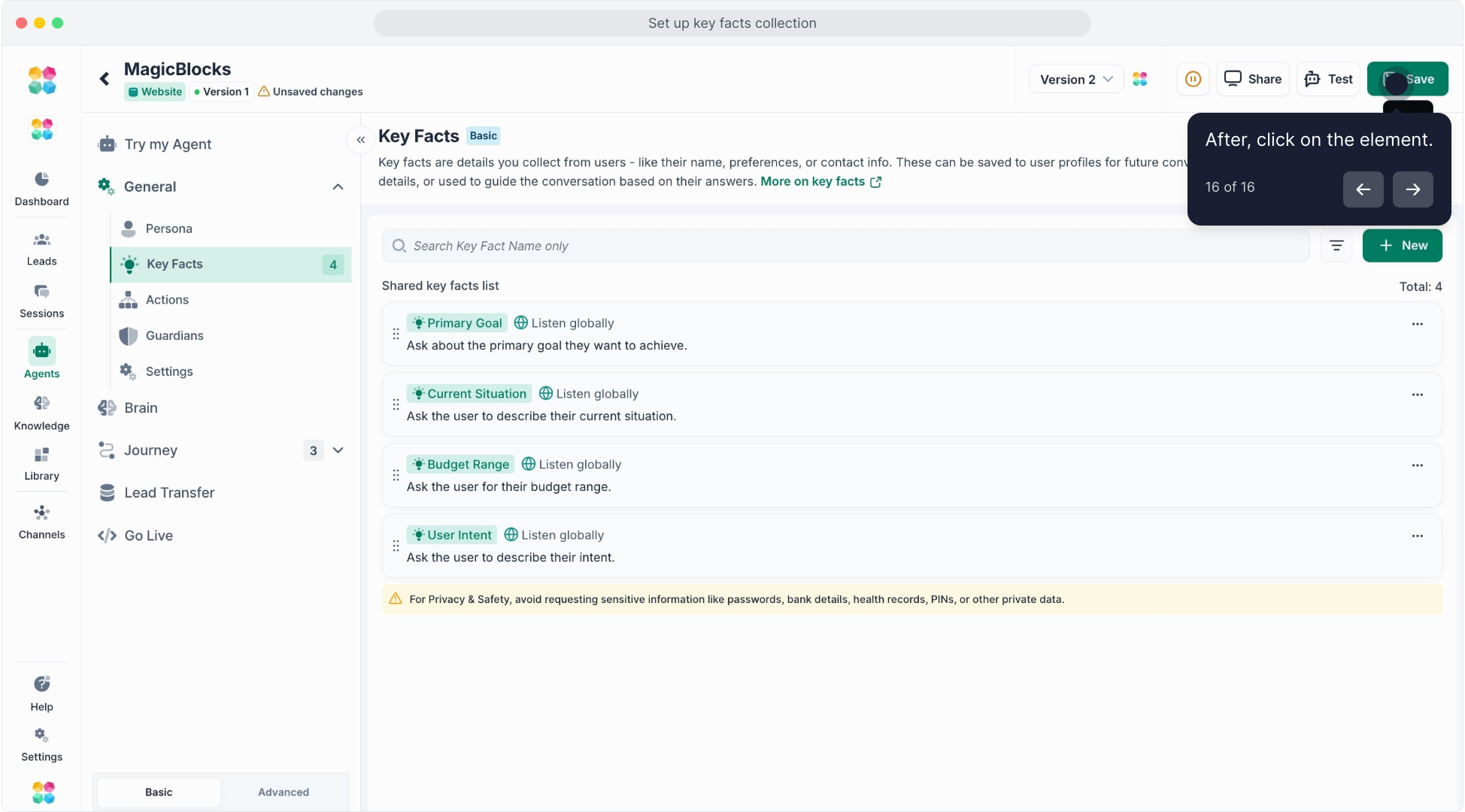
Always remember to **save your changes**!
Your Key Facts are now live and your AI Agent will:
- Ask for this info naturally
- Store and reuse it later in the chat
Click here to watch the video tutorial:
[YouTube video](https://www.youtube.com/embed/WDeDGiB3dwU)
## Conditional Key Facts
Conditional Key Facts let your Agent make smart decisions based on what it learns from the user — automatically switching Journeys, triggering tasks, or updating CRM data. They bridge the logic between **Key Facts (what the AI knows)** and **Actions (what the AI does next)**.
### Step 1 — Set Up the Key Fact
You’ll first need to define the Key Fact your Agent will listen for.
In this example, the Key Fact is **Loan Purpose**, which determines whether the user wants to *purchase*, *refinance*, or make a *home equity investment*.
**Configuration Example:**
| Field | Example Value |
| --- | --- |
| **Type of Information to Collect** | Options |
| **Fact Name** | Loan Purpose |
| **Who am I listening to for the key fact?** | User Input |
| **Ask the user:** | “Are you looking to purchase, refinance, or get a home equity investment?” |
| **Listen for key fact:** | “Extract if the user explicitly provides the loan purpose. Do not infer or assume their choice.” |
| **Option Values** | purchase, refinance, home equity investment |
**Tip:**
Check **“Listen for this fact across all journey blocks”** if you want the AI to recognize this fact anywhere in the conversation.
### Step 2 — Use the Key Fact in an Action Condition
Once your Key Fact is defined, you can **call it inside your Actions tab** to create smart branching logic.
For example, you can configure your Agent to switch to the correct Journey automatically:
| **Key Fact** | **Condition** | **Action** |
| --- | --- | --- |
| Loan Purpose | Equals “home equity investment” | Move to
**HEI Journey** |
| Loan Purpose | Equals “refinance” | Move to
**Refinance Journey** |
| Loan Purpose | Equals “purchase” | Move to
**Purchase Journey** |
This setup ensures that as soon as the user’s **Loan Purpose** is detected, your AI routes them seamlessly to the right part of your sales funnel.
### Step 3 — Test in “Try My Agent”
Before publishing, always test your logic in **Try My Agent**.
This confirms that:
- The Key Fact is recognized correctly in conversation.
- Each condition routes to the correct Journey.
- Only one Action fires per user input.
## **What You Can Do Next**
**Trigger Conditional Actions:** Use Key Facts in “Actions” to trigger Journey blocks switch, calendar links, route to human reps, or push to CRM when all facts are collected.
### **Journey-Level Key Facts**
**Journey-Level Key Facts** are specific to individual Journey blocks, allowing you to customize the AI's data collection based on the Journey block's objectives. These Key Facts enable the AI to gather information relevant to the current conversation context.
### How to Set Up Journey-Level Key Facts
### Select the Journey block
Click into the **Agents** you're working on and open the **Journey** where you want to collect or use Key Facts.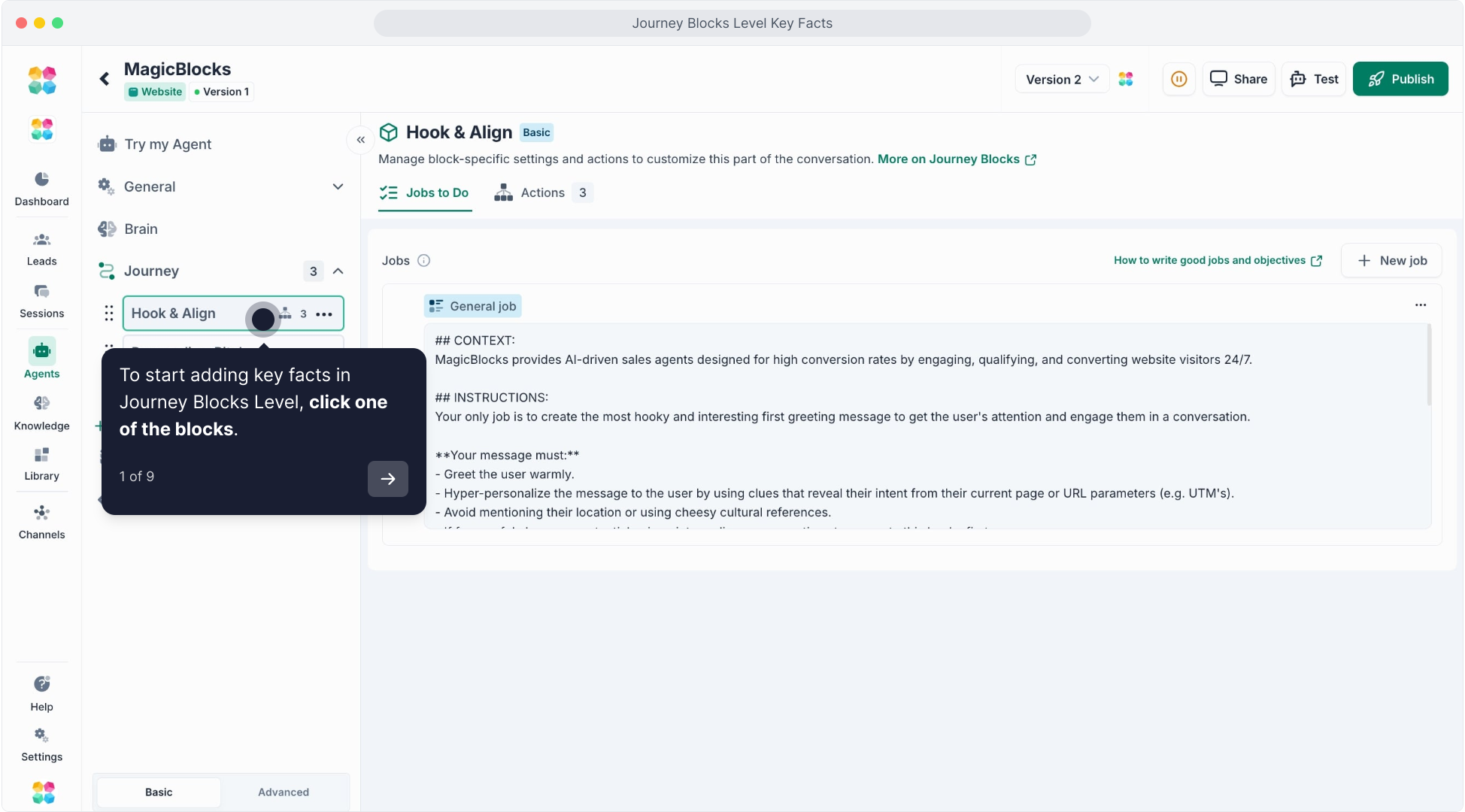
Each Journey block controls a specific part of the conversation, like “Hook & Align” “Personalize, Pitch, & Action” or “Human Handover” making it a perfect place for localized data capture.
### Add or Select Key Facts
Inside the Journey block:
Go to the **Actions** tab of your Journey block. Click **“New Action”**.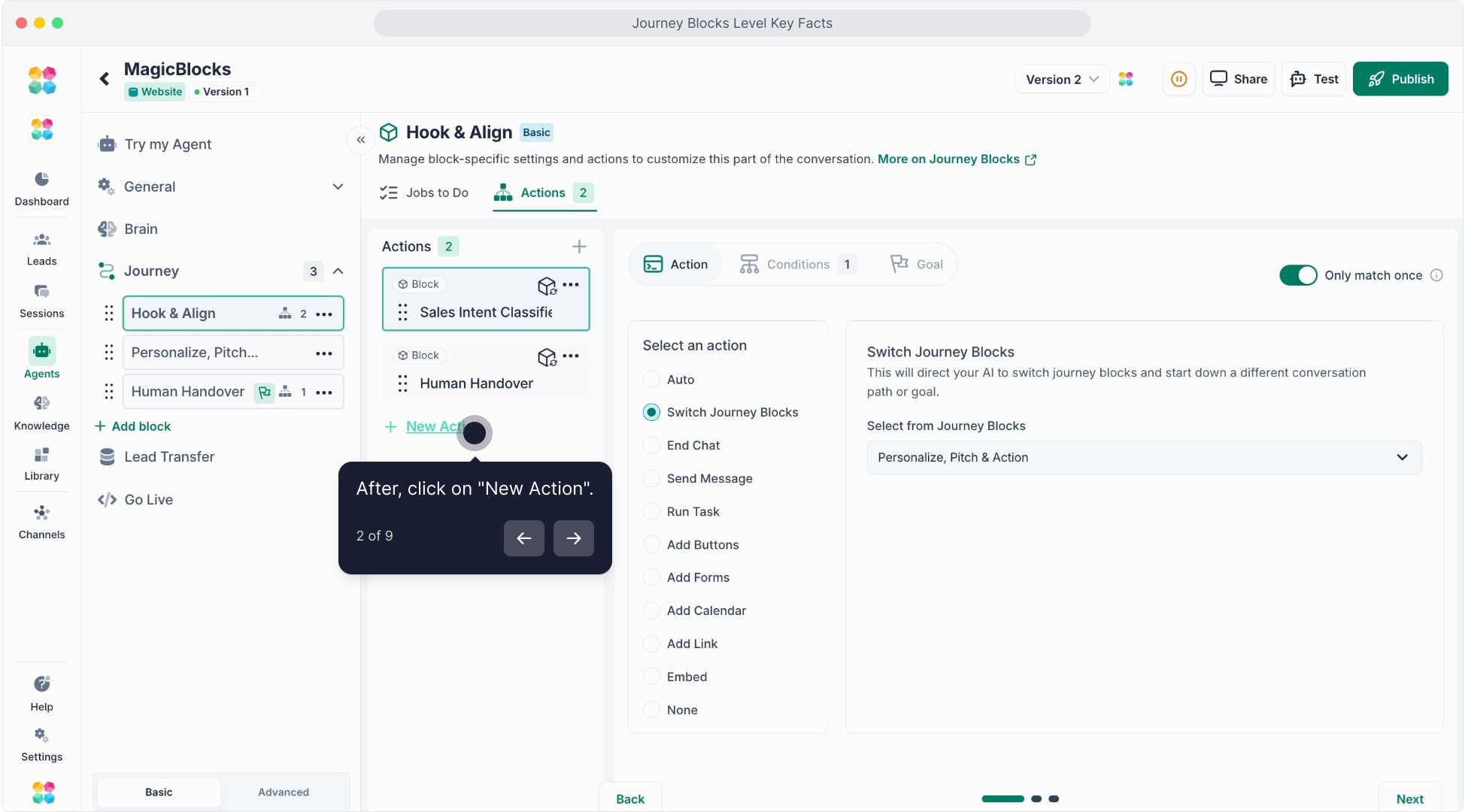
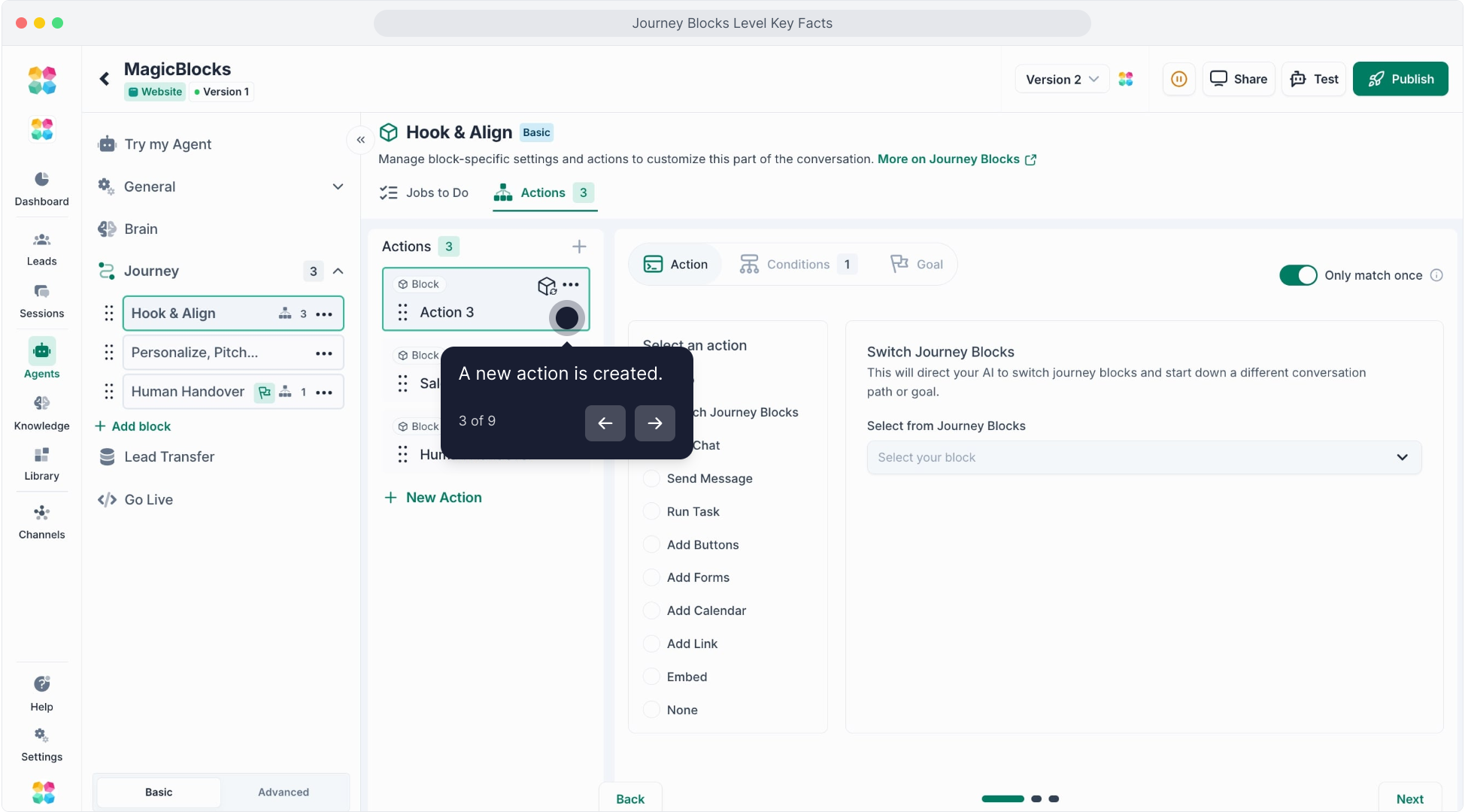Set a condition: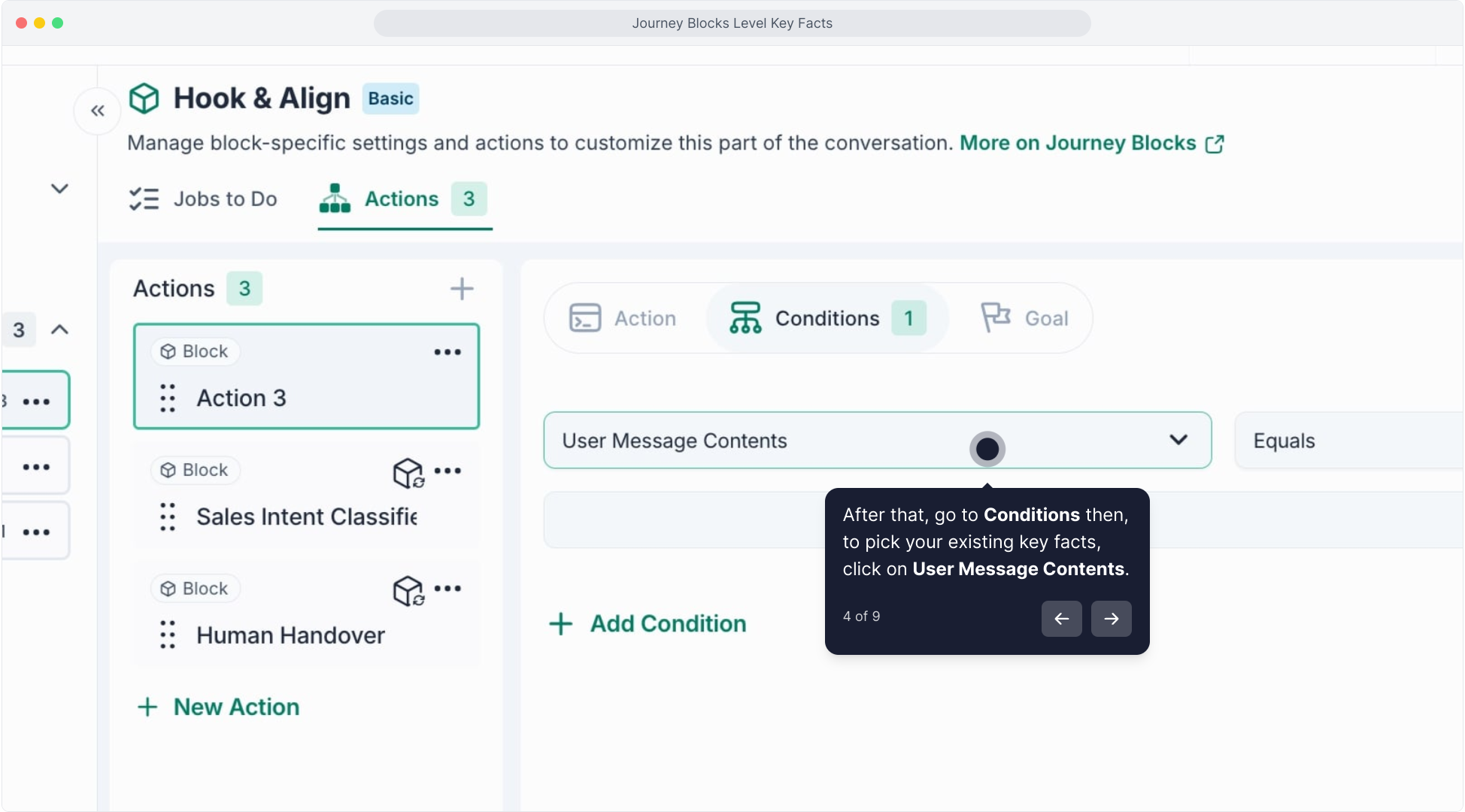Choose **“All Key Facts Found (This Block)”**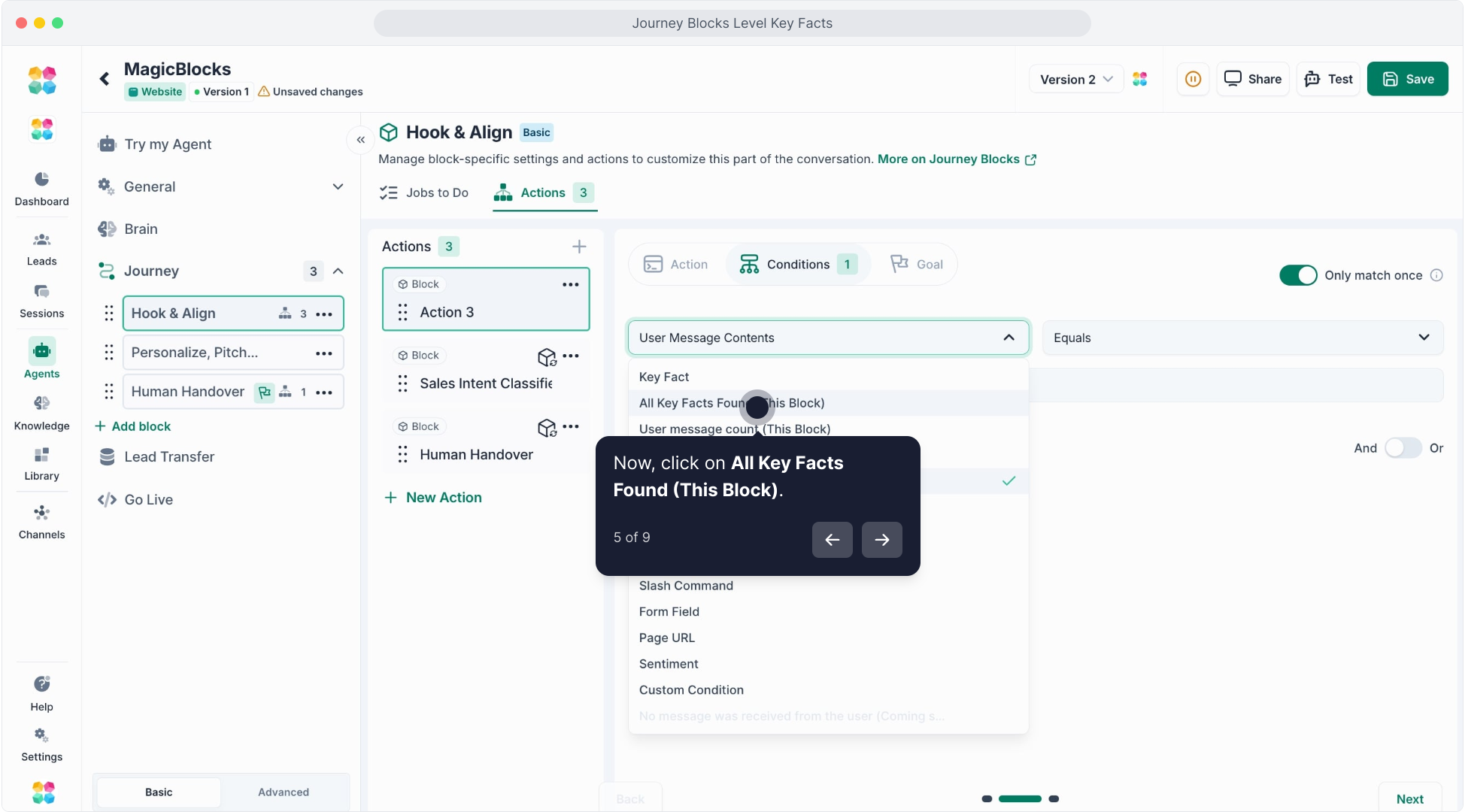and toggle it ON or **Key Fact \[Name of Key Fact\] equals \[Specific Answer\]**.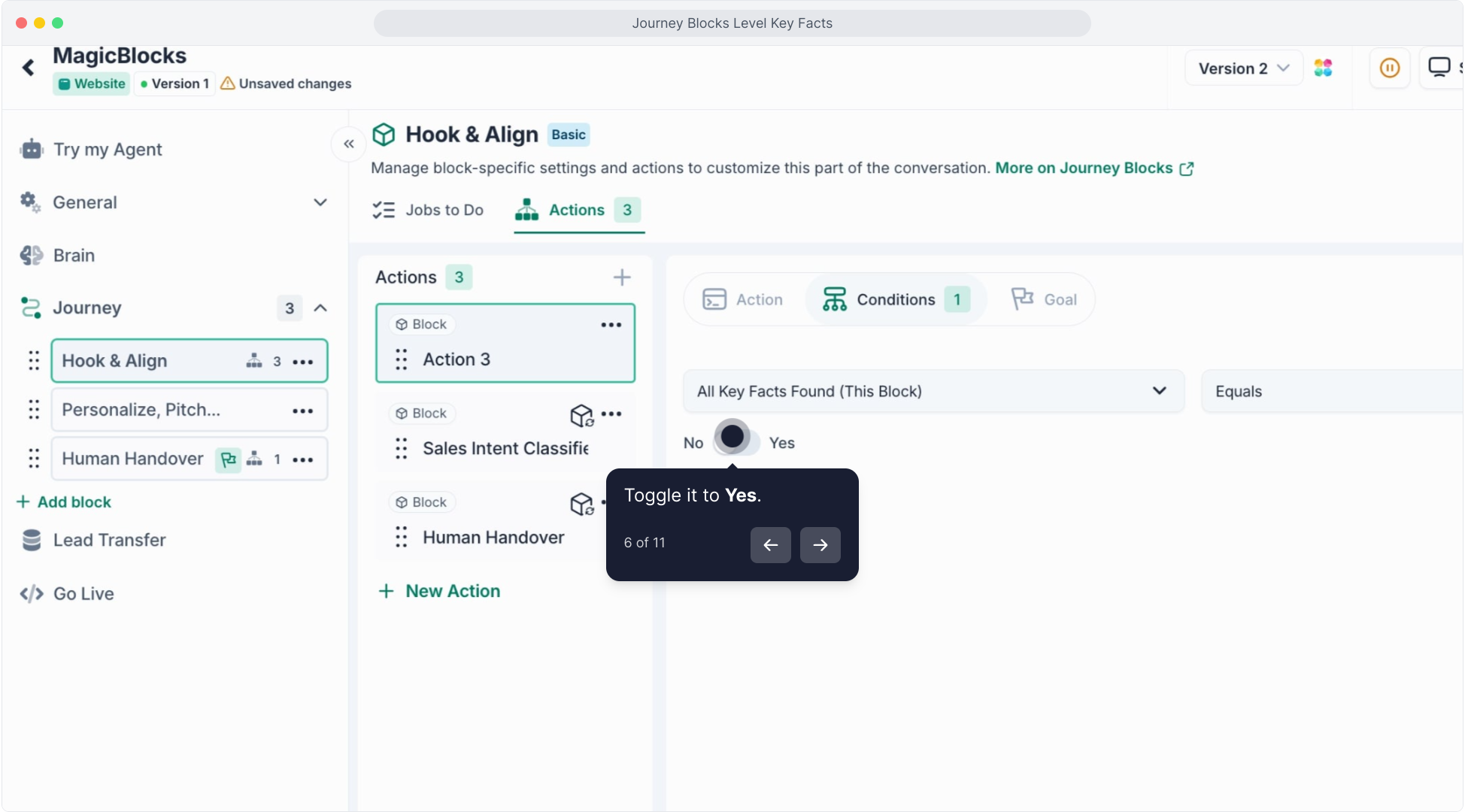
Add an action like **“Switch Journey Blocks”**, then select the next step (e.g., “Personalize, Pitch & Action" or “Human Handover”)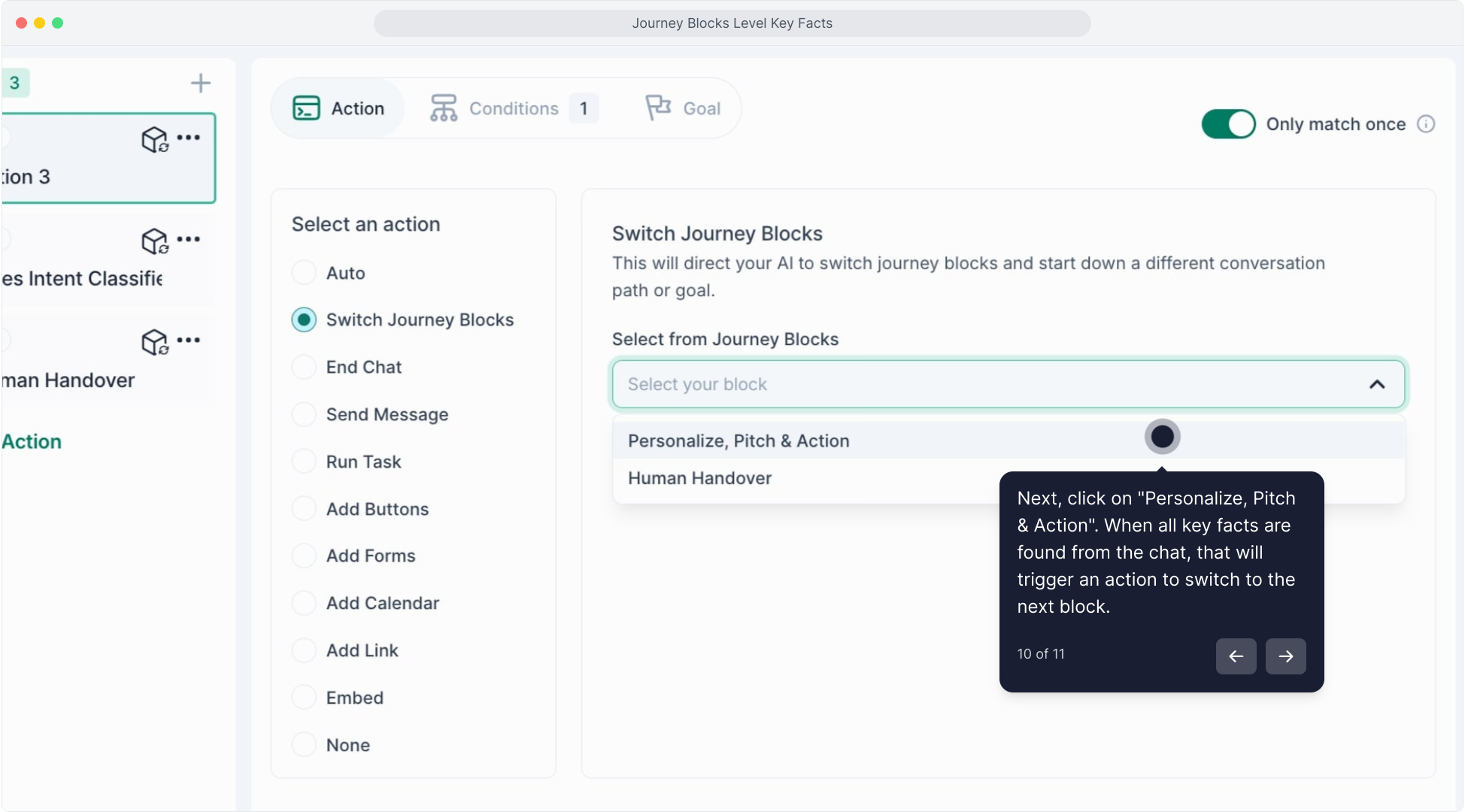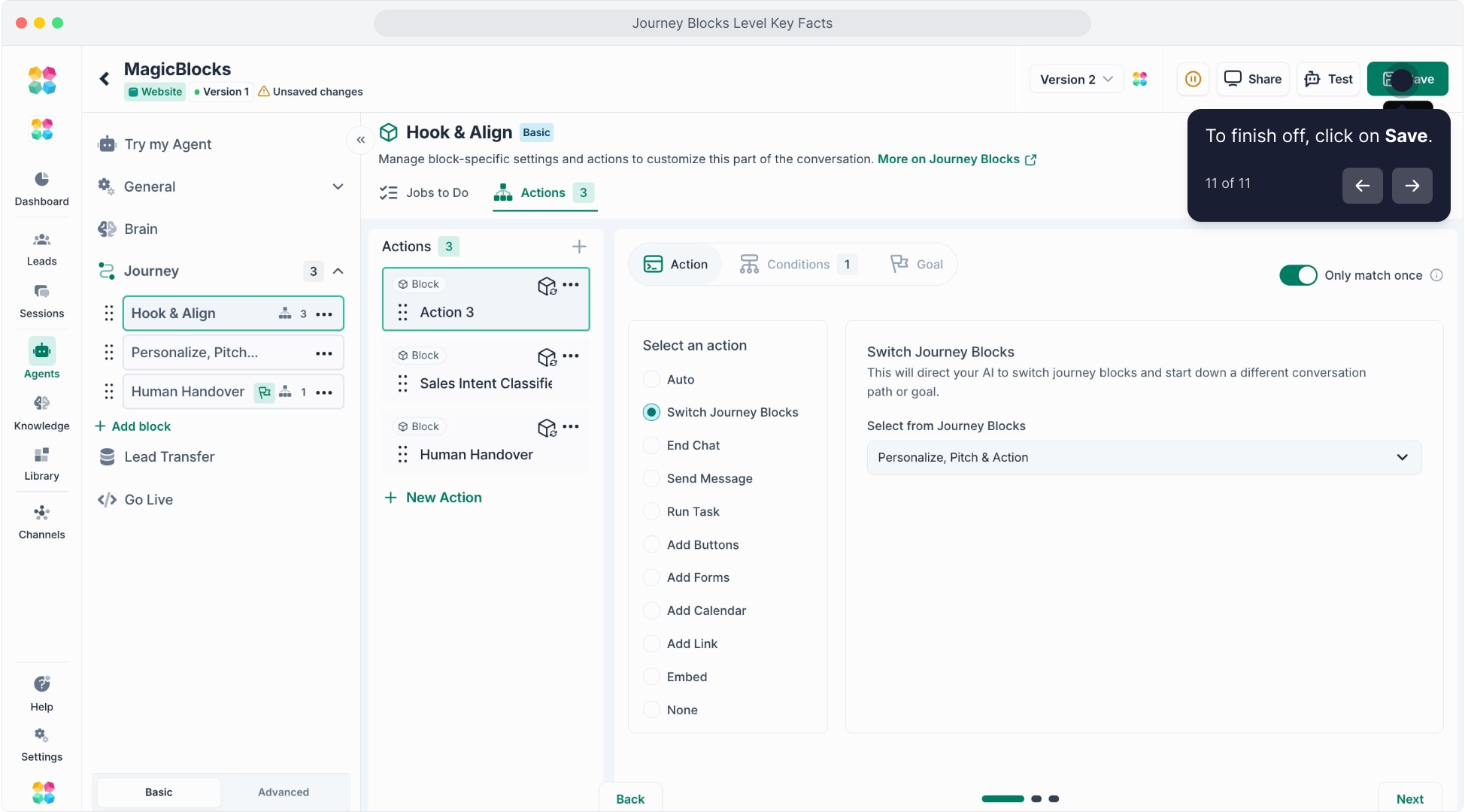
*This allows your AI Agent to automatically move forward once it collects all required facts.*
Click here to watch the tutorial video:
[YouTube video](https://www.youtube.com/embed/NFQ7bAsIJeE)
## **When to Use Journey Blocks-Level Key Facts**
Use them when:
- You want to **capture info in one stage** of the chat (e.g., Personalize).
- You need the AI to do specific **Actions** like **switch blocks** only after specific info is gathered.
With Journey Blocks Level Key Facts, your AI becomes smarter, more responsive, and better at guiding users through clean, efficient flows.