---
title: "Custom Fields"
url: "https://help.magicblocks.ai/en/article/custom-fields"
language: "en"
last_updated: "2026-03-18T09:34:55.750Z"
---
# Custom Fields
**Custom Fields** let you create additional data fields for **Contacts, Sessions, or Agents** inside your workspace.
They act as flexible data containers — perfect for capturing information like **budget, company size, product interest, or contact source** — and make your automations, CRM sync, and reporting much more powerful. 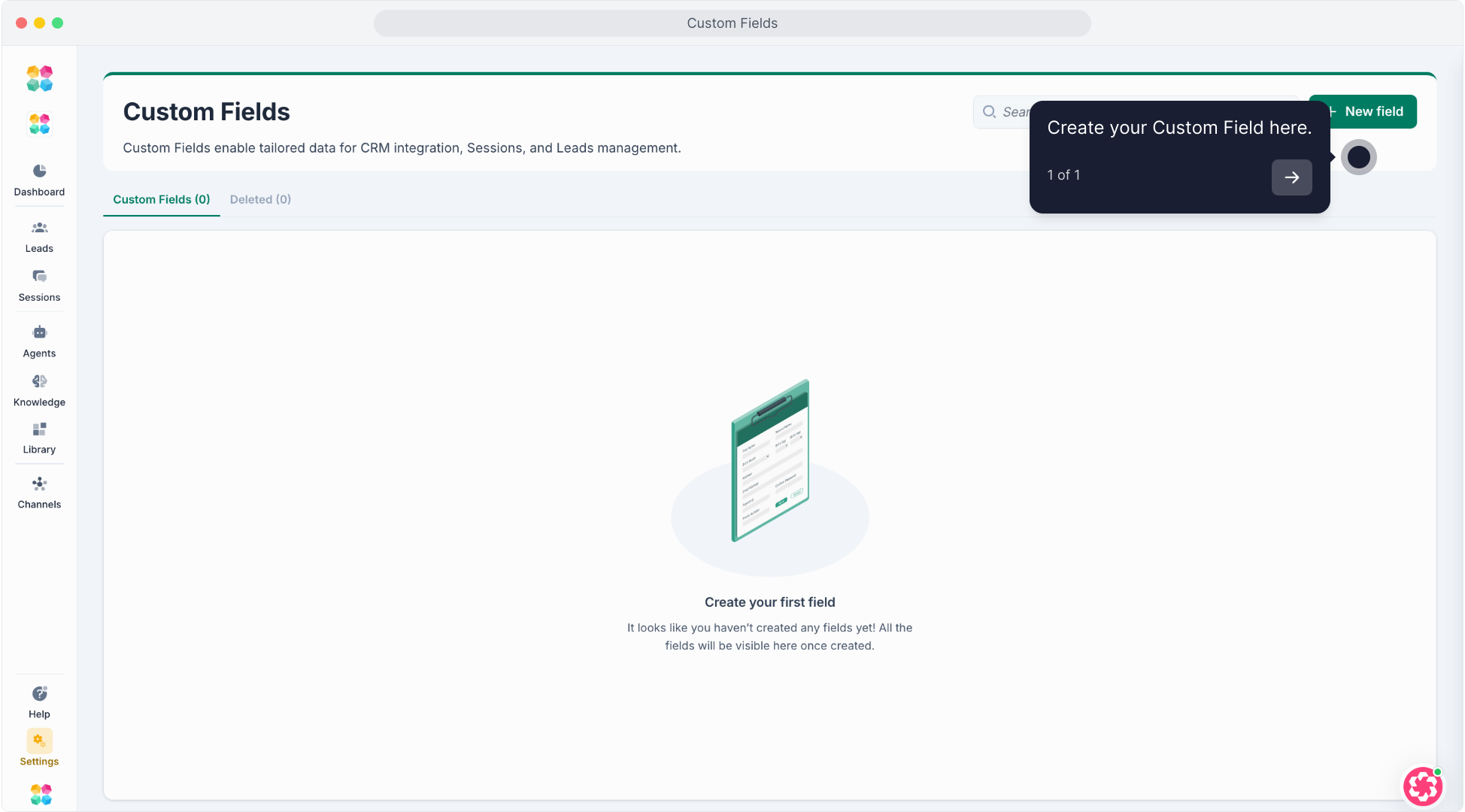
> 💡 Use Custom Fields to personalize data collection and improve how your AI Agents and integrations understand your business.
## Step-by-Step: Creating a Custom Field
### 1\. Open the Custom Fields Page
- Go to **Settings → Custom Fields**.
- Click **\+ Create Field** at the top right.
- A new form will appear titled **“Create your custom field.”**
## Understanding Each Section
Each part of this form defines how your custom field behaves, where it’s stored, and how your AI can use it.
### **Description Section**
This section defines the type of data you’re creating and where it will be applied.
| **Field Name** | **Explanation** |
| --- | --- |
| **Field type** | Defines the type of data that this field stores. The available types are:
\- **Short text:** For brief input (e.g., name, company, title).
\- **Long text:** For longer entries (e.g., notes or feedback).
\- **Number:** For numeric values such as budget, price, or quantity.
\- **Yes/No:** For binary options or flags (e.g., “Qualified Contact”).
\- **Datetime:** For date and time entries like appointments or submissions.
\- **Dropdown:** For predefined choices such as “Hot / Warm / Cold.”
\- **Website:** For storing URLs or web links. |
| **Page assigned** | Choose where the field applies:
\- **Contacts** – for storing data collected from conversations or forms.
\- **Sessions** – for storing metadata related to chat sessions. |
| **Status** | Defines the field’s current state:
\- **Active**: Available for use in your workspace.
\- **Inactive**: Hidden but stored — can be reactivated anytime. |
| **Field name** | The visible name of your field in the workspace, e.g. “Company Name” or “Budget.” |
| **Placeholder text** | Optional guiding text shown inside the input box (e.g., “Enter company name…”). |
### **Field Description & Behavior**
This section defines how the field is described, controlled, and accessed by the AI.
| **Field Name** | **Explanation** |
| --- | --- |
| **Field description** | Add a short description (up to 150 characters) to explain what this field is used for.
Example: “Used to track source of the contact.” |
| **AI access toggle** | Enable this if you want your AI Agent to read or write to this field during conversations.
Example: The AI can save a “Budget” value after asking the user. |
| **Required field toggle** | Make this field mandatory — it must be filled before a record can be saved. |
| **Unique key** | A unique ID used for backend mapping, automations, or CRM integrations.
Example:
`company_name`
or
`contact_source`
(no spaces, lowercase only). |
### **Tags Section**
Tags help you organize and search your custom fields efficiently.
- Enter one or more tags in the **“Input tags here”** field.
- Example tags: `CRM`, `Marketing`, `ContactData`.
- Tags make it easier to filter and manage large sets of custom fields.
### **Form Actions**
At the bottom of the form:
- Click **Cancel** to discard and close the form.
- Click **Create** to save your new custom field.
Once created, the field becomes active immediately and is available in your workspace.
## How to Use Custom Fields
You can use custom fields across multiple areas of [MagicBlocks](https://magicblocks.ai/hc):
1. **In Contacts**
Capture and store contact-specific data such as “Industry,” “Budget,” or “Campaign Source.”
2. **In Conversations**
Add questions in your **Journey** that automatically fill custom fields.
Example: “What’s your company size?” → saves to field `Company Size`.
3. **In Automations**
Use custom fields as conditions or data variables in **Actions** and **Tasks** to send or update information in other tools.
4. **In Integrations**
Map your MagicBlocks custom fields to matching CRM fields (e.g., HubSpot, GoHighLevel, or Zapier).
5. **In Reports (coming soon)**
Filter analytics or performance data using your custom field values.
## Managing Custom Fields
- Click a field name to **edit details**, **toggle AI Access**, or update its **status**.
- Change **Status → Inactive** to hide a field without deleting it.
- Use the **Search Bar** to find fields quickly by name or tag.
- Click the **Delete icon** to permanently remove a field.
> ⚠️ Deleting a field also deletes all data linked to it — export your data first if you need to keep it.
## Best Practices
- Use short, descriptive names (e.g., “Region,” “Contact Source”).
- Keep **unique keys lowercase and consistent** across workspaces.
- Turn on **AI Access** only for fields that your AI needs to reference.
- Use **Tags** to group fields by function (e.g., CRM, Marketing, Sales).
- Review and clean up unused fields regularly to maintain performance.
## FAQs
**1\. What’s the difference between Field Name and Unique Key?**
Field Name is the display label in MagicBlocks; Unique Key is the technical identifier used by automations and CRMs.
**2\. Can my AI Agent update custom fields?**
Yes — if **AI Access** is toggled on, the AI can read or write to those fields automatically.
**3\. What happens if I deactivate a field?**
It becomes hidden but stays stored. You can reactivate it anytime.
**4\. Can I make a field required?**
Yes — toggle **Required field** when creating or editing your field.
**5\. Are custom fields shared across workspaces?**
No. Each workspace has its own set of fields to keep data isolated and secure.